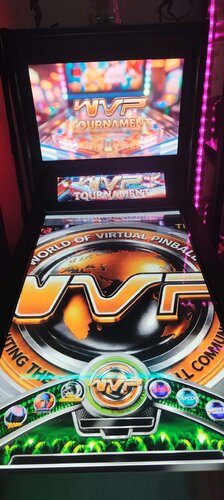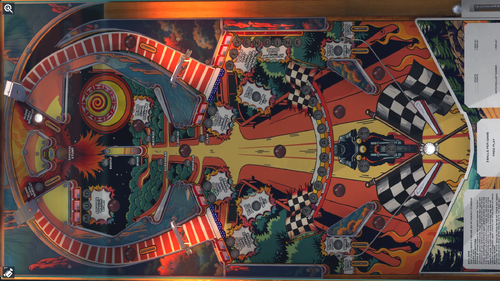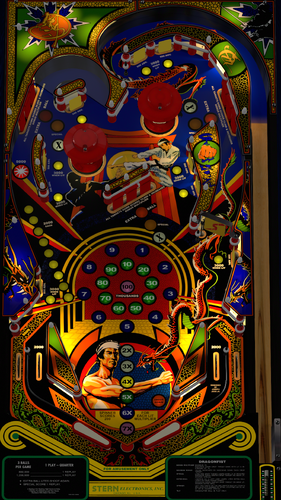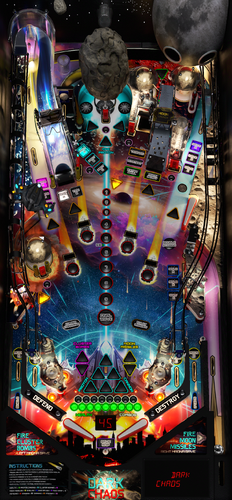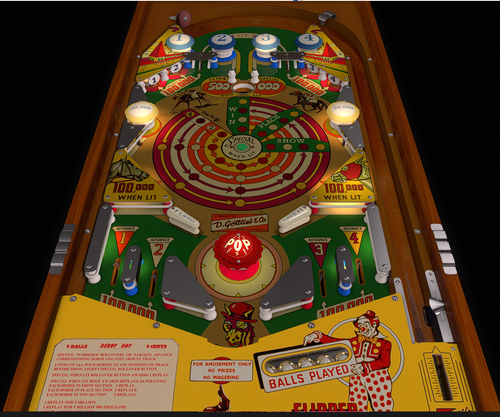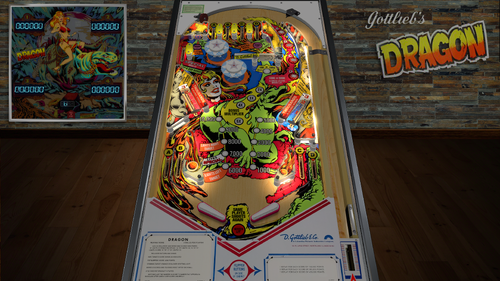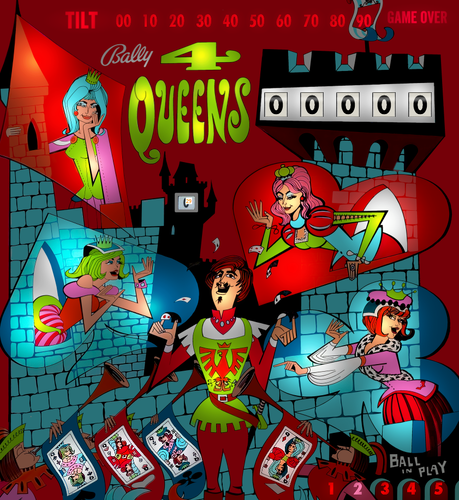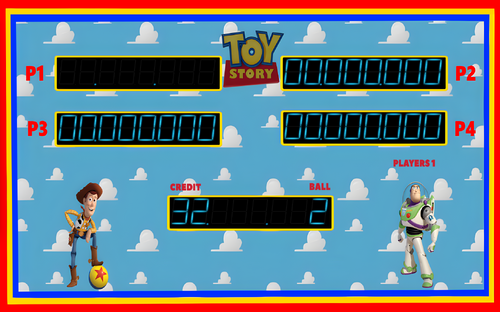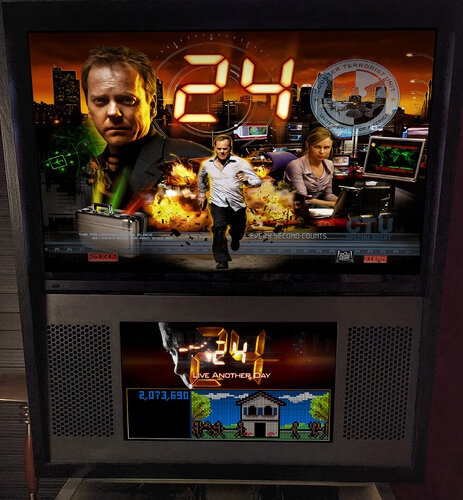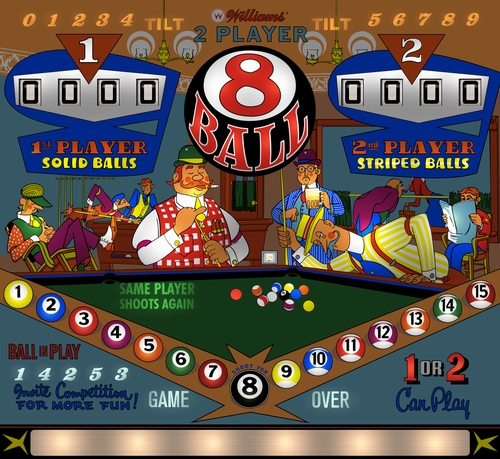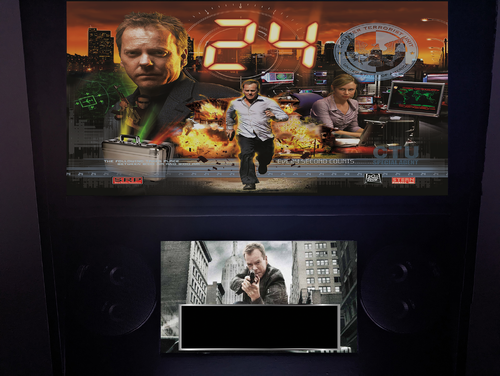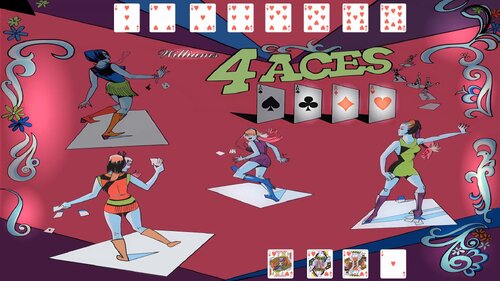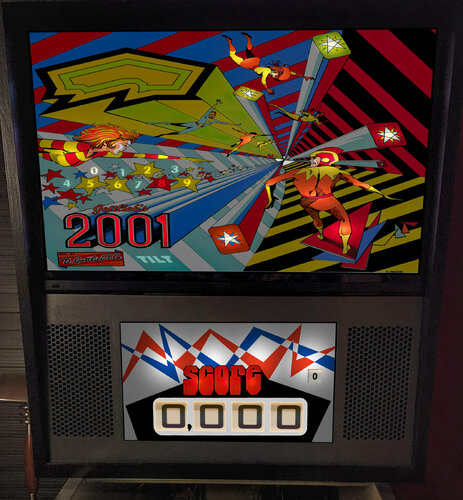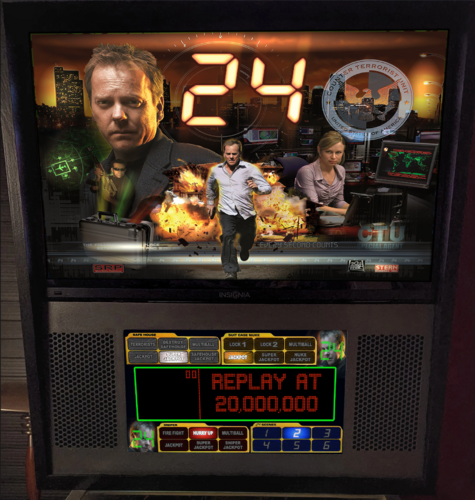

42 files
-
Virtual Pinball Media by PEandS1Ws
By PEandS1Ws
Virtual Pinball Media Files
Folders on MEGA:
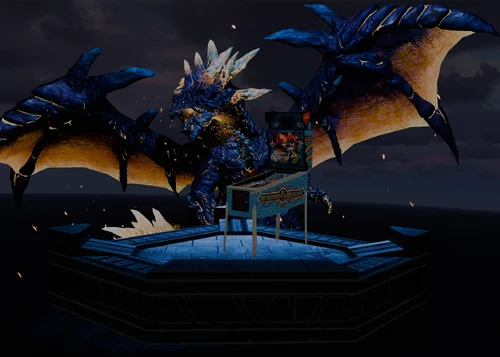
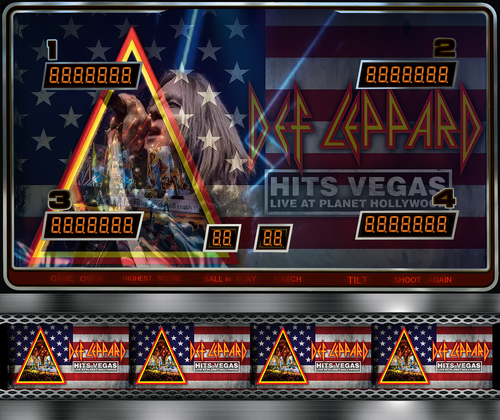
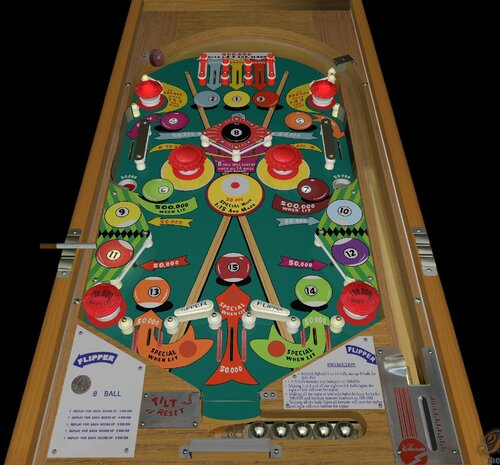
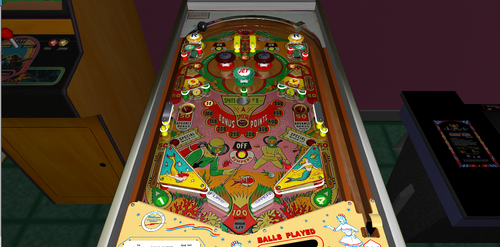
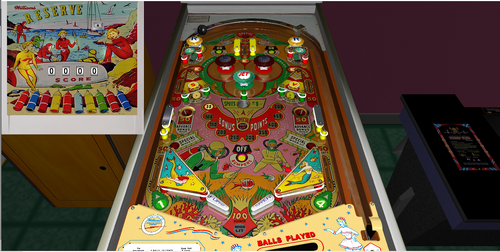
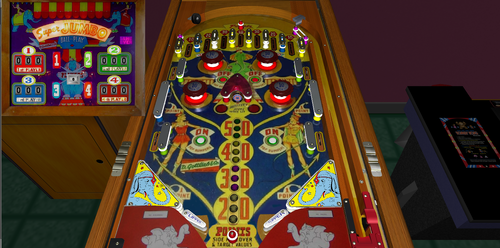
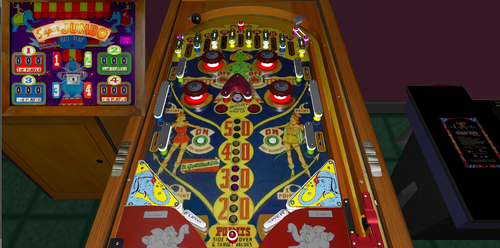
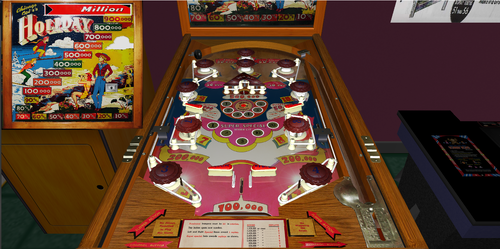
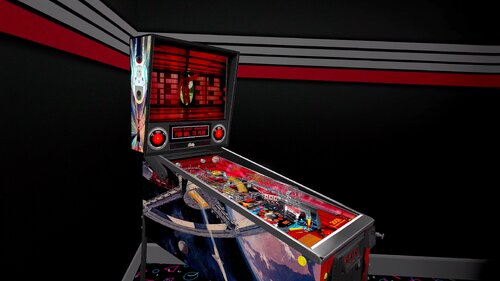
VPX Attract Backglass-Over 250 for mostly original Visual Pinball X tables. A good substitute for the normal b2s backglass video file in your front end. Launch Audio is included in the folder for each table. Includes special Holiday tables.
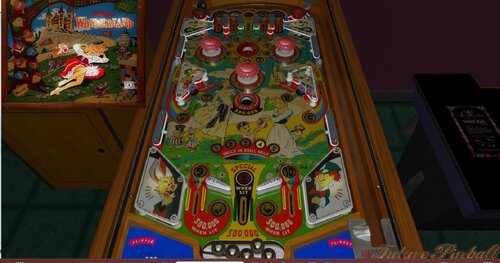
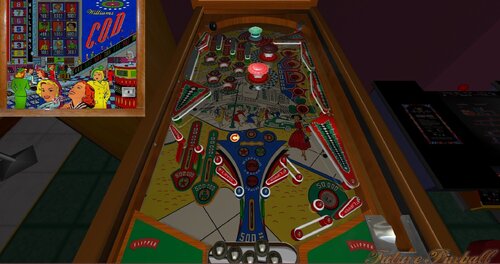
Future Pinball Attract Backglass-Actual Backglass image with added animations or video. Add a little flair to your Future Pinball collection.
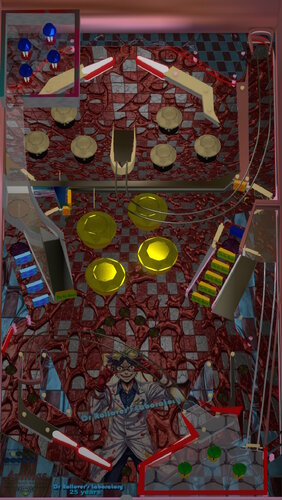
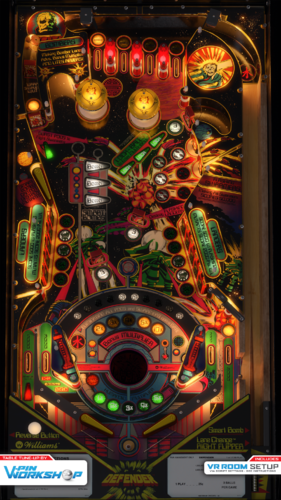
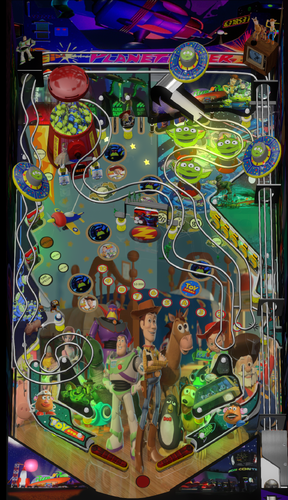
Future Pinball Playfield Videos-.mp4 video of playfield for use in your front end.
Pinball FX3 Animated Backglass-All 99 2 screen versions with DMD/Speakergrille. 69 3 screen versions with and without FX3 logo. Best used with Pin Up Popper but they can be used with Pinball X/Y. Add these as your backglass file in Media Manager. Info here for keeping FX3 animated backglass playing when you load the table:https://www.nailbuster.com/wikipinup/doku.php?id=managing_games
Full DMD-Over 800 Full DMD .mp4's. Lots of Full DMD's for Originals, EM tables and Future Pinball.
Star Wars Popper Theme-My personal Star Wars Popper theme. I use this on my Star Wars themed cabinet.
Phenom VPX 2 Screen Backglass-Video backglass for 2 screen users of Phenom's Kid tables. These allow your backglass video not to be blocked by your DMD for the table. Resize your DMD into the cutout.
Table Wheel-Table Audio-Wheels and table audio
Loading Videos-I made these for some of the Pup Packs I have in my lineup
NFL Tables (Xenonph)-Full DMD for all tables. Popper playlist media for NFL tables. Instruction Cards for all 32 teams.
Toppers-Topper Videos I have made
Instruction Cards-Over 1300 Instruction Cards for use in your front end. Mostly EM and Original Tables. A big thank you to Inkochnito for his EM database (https://www.pinballrebel.com/pinball/cards/). Be sure to check out other instruction cards made by authors like @cheese3075@buffdriver @Kongedam @eddiemonsta @Frank_Enstein @CarnyPriest and others visit https://vpuniverse.com/files/category/91-instruction-cards/ or https://vpuniverse.com/files/category/9-hyperpin-media-packs/ (Authors - if you see anything in my MEGA belonging to you just drop me a PM and I will remove. I think I got them all out 😊)
See the video from The Way of the Wrench (who inspired me to do this on my cabinet) for a tutorial on how to add to Popper https://youtu.be/RZTwHQNNqDc?si=l4nS24MQaMU9WAKP
Pinball Flyers-Over 1900 pinball flyers for use in your front end. I created hundreds for tables that do not exist in real life and many that there were no pinball flyers available. I will continue to add to this as new tables are released. Add these to your front end just like the instruction cards. There is a sub folder called Popper - No Stretch will has non standard size flyers so they will not be stretched when shown in your Popper front end.
A big thank you to the original table authors, artists, and others who allowed me to use their artwork. Big thank you to vogliadicane, IvanTBA, HiRez00, Cocothetrain, hauntfreaks, godisnothere, scutters, STAT, Rajo Joey, and Nick D for their work.
5624 downloads
- future pinball
- animated backglass
- (and 28 more)
-
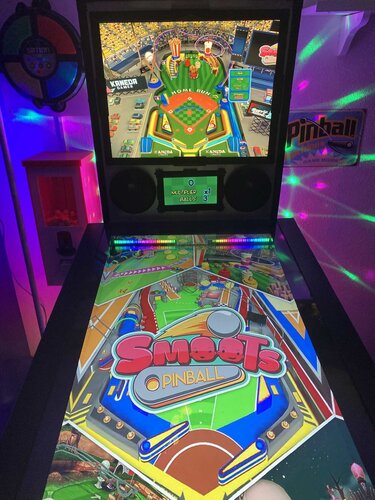
Smoots Pinball (JanduSoft 2023) Media Files & Cabinet Instructions
By SixOfTwelve
Curb your enthusiasm, it's another episode of
Let's Put Things On Cabinets That Were Never Meant To Be On Cabinets!
Oh dear. How do I put this.
Usually, the games featured in this series have something that immediately grabs me. Maybe it’s historical significance, a quirky mechanic, or simply enough charm to make me feel they deserve a place on a virtual pinball cabinet.
This is not one of those times.
Now, before anyone gets the wrong idea, Smoots Pinball was brought to my attention by user @iwantpinball, whose help with scripting and artwork for this release is hugely appreciated. Mentioning the game to me was not some grand declaration that it was a forgotten masterpiece; it was more a case of “hey, this odd little thing exists.” And, in fairness, odd little things are exactly the sort of rabbit hole this series tends to disappear into.
That said... after spending some time with it, I have to admit the game itself really didn’t win me over.
Warning: longish rant incoming.
You’d be forgiven for not knowing what a Smoot is - I certainly didn’t. Think somewhere between Nintendo Miis and Funko Pops, without the charm of either, and you’re not far off the mark. These little customizable guys starred in a whole lineup of multiplayer sports games that were released on just about every platform imaginable and received consistently lukewarm reviews across the board. Not quite shovelware, but never exactly striving for greatness either.
Now: It is a truth universally acknowledged that a gaming franchise in possession of dwindling ideas must be in want of a final cash grab. Which usually takes the form of either a kart racer or a pinball game.
And so we arrive at Smoots Pinball, proudly continuing the series’ long-standing tradition of "Yeah, that'll do."
The game features five tables themed around sports: baseball, summer games, tennis, golf - and of course that most popular sporting event of all: zombies. (And if you've ever seen Olympic-level zombieing, you know what I'm talking about.)
Sadly, Smoots Pinball really doesn't have a lot to recommend it. Yes, tables are colorful, imaginative, and fit their themes nicely. There are neat little bits of animation, like the linesman's head turning to follow the ball on the tennis table. The simple controls and unlockables may make it accessible to children who are too young to get the hang of The Twilight Zone-level complexity. The goals for each table are telegraphed clearly by blinking arrows. The music is fine. But there's a persistent sense that the developers haven't actually spent much time around real pinball tables.
For starters: Four balls. That just feels wrong. Three balls? Sure. Five balls? Also common. But four? It constantly feels like one too many, or one too few.
Then there's the nudging. You don’t get directional nudges, just a single "nudge" button. That alone would be forgivable, but there are no tilt warnings, no sounds, no feedback whatsoever. Take it too far and the flippers just stop. Good luck figuring out where the limit is.
The user interface somehow manages the impressive feat of being both too basic and awkward to use at the same time. More on that further below under "Quitting the game".
And, of course, there’s no cabinet mode. A quick look at the Steam discussions pages suggests the developers' general approach is to release a game and then quietly move on. Given that the Smoots series has also been released on PlayStation 5, PlayStation 4, Xbox Series X/S, Xbox One, and Nintendo Switch, it's pretty clear that the PC version was never a priority, much less the virtual pinball niche market. And while you certainly can play the game in portrait mode, a significant part of the screen will be cut off to the left and right, so I decided to make it playable on the backglass screen.
Sorry, folks. I did what I could to make this presentable on a cabinet, and I did pick up a few useful scripting tricks along the way (especially with resolutions and DMDExt) while I wrestled the game into submission.
But I can’t blame you for giving this one a miss.
Longish rant over. For now.
This time, there are two AutoHotkey scripts included. The main one does the usual: It pushes the game window to the backglass screen, fills playfield and DMD with decorative images, launches the game, auto-skips the intro videos and maps the controls to standard cabinet buttons. Optionally, it offers support for analog nudging and plunger use via JoyToKey, and can also use DMDExt to mirror the score display on your DMD screen.
The other script serves as a selection menu: You can pick the table you want to play, and the previous script launches much like it did before, but will continue to auto-select the desired table and auto-start a one player game. Once again, I am indebted to @iwantpinball for this part.
Also included are a number of goodies:
2 backglass images (4:3 and 16:9) a company logo 2 DMD images (one for the frontend, one as a filler image for the script) 5 instruction cards (depending on which script additions you're using) table audio (recorded directly from the game) a table image for your frontend and a filler image for the script (the same image, rotated differently for each purpose) a wheel image Most of these images were graciously provided by @iwantpinball.
Share and enjoy!
SOME MORE NOTES:
Where to get it:
Smoots Pinball is available on Steam.
How to run it:
The game should run "out of the box" on current Windows systems, but being a Steam game, the Steam client will launch along with it and hang around in the background. If you don't mind that, fine.
However, if you have an offline cabinet and want to run the game without the Steam client popping up:
Download the Goldberg Emulator and extract the steam_api64.dll. Go to the game's SmootsPinball_Data\Plugins\x86_64 folder and rename or back up the original steam_api64.dll and replace it with the one from step 1. Create a simple Notepad text file in the same folder, name it steam_appid.txt and paste the game's Steam ID into it. You can find the ID number in the URL of the game's Steam Store website. Running the game's EXE file should now work without Steam. It should be noted that use of a Steam emulator can be a legally gray area. Check your local jurisdiction and make sure you own a legal copy of the game.
Quitting the game: The hard and the easy way
To leave the game, you usually have to navigate your way back to the main menu (using flippers for left/right and magnasave buttons for up/down). Then navigate to the rightmost menu and push up (magnasave/nudge left) to light up the little ball with the x in it in the top corner. That's the game's close button. And it will still ask you one more time if you really want to leave. For this reason, I mapped an extra key (Buy-In, or 2) as an insta-killswitch that will end the game from any place.
Use of JoyToKey:
As I said above, I’ve included optional support for JoyToKey, though I’m hesitant to recommend it in this case.
First, the game only supports a single “nudge” key, so it doesn’t matter where you hit or shake the cabinet - the result is always the same.
Second, and more bizarrely, the game uses the same key for both nudging and the plunger. That means if your analog plunger has a bit of recoil when released, those extra triggered nudges can occasionally tilt the game before the ball has even left the shooter lane.
AI use disclaimer:
No AI was used in the creation of the artwork for this media pack.
However, the launch selection menu script is mostly the result of me arguing with ChatGPT until it finally cooperated.
Finally, here are two videos showing the game running on my cabinet.
Here is the version without running the selector menu first: You get to pick your own table and select your number of players. I also demonstrate the analog nudge by kneeing my cabinet in the groin. The video also shows the tedious way you have to use the exit menu to quit the game. (Also note that on a 4:3 backglass, the menus will look a bit out of place until you get to the game proper, then everything looks fine.)
And this is the version with the selector menu. It launches the table directly and starts a 1 player game. In this video you also get a better look at the DMD screen.
10 downloads
(0 reviews)0 comments
Submitted
-

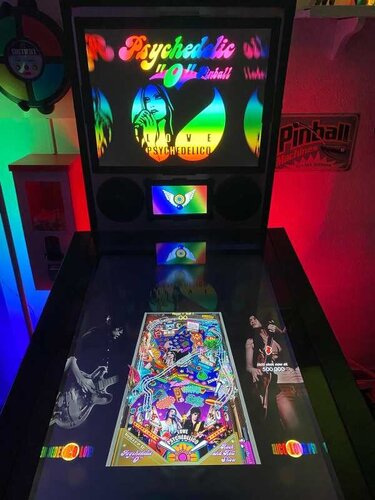
Psychedelic "O" Pinball (LittleWing 2006) Media Files & Cabinet Instructions
By SixOfTwelve
Gotta catch 'em all! Here's another episode of
Let's Put Things On Cabinets That Were Never Meant To Be On Cabinets!
A few weeks back, I put together a series of scripts to bring the pinball games of Japanese developer LittleWing to modern cabinets. As I worked my way through their catalog, one title remained frustratingly out of reach.
A game that was never sold in stores or on their website.
A game that was only ever released briefly in 2006 as a Japan-exclusive bonus disc bundled with a CD by rock duo Love Psychedelico.
A game so obscure it seemed to have vanished completely, nowhere to be found on the entire internet.
Until today.
Psychedelic “O” Pinball, the final missing title, has just surfaced on the Internet Archive, and that means it’s time for one last LittleWing media pack.
Psychedelic "O" Pinball is essentially a reskin and sound mod of LittleWing's Jinni Zeala from 2002. Music and callouts now feature Love Psychedelico's band members, and a handful of graphics have been updated, but otherwise it's the exact same game, genie theme and all. Everything I wrote about Jinni Zeala still applies here: it’s a lot of fun, but the smaller playfield does demand quick reflexes.
As before, the included AutoHotkey script handles the heavy lifting. It rotates the playfield to portrait mode, lowers the resolution to 1024×1080, fills the backglass and DMD screens with decorative images, launches the game, and maps the controls to standard cabinet buttons. Optionally, it offers support for analog nudging and plunger use via JoyToKey. I also managed to upgrade the script a little and hopefully make it more convenient to use.
And, of course, the usual bunch of media:
2 backglass images (4:3 and 16:9) a company logo (taken from Crystal Caliburn's official PDF guide) 2 DMD images (one for the frontend, one as a filler image for the script) 3 flyer images (CD front and back covers, plus the disc itself, courtesy of Internet Archive) 9 instruction cards (from the Jinni Zeala player's guide on LittleWing's website) 2 choices of table audio (recorded directly from the game) a table image for your frontend 2 wheel images to choose from
As always, the script will need a bit of tweaking to fit your setup, but don’t worry - it’s heavily annotated. Give it a proper read-through before heading to the comments for help.
I’m happy to assist where I can, but do try to meet me halfway first 😉
Share and enjoy!
SOME MORE NOTES:
Where to get it:
As mentioned, search the Internet Archive. Whether you find it or not is none of my Beeswax 😉
How to run it:
The installer is in Japanese. Just keep clicking the lower-right button, and it should guide you through.
On first launch, the game will ask for a code, which is included in the download.
Psychedelic “O” Pinball can run pretty choppy on modern systems. It uses an old DirectX version and doesn’t play nicely with portrait mode out of the box, often cutting off parts of the image.
To fix this, grab DDrawCompat from GitHub:
Download the latest release (expand “Assets” and grab the ZIP) Extract ddraw.dll into your game folder Also drop in the DDrawCompatOverlay-Psyo.ini file included in this media pack That .ini file tells DDrawCompat which resolution to use. The menu system is a bit unintuitive:
Press Esc to start (mapped to your Start button) Navigate with the flipper buttons Use Launch (Enter) to select. If the controls don’t work as expected, go to Options → Controls → Reset to Default in-game.
Highscore workaround:
Unfortunately, the high score entry uses keyboard typing instead of the usual “flipper letter select” system from earlier LittleWing titles.
To work around this, the script maps three letters plus Enter to the Coin button (5). By default, it enters N - E - W. Feel free to change that to whatever initials you prefer in the script.
AI use disclaimer:
No AI was used in the creation of the artwork for this release.
Weird final sleep-deprived thought:
I’ve typed the title Psychedelic “O” Pinball so many times now that my brain has started to read it as the name of a very eccentric Irish private detective.
Psychedelic O'Pinball, at yer service - to be sure, faith an' begorrah.
9 downloads
(0 reviews)0 comments
Submitted
-
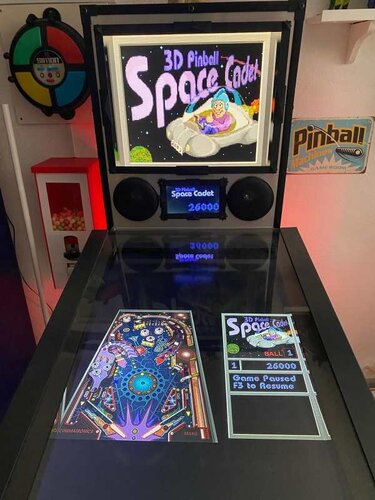
Space Cadet (Maxis 1995) Media Files & Cabinet Instructions
By SixOfTwelve
Houston,
Let's Put Things On Cabinets That Were Never Meant To Be On Cabinets!
This is the big one, kids. The OG. The granddaddy of them all. It's 3D Pinball: Space Cadet, released by Microsoft in 1995 as part of their Plus! package and bundled with every Windows operating system afterwards, up to and including Windows XP in 2001.
To call this game influential would be an understatement. It was in everyone's home, and everybody and their grandmother played it. For a lot of people, this was their first taste of virtual pinball. And the best part? It still runs on modern systems, so of course I had to give this one the special full cabinet treatment.
Yeah, but… why?
We’ve got an excellent VPX recreation by the venerable JP Salas. It got a fantastic overhaul in 2025 with @funkatron101’s Galaxy Edition. There are multiple high-quality mods out there. So why go back to the clunky old Windows version and put it on a cabinet?
I can only answer that for myself: Because it’s there. Because I wanted to see if I could - which is kind of the entire point of this series.
And because when someone steps up to the cab and says, “Hey… this reminds me of that game I used to play as a kid,” I want to be able to smile, say: “You mean this one?”, fire it up, and watch the nostalgia hit.
And honestly? It deserves to be there. Out of respect.
So, today's included AutoHotKey script makes Space Cadet run on your cab: It rotates the playfield to portrait mode, lowers the resolution to 600x800, places filler images on the backglass and DMD screens, launches the game, covers up some of the Windows-specific interfaces and maps your cabinet buttons to the appropriate keys. Optionally, it offers support for analog nudge and plunger via JoyToKey, and DMDExt support for showing the score on your DMD screen.
Brace yourselves for a space freighter full of goodies:
4 backglass images (two in 4:3, two in 16:9, featuring both original and AI reimagined art) 3 company logos (you pick: Maxis, Cinematronics or Microsoft) 2 DMD images (one for the frontend, one as a filler image for the script) 3 flyer images (shots of the Microsoft Plus! packaging, courtesy of Archive.org) a whopping 71 instruction cards (text taken from the offical rules document, fully illustrated in loving detail by myself, plus a few extra pages from an online strategy guide - this may well be the most comprehensive guide to the game out there, and it should be usable for the VPX version as well!) launch audio (the classic wormhole sound effect) a promo video (a short vintage Microsoft Plus! TV ad) table audio (recorded from the game) 2 table images (one for your frontent, one to hide the game's Windows UI during startup) a wheel image (courtesy of the Launchbox Games Database)
As always, the script will need a bit of tweaking to fit your setup, but don’t worry - it’s heavily annotated. Give it a proper read-through before heading to the comments for help.
I’m happy to assist where I can, but do try to meet me halfway first 😉
Share and enjoy!
SOME MORE NOTES:
Where to get it:
Space Cadet is no longer bundled with Windows, but it’s still easy to find online, either as part of old Windows ISOs or as a standalone download. Archive.org is probably your best starting point.
How to run it:
Amazingly, the game still runs without a hitch on modern Windows systems - or at least the later versions do. Some original Windows 95 builds floating around may not cooperate, so make sure you grab a working version and test it before wiring it up to the script.
You may need to tweak the timing of a couple of Sleep commands in the script, depending on how quickly the game launches on your system:
The first Sleep covers the time until the game’s “3D Pinball” splash screen disappears (after which the script’s loading overlay takes over) The second Sleep waits for the game to fully load before sending F4 to switch to fullscreen and remove the overlay.
A word about controls:
The Coin button acts as Pause (F3). The menu bar is hidden by the script. The Start button pulls double duty: It restarts the game (F2) and acts as Enter for high score entry. The script assumes you're using the game's default controls. With a US keyboard layout, everything should work out of the box. On other layouts, the default / key for the right flipper may cause issues. If so, remap it in-game and adjust the script accordingly. (Details are in the script comments.)
What I'm not completely happy with:
The game always launches in windowed mode and needs to be switched to fullscreen (via F4) once it’s loaded. The script handles this and hides the transition behind an overlay image.
That said, the game window will sometimes briefly pop in front of the overlay before going fullscreen. Not every time though, and I haven’t figured out why. If you crack that one, let me know.
What's not working (yet):
Right now, the setup is locked to single-player.
In theory, enabling more players should be as simple as having the script send: Alt+O → P → [1–4]
Feel free to experiment, and definitely let me know if you get it working 🙂
AI use disclaimer:
The alternate backglass was created with ChatGPT, using the original screenshot as a starting point.
Fun fact: AI is terrible at left and right hands. The Cadet’s thumbs-up hand kept switching sides like it was in a mirror universe. After about 30 iterations and corrections, this was the best result I could get. Hope you like it!
Would you like to know more?™
Absolute madman Timothy Peterson has created a YouTube playlist in which he shows how to beat every single mission the game has to offer. These videos have been invaluable to me in putting together the Instruction Cards, since the official rules document that came with the game does contain a handful of errors and unclear definitions, which have been corrected for this version.
15 downloads
-
Tokyo Pinball (Rikiya Minami 2022) Media Files & Cabinet Instructions
By SixOfTwelve
Because the voices told me to... here's another episode of
Let's Put Things On Cabinets That Were Never Meant To Be On Cabinets!
Today’s game is Tokyo Pinball, released in 2022 by Rikiya Minami aka "Ricky". The game fully leans into a classic pixel-art aesthetic, complete with delightfully grating chiptune music and a range of visual options (CRT shaders, screen curvature, and more) to make it feel like you’re playing on some janky old cab in a dingy arcade basement somewhere.
As for gameplay, the physics are arcade-y but solid, and features like "bullet time" slow motion when the ball nears the drain make it very beginner-friendly. There’s also a good set of tutorials to help you get up to speed.
I really like this one - it’s clear the creator is a huge pinball fan and genuinely wants his game to act as a kind of “gateway drug” into the hobby. He even links to resources on his website showing where people can find places to play real pinball in Japan. And I have a ton of respect for those tiny teams - sometimes just one person (or two, in the case of LittleWing) - who manage to turn their own unique vision into a fully realized game.
Actually, today is a bit of a cheat day for Let's Put Things On Cabinets That Were Never Meant To Be On Cabinets! , because Tokyo Pinball already includes video options that are very much intended for cabinet play.
That said, it’s not completely cabinet-friendly. There are a few rough edges, but that's where the included AutoHotKey script comes in. It handles the usual behind-the-scenes magic: placing filler images on the backglass and DMD screens, launching the game, and mapping your cabinet buttons to the appropriate keys.
A quick word about controls:
This is where that “not completely cabinet-friendly” I mentioned above comes into play. The game requires separate keys for flippers, nudge, and kickback, meaning you’d ideally want three buttons on each side of your cabinet. Since most setups don’t go that far, I made a judgment call after some playtesting: in this case, kickback felt more useful than nudge, so the magnasave buttons are mapped to kickback.
If you’re running an analog controller in your cabinet, you can optionally use JoyToKey to handle nudging by physically abusing the cab. And of course, if you do have extra buttons available, the script can be adjusted to map those as well.
As usual, I’ve bundled in a generous pile of goodies to pretty up your frontend:
2 backglass images (one in 4:3 and one in 16:9) a company logo (since the creator doesn't have one, I built one out of his itch.io profile logo) 2 DMD images (one for the frontend, one as a filler image for the script) 2 flyer images (photos of the physical game CD and its inlay) 15 instruction cards (text from the PDF manual on Steam, images added by me) a promo video (trailer from the creator's YouTube channel) table audio (recorded from the game) a table image for your frontent a table video for your frontent a wheel image (from the creator's itch.io page)
As always, the script will need a bit of tweaking to fit your setup, but don’t worry - it’s heavily annotated. Give it a proper read-through before heading to the comments for help.
I’m happy to assist where I can, but do try to meet me halfway first 😉
Share and enjoy!
SOME MORE NOTES:
Where to get it:
While Tokyo Pinball is available on Steam, I highly recommend getting the version directly from Rikiya Minami's itch.io page. You might be paying a few cents more (and I do mean just a few, if any), but:
The creator gets a better cut of the profits on itch.io The itch.io version of the game doesn't need Steam running in the background and so is better suited for offline cabinets In my case, the Steam verison would constantly end up slipping behind my PinballX frontend window when launched - something that didn't happen with the itch.io version
How to run it:
Being only four years old at the time of this posting, the game should run without any fuss. Just make sure your video settings are configured correctly:
The 270° rotation is key Your window size may vary depending on your resolution. Note that you're setting the resolution for your landscape mode, even though the game screen is rotated Set the pixel scale as high as possible to fill the screen nicely
If the "bullet time" effect mentioned above is not your thing, you can turn it off in the options. I quite like it and it's part of the game's unique charm, but the fact that the music also slows down every time it's happening can make it irritating.
On that note, turning off lowpass filter and reverb effect in the audio settings also helps take the edge off the soundtrack. Don't expect miracles, but every little bit helps.
AI use disclaimer:
No AI was used in the creation of the artwork.
12 downloads
-
Sonic the Hedgehog: Spinball (SEGA 1993) Media Files & Cabinet Instructions
By SixOfTwelve
And now for a very special edition of
Let's Put Things On Cabinets That Were Never Meant To Be On Cabinets!
Today it's time for a true classic: Ask any retro gamer to compile a list of influential pinball video games, and chances are that 1993's Sonic the Hedgehog: Spinball will pop up somewhere in their top ten. The game was developed in a relatively short amount of time by an American team after it became clear that the Japanese team working on Sonic the Hedgehog 3 wouldn't have the game ready in time to take advantage of the 1993 Christmas shopping season.
The ball physics are pretty bad, the control mechanism - a mixture of flipping, jumping and moving - is pretty clunky, but the Sonic factor still makes the game fun to play and it has a special place in many people's hearts.
The included AutoHotKey script launches the Megadrive/Genesis version of the game via RetroArch, covers the backglass and DMD screen with filler images and maps your cabinet's buttons to the game's keys.
A word about the controls:
Since most cabinets don't have a joystick on them, I needed to map the game's left/right movement to the Magnasave buttons in order to keep the Flipper buttons free to do the actual flipping. The game's Down button is mapped to the cab's Launch button. It's used in combination with the flippers for Sonic's dash maneuver. The game's Up button is only used for looking up and not really necessary in the game. I mapped it to the Buy-in button, but if your cab doesn't have one, it's no big loss. There is a maneuver that can be performed during bonus rounds originally by pressing all three controller buttons on the SEGA controller simultaneously. Since it's very impractical to push three buttons on a cab at the same time, I mapped the two Magnasave buttons to trigger all three controller buttons when pressed at the same time. The only time you'll notice this is when you enter the bonus rounds and use it to tilt Sonic's pinball table.
Another word about the controls:
If you look at the script, you'll notice that I used a sort of "double mapping": First I mapped keys to buttons in RetroArch, and then I used AutoHotKey to map other keys (the cabinet buttons) to those RetroArch keys.
The reason is that I use RetroArch to emulate other systems as well, and the key for "left flipper" in one game isn't always the same in another. Rather than work with half a dozen control schemes in RetroArch, I find it easier to stick to one and adapt the controls for each particular game in AutoHotKey.
Included media:
a backglass image (in 4:3 format) a company logo 2 DMD images, one for the frontend and a filler image used by the script 7 flyer images (courtesy of MobyGames) 15 instruction cards (taken from the game's PDF manual) table audio (recorded from the game) a wheel image (courtesy of the LaunchBox Games Database)
As usual, the script needs to be adapted to your system, but no fear - it's extensively annotated. Please take a good long look through it before asking for help in the comments section.
I'll gladly try to help, but please do make an effort first.
Share and enjoy!
SOME MORE NOTES:
Where to get it:
Oohh no. Nope. Uh-uh. Not touching that one with a thirty-nine-and-a-half-foot pole. You're on your own here.
How to run it:
As stated above, the game requires RetroArch to run.
Setting up RetroArch is a bit of a science in and of itself, and is frankly beyond the scope of this post. Make sure you have the game up and running to your satisfaction before attempting to use the AutoHotKey script.
Some pointers though:
My version uses the genesis_plus_gx_libretro core. Look at Settings -> Video -> Output -> Monitor Index to select the right monitor for your backglass screen (it was "2" in my case). Settings -> Input -> Port 1 Controls is where you map your keys. For my own setup, I had them set differently than the standard, because I re-use the same configuration files for RetroArch on some of my other (non-pinball) arcade cabinets and didn't want to revamp them completely for my pinball cabinet. You can map them to anything you like, just make sure you adjust the key mappings at the end of the script accordingly. My own mappings are listed in the script. It's also a good idea to set Settings -> On-Screen Display -> On-Screen Notifications to OFF (otherwise you'll get notifications like "ROM loaded" on screen) once you've set everything up the way you need it. Also make sure to set Settings -> Input -> Hotkeys -> Confirm Quit to OFF, or else RetroArch will make you press the Exit button twice before quitting. If you have extra cabinet buttons free, you can go to Settings -> Input -> Hotkeys and map them to "Load State" and "Save State" - very convenient and highly recommended.
AI use disclaimer:
No AI was used in the creation of the artwork. ChatGPT was helpful in figuring out the "fire three virtual buttons at the same time when pressing two actual buttons simultaneously" part. It got the actual code wrong, but put my brain on the right track 😉14 downloads
(0 reviews)0 comments
Submitted
-
Adventure Pinball: Forgotten Island (Electronic Arts 2001) Media Files & Cabinet Instructions
By SixOfTwelve
Oh good, you're here. Have a seat, you almost missed the latest episode of
Let's Put Things On Cabinets That Were Never Meant To Be On Cabinets!
Today we open the door, get on the floor, and walk the dinosaur as we journey to Adventure Pinball: Forgotten Island, published in 2001 by Electronic Arts. Set on a remote prehistoric island, the game is famous for bending the Unreal engine, generally used for first-person shooters, to create a pinball simulation instead. The playfield layouts are varied (if a tad confusing sometimes) and make great use of the 3D environment. While the ball physics aren't all up to scratch, the game holds a certain early-2000s charm and flows very well.
The included AutoHotKey script rotates the playfield to portrait mode, covers the backglass and DMD screen with filler images, mounts the game's CD-ROM image (the game plays audio tracks from CD) and maps your cabinet's buttons to the game's keys.
There is also an option in the script to use JoyToKey for your cab's analog device, so if you prefer, you can nudge by hitting the cab instead of hitting buttons, and use the plunger to launch the ball.
Included media:
2 backglass images (one in 4:3 and one in 16:9 format) a company logo 2 DMD images, one for the frontend and a filler image used by the script (taken from the game's CD inlay) 2 flyer images (the game back and front cover, courtesy of MobyGames) 21 instruction cards (taken from the game's PDF manual) table audio (recorded from the game) a table video 2 wheel images (large and smaller)
As usual, the script needs to be adapted to your system, but no fear - it's extensively annotated. Please take a good long look through it before asking for help in the comments section.
I'll gladly try to help, but please do make an effort first.
Share and enjoy!
SOME MORE NOTES:
Where to get it:
Unfortunately, at the time of this posting, Adventure Pinball: Forgotten Island is not available on GOG or other sales platforms, so eBay may be your best legal option.
How to run it:
OK, this will require a bit of work.
Start the Setup.exe from the CD-ROM and install the game into a directory of your choice. Make sure to also install the DirectX files it offers. When you first start up the game, it will ask you which graphics mode to use: I found that for me, the "3dfx Glide for Windows" option worked best. Your mileage may vary. Make sure to set the graphics resolution to 800x600, which is the highest it will allow. Your game CD then needs to be converted into the .BIN/.CUE image format (since an .ISO image won't save the audio tracks). There are several tools available to do this for you, but that's beyond the scope of this post. To mount the CD image, I use the free version of Alcohol 52% on my cab. If you're using something else to mount .BIN/.CUE images, you need to change the command line at the appropriate place in the script. Even with all that, there is a possibility the game won't launch since it won't recognize the mounted CD image as a true CD-ROM. My advice is not to Abandon hope, but to look Ware you can find a patch. It should be noted that use of these kinds of patches can be a legally gray area. Check your local jurisdiction and make sure you own a legal copy of the game. I've read some comments where people said the PB.exe that starts the game needs to be run as administrator or in compatibility mode with Windows XP, but it actually ran without problems for me in normal mode. For a quicker game start, rename or delete the intro1.mpg file in the game's "System" folder.
AI use disclaimer:
The game's packaging cover image was upscaled and expanded in FreePik, and then further edited in Photoshop to create the backglasses.
The images for the wheel and DMD were also upscaled in FreePik, and then further edited in Photoshop.
10 downloads
-
Momonga Pinball Adventures (Paladin Studios 2016) Media Files & Cabinet Instructions
By SixOfTwelve
Just when you thought it was safe to go back into the mancave, here's yet another episode of
Let's Put Things On Cabinets That Were Never Meant To Be On Cabinets!
Today it's fun for all ages as we launch a small furry creature against hard objects in Momonga Pinball Adventures, released by Paladin Studios in 2016. As Momo the flying squirrel traverses the world in search of the evil owl soldiers who kidnapped his family, he meets a bunch of quirky characters and has to overcome many obstacles - mainly by curling up into a ball and smashing them to bits.
Momonga Pinball Adventures can't deny its origins as a casual game originally created for mobile devices. You will make many shots due more to luck than skill, but what the game lacks in accurate pinball physics, it more than makes up for in the charm department. The graphics are lush and colorful, the character designs are excellent, and the overall presentation is top-notch. Unfortunately, the game is rather short and ends on a cliffhanger that was never resolved, since the design studio closed its doors in 2024.
The included AutoHotKey script moves the game to the backglass, covers the playfield and DMD screen with filler images, and maps your cabinet's buttons to the game's keys.
I've included a ton of media:
4 frontend backglasses (two in 4:3 and two in 16:9 format) a company logo 2 DMD images, one for the frontend and a filler image used by the script 7 flyer images (collages of character concept art from Paladin Studio's production blog) 2 instruction cards a promo video (the launch trailer for the iOS version) table audio 2 table images, one for the frontend and a filler image used by the script a table video a wheel image
Image sources include Paladin Studio's website, the game's Steam page, MobyGames and the Launchbox Games Database
As usual, the launch script needs to be adapted to your system, but no fear - it's extensively annotated. Please take a good long look through it before asking for help in the comments section.
I'll gladly try to help, but please do make an effort first.
Share and enjoy!
SOME MORE NOTES:
Where to get it:
Momonga Pinball Adventures is available on Steam. At the time of this posting, it's on sale for less than a buck, but in my opinion the game is worth it even at the full Steam price (around $6).
How to run it:
The game should run "out of the box" on modern systems, but being a Steam game, the Steam client will launch along with it and hang around in the background. If you don't mind that, fine.
However, if you have an offline cabinet and want to run the game without the Steam client popping up:
Download the Goldberg Emulator and extract the steam_api.dll. Go to your game folder and rename or backup the original steam_api.dll and replace it with the one from step 1. Create a simple Notepad text file in the same folder, name it steam_appid.txt and paste the game's Steam ID into it. You can find the ID number in the URL of the game's Steam Store website. Running the game's EXE file should now work without Steam. It should be noted that use of a Steam emulator can be a legally gray area. Check your local jurisdiction and make sure you own a legal copy of the game.
The Phantom Input Menace:
If your cabinet has an analog device such as a VirtuaPin Controller that registers in Windows as a joystick, you may find that the game reads one of the joystick's axes as active, which can result in the "up" or "down" direction being pushed constantly - most visible during the main menu screen. This will either prevent you from quitting the game (if the "up-push" is active, since you can never move down to "Quit game") or from starting it (if the "down-push" is active, since you can never move up to "Start").
My solution for this was to install HIDHide, an insanely useful little tool which lets you create a white- or blacklist of software which is allowed (or not allowed) to "see" your gaming input devices.
Here is a quick rundown:
(Since I use my VirtuaPin Controller for many games on my cab in addition to Visual Pinball, a blacklist of "forbidden" games made more sense.)
1. In the "Devices" tab of HIDHide, select your gaming device and make sure to tick "Enable device hiding".
2. Then in the "Applications" tab, tick "Inverse application cloak" (which makes the selection a blacklist), and add the game's EXE file by clicking the plus button.
3. Unplug and replug your gaming device or (if, like me, you don't feel like opening up your cab and pulling out stuff) simply reboot your PC.
4. The next time you run Momonga Pinball Adventures, it won't see your device and the menus should work normally. You can use the flipper buttons (Shift) to move left and right and the magnasave buttons (Control) to move up and down.
Special thanks to:
@iwantpinball for testing the script on his cabinet and providing the alternate backglass images
5 downloads
(0 reviews)0 comments
Updated
-
Artur's Pinball (Proativ Games 2023) Media Files & Cabinet Instructions
By SixOfTwelve
Well, your test results are back and everything looks great. Looks like you've been taking your daily dose of
Let's Put Things On Cabinets That Were Never Meant To Be On Cabinets!
Today we're going down to the bargain basement to take a peek at Artur's Pinball, a 2023 indie game. Thanks to @iwantpinball for bringing it to my attention!
The game stakes its claim firmly on the casual side of pinball sims, with a few interesting features that make it stand out from the masses of shovelware: The ball seems to have its own momentum, so trapping it on a flipper will not work since it'll keep moving, which inevitably leads to faster-paced gameplay. Breakable targets with a visible countdown number (hit them X amount of times and they disappear) will open up the larger playfield where spinning wheels, launchpads and other tricks await you.
While the game can be played in portrait mode, the field of view becomes so narrow that planning shots and reacting in time becomes next to impossible.
That's why the included AutoHotKey script moves the game to the backglass, covers the playfield and DMD screen with filler images, and maps your cabinet's buttons to the game's keys.
There is also an option in the script to use JoyToKey for your cab's analog device, so if you prefer, you can nudge by hitting the cab instead of hitting a button.
There's some media included (unfortunately not much was available):
a backglass frontend video (in 4:3 format - if you have a 16:9 backglass screen you'll have to record your own) a company logo 2 DMD images, one for the frontend and a filler image used by the script (taken from the game's Steam page) 2 instruction cards, depending on how you set up your nudging table audio (recorded from the game) 2 table images (one for the frontend, one for use in the script - they're the same image, but for some reason the two need different rotation directions) a wheel images (taken from the game title screen)
As usual, the script needs to be adapted to your system, but no fear - it's extensively annotated. Please take a good long look through it before asking for help in the comments section right away.
I'll gladly try to to help, but please do make an effort first.
Share and enjoy!
SOME MORE NOTES:
Where to get it:
Artur's Pinball is available on Steam. At the time of this posting, it's on sale for less than a dollar, so you're not going to break the bank if you want to give it a try.
How to run it:
Being from 2023, the game should run "out of the box" on modern systems, but being a Steam game, the Steam client will launch along with it and hang around in the background. If you don't mind that, fine.
However, if you have an offline cabinet and want to run the game without the Steam client popping up:
Download the Goldberg Emulator and extract the steam_api64.dll. Go to your game folder and navigate to the \ARTURS PINBALL_Data\Plugins\x86_64 folder. Rename or backup the original steam_api64.dll and replace it with the one from step 1. Create a simple Notepad text file in the same folder, name it steam_appid.txt and paste the game's Steam ID into it. You can find the ID number in the URL of the game's Steam website. Running the game's EXE file should now work without Steam. It should be noted that use of a Steam emulator can be a legally gray area. Check your local jurisdiction and make sure you own a legal copy of the game.
AI use disclaimer:
The "nudge" hand in the instruction card was created with ChatGPT, and the DMD filler image was upscaled and extended with Freepik.
5 downloads
(0 reviews)0 comments
Submitted
-

Snowball! (PixelJAM 2016) Media Files & Cabinet Instructions
By SixOfTwelve
Baby, it's cold outside! Come on in, warm yourself by the fire and
Let's Put Things On Cabinets That Were Never Meant To Be On Cabinets!
This time, thanks to my stupidity, you get two scripts for the price of one as we tackle Snowball!, a 2016 indie game by PixelJAM.
Snowball! is a cute and, honestly, pretty relaxing pinball game full of neat detailed pixel art. You shoot snowballs around a wintery slope, trying to avoid a fire at the bottom. The game is full of clever details: Ocasionally you hit a tree or some other obstacle, and another little snowball will form, creating a spontaneous multiball. Then there's a section of the playfield that suddenly turns your game into a Breakout variant. Two huge electromagnets act as stationary magnasaves that can also slingshot your ball into different directions if you handle them with the right timing. It's really imaginative stuff.
The game can be played in portrait mode, giving you a complete view of the playfield - which makes it ideal for use on a cabinet.
However, on my screen (resolution 1080x1920 when upright), the game would always start flickering like crazy after a few seconds, making it effectively unplayable.
So I decided to write a script to move the game window to the backglass and have it play there, with the game's field of view scrolling up and down. I had the whole script ready and finished, when I suddenly had a thought:
Snowball! was a ten-year-old game. What if my playfield's resolution was simply too high?
And indeed, once I reduced the resolution to 900x1600 - no more flickering, and the game behaved as it should.
So rather than scrap my first script, I decided to include it here as a bonus. Who knows, maybe on someone else's setup the playfield variation may not work for whatever reason - it's nice to have options.
The second (newer) script
rotates the playfield to portrait mode lowers the resolution to 900x1600 puts filler images on the backglass and dmd screens maps the game's keys and functions to standard cabinet buttons restores rotation and original resolution on exit
The original first script
moves the game window to the backglass puts filler images on the playfield and dmd screens maps the game's keys and functions to standard cabinet buttons
There's a bunch of media included:
2 backglass images (in 4:3 and 16:9 formats) a backglass video for your frontend for the "play on the backglass" variation a company logo 2 DMD images, one for the frontend and a filler image used by the script (taken from the game's press kit on PixelJAM's website) 3 instruction cards, depending on how you set up your nudging (more on that further below) a promo video from YouTube (the Steam launch trailer for the game) table audio (recorded from the game) 2 table images (one for the frontend, one for use in the script - they're the same image, but for some reason the two need different rotation directions) a frontend table video for the "play on the playfield" variation 2 wheel images (one taken from the game title screen, one from the game's press kit on PixelJam's website)
As usual, the scripts need to be adapted to your systems, but no fear - they are extensively annotated. Please take a good long look through them before asking for help in the comments section right away.
I'll gladly try to to help, but please do make an effort first.
Share and enjoy!
SOME MORE NOTES:
Where to get it:
Snowball! is available on Steam. At the time of this posting, you can get it for under 3€. You can run the game's .EXE without Steam, wich is always nice.
Annoying stuff about the game:
Apart from the "needs a low resolution to run" issue, there were two more problems:
Firstly, all the menus can only be navigated by clicking on buttons. There is no "move up/down" or "move left/right" that could be mapped to flipper buttons. Instead, I had to program the keys to position the mouse at a certain spot and click there. Which would be fine if the damn menu buttons were always in the same spot. But no: The button to (re)start a game is in three different locations, depending on whether you're in the start menu, in the pause menu, or on the "Game Over" screen. So when you press "Start", the game now rapidly clicks three different locations each time for it to work in each case. That was fun to figure out.
In the "play on the playfield" version of the script, you probably won't have to change any of these coordinates, since 900x1600 is the fixed resolution.
Should you want to use the "play on the backglass" version, you'll probably have to do a bit of work on the coordinates (unless your backglass has a resolution of 1600x1200 like mine).
Secondly, the game uses the Space bar to activate the magnasave pylons, but if you press Space along with a direction key, you nudge the ball.
No problem, so I simply map the magnasave buttons to perform both functions. Which would be fine if nudging didn't incure a score penalty in the game.
Since I didn't want to punish the player for using the magnasave (which would also count as a nudge, lowering your score), I came up with two alternate solutions:
My cabinet has extra buttons on the top left and right. I simply mapped the magnets (Space) to these and mapped the nudge function (Space+direction) to my magnasave buttons. But not everyone's cab has extra buttons, so... If you have an analog input (like a VirtuaPin controller) that registers as a joystick, you can also use JoyToKey to map the nudge function to [Space+direction], freeing up the magnasave buttons for [Space]. The JoyToKey option can be disabled in the script. The default is set to enabled.
AI use disclaimer:
The "nudge" hand in the instruction card was created with ChatGPT, the rest is all good old-fashioned Photoshop.
I also used ChatGPT to help with some script functions (like reading monitor resolutions automatically without having to hardcode them) that probably would've taken me ages to figure out otherwise.
Special thanks:
iwantpinball for pointing me in the direction of displaying images directly in AutoHotKey instead of using an external tool, as I did in my previous scripts.
10 downloads
-
Crystal Caliburn (LittleWing 1993) Media Files & Cabinet Instructions
By SixOfTwelve
Welcome back to another edition of
Let's Put Things On Cabinets That Were Never Meant To Be On Cabinets!
I'm your host, SixOfTwelve, and today's contestant is Crystal Caliburn, a pinball game released in 1993 for Windows and Macintosh by Japanese company LittleWing.
LittleWing had a critically succesful run of desktop computer pinball games for a while, and while this table is more of a historical curiosity along the lines of Space Cadet rather than being super fun to play, the ruleset is deceptively deep.
Since the game's playfield features lots of tiny writing, I decided against running it on the backglass and put it on the playfield.
The included AutoHotKey script rotates the playfield to portrait mode, lowers the resolution to 600x800, hides the game's Windows menu framework as well as possible, fills the backglass and DMD screens with decorative images and maps the keys to standard cabinet buttons.
I've included
the AutoHotKey launch script, fully annotated (please go through it and adapt the variables to your system before running it!) a DMD filler image for in-game purposes a backglass image (also usable for your frontend of choice), in both 4:3 and 16:9 formats
Also, tons of frontend media:
2 flyer images (courtesy of MobyGames) 20 instruction cards (taken from the official PDF guide) table audio (recorded directly from the game) table image (an upscale of the playfield) wheel image (courtesy of the LaunchBox Games Database) company logo (taken from the official PDF guide)
For the backglass and table image, I decided against enhancing the image with AI or softener filters - I find the dithered grainy "stained glass" aesthetic goes well with the whole tone of the game.
For the AHK script, on the other hand, I am indebted to ChatGPT, who came to the rescue with obscure key codes more than once.
Share and enjoy!
SOME MORE NOTES:
Where to get it:
The company's website at www.littlewingpinball.com is still up, and you can download the demo version of the game there. It needs to be be unlocked to full version with a code you could once buy at the website store, but that store has been "out of service due to a maintenance" since 2013. Never fear though, just browse any Archive that's reasonably well Organized, and BOB's your uncle 😉
What not to do:
Crystal Caliburn should run "out of the box" on Windows 10. Please try to resist setting C_CALIBURN.EXE to run in Windows XP compatibility mode, as the script keys won't work anymore, and all kinds of other things in the script will be broken.
What didn't work:
Unfortunately, the game displays a Windows menu bar before you launch it and during pause. In both instances, the screen does quick weird up/down shifting movements. I covered up the menu bar, but I couldn't find a way to get rid of the image jumps.
Also, I tinkered with putting the score display on my DMD screen with DMDExt, but it made the game run pretty choppy (maybe due to the fact that such a large part of the screen was mirrored), so I skipped it. Also, the graphic jumps I mentioned meant that the DMD would continually shift and look weird in the frame. In the end I decided to just place an image of the dragon zodiac from the PDF guide into the DMD screen.
What I like:
I'm a tiny bit proud of the Pause toggle script I came up with. Usually, the game requires you to press the Esc key to pause it, and then press Ctrl+R to resume - two different things to press. I managed to solve it by having the pause button send Ctrl+R, and then send Esc straight afterwards: If the game is currently running, the Ctrl+R will be ignored, since it does nothing, and then the Esc will put it into pause mode. If the game is already paused, Ctrl+R will trigger a 3-second "Resuming..." countdown sequence, during which the Esc press that follows will simply be ignored. I have yet to see if this technique will work on subsequent LittleWing games.
Finally, here's the thing in action:
61 downloads
-
Fairy Tower (LittleWing 2007) Media Files & Cabinet Instructions
By SixOfTwelve
Up the airy mountain, down the rushy glen
We daren't go a-hunting, for fear of
Let's Put Things On Cabinets That Were Never Meant To Be On Cabinets!
this time we're off into the woods with Fairy Tower, the penultimate game by Japanese studio LittleWing, released in 2007 for Windows and Macintosh. The game features a treasure hunt to return missing enchanted items to a magical tower while harnessing the power of the elements. And of course there's aliens and a spaceship involved in the backstory, because LittleWing.
The tone in this one is a bit incongruous: One the one hand you have gorgeous evocative watercolor title art, the backstory is beautifully illustrated, dealing with themes of gentle giants, magic, loss and regret. On the other hand you have the game blasting wacky banjo polka music at you at all times. Oh well.
The included AutoHotKey script rotates the playfield to portrait mode, fills the backglass and DMD screens with decorative images, launches the game and maps the keys to standard cabinet buttons.
I've included
the AutoHotKey launch script, fully annotated (please go through it and adapt the variables to your system before running it!) a DMD filler image for in-game purposes (two variations) a backglass image (also usable for your frontend of choice), in both 4:3 and 16:9 formats
Also, tons of frontend media:
19 instruction cards (taken from the official website's player's guide, and supplemented by me with a few quick and dirty "what's what on the playfield" images) table audio (recorded directly from the game) table image (an upscale of the playfield) company logo (taken from Crystal Caliburn's official PDF guide) a wheel logo (in two sizes) Sadly, again no flyer images this time, since from 2004's Monster Fair onward, LittleWing sold their games exclusively as downloads, so there are no box covers or any other large-scale artwork I could find.
Share and enjoy!
SOME MORE NOTES:
Where to get it:
The company's website at www.littlewingpinball.com is still up as of 2026, and you can download the demo version of the game there. It needs to be be unlocked to full version with a code you could once buy at the website store, but that store has been "out of service due to a maintenance" since 2013. Sadly, even the trusty Archive that's reasonably well Organized failed me this time. But My advice is not to Abandon hope, you never know Ware it'll turn up 😉
How to run it:
Fairy Tower runs pretty much out of the box on a modern system - no extra DLLs required this time.
The menu system in this game is a bit counter-intuitive, as you have to press Esc to start. I mapped the Start button to Esc, just because I'm used to pressing it whenever I start a game. The script also remaps the flipper keys so they can be used to navigate the menu. Press the Launch button (Enter) to select.
The controls in the script will not work if you mapped different keys in-game. Go to "Options", "Controls" and "Reset to Default" and you should be fine.
What didn't work:
I've been informed that mapping a key to send Esc might kill Pinup Popper. Since I don't use it, I didn't run into that problem, but I'm workin on figuring it out. Please let me know if you find a workaround!
Highscore workaround:
Unfortunately, when it comes to the highscore table, LittleWing moved away from the "select letters with flippers" method of their earlier games and opted for keyboard typing input. I solved this by mapping three letters plus Enter to the Coin button (5). They're set to "N-E-W" in the script - feel free to change them to your preference.
AI use disclaimer:
As I already mentioned, there is no high-resolution artwork available for Fairy Tower. The game intro does feature gorgeous watercolor art by LittleWing co-founder Reiko F. Nojima though, so I decided to use that as the backglass.
The backglass image was upscaled (and expanded for the 16:9 version) with Freepik and tweaked further in Photoshop. For the DMD image, I took the image included in the pack as run_FairyTower_DMD2 and used Freepik to give it a wet watercolor look to match the backglass. Again, I then edited it further in Photoshop. No AI was used for the wheel image - I just picked a font that came as close as possible to the original and tried to recreate the gradient and glow as best I could in Photoshop. (I had to add a stroke around the letters to improve readability against the backglass background.)42 downloads
(0 reviews)0 comments
Updated
-
Monster Fair (LittleWing 2004) Media Files & Cabinet Instructions
By SixOfTwelve
On tonight's spoooky episode of
Let's Put Things On Cabinets That Were Never Meant To Be On Cabinets!
we're visiting Monster Fair, another game by Japanese studio LittleWing, released in 2004 for Windows and Macintosh. It's a carnival run by monsters, who are really aliens, who crashed their spaceship on Earth hundreds of years ago, and are now trying to earn enough money to return home. Seriously, that's the background story. Just like LittleWing's previous Jinni Zeala, this one is a lot of fun, and the wacky factor has even been turned up a few notches.
The included AutoHotKey script rotates the playfield to portrait mode, lowers the resolution to 1024x1080, fills the backglass and DMD screens with decorative images, launches the game and maps the keys to standard cabinet buttons.
I've included
the AutoHotKey launch script, fully annotated (please go through it and adapt the variables to your system before running it!) a DDrawCompat INI file for the resolution - see further below under "How to run it" a DMD filler image for in-game purposes a backglass image (also usable for your frontend of choice), in both 4:3 and 16:9 formats
Also, tons of frontend media:
36 instruction cards (taken from the official player's guide) table audio (recorded directly from the game) table image (an upscale of the playfield) company logo (taken from Crystal Caliburn's official PDF guide) two wheel logos Sadly, no flyer images this time, since from Monster Fair onward, LittleWing sold their games exclusively as downloads, so there are no box covers or any other large-scale artwork I could find.
Share and enjoy!
SOME MORE NOTES:
Where to get it:
The company's website at www.littlewingpinball.com is still up as of 2026, and you can download the demo version of the game there. It needs to be be unlocked to full version with a code you could once buy at the website store, but that store has been "out of service due to a maintenance" since 2013. Never fear though, just browse any Archive that's reasonably well Organized, and you should find it before you can count to 1.2.0 😉
How to run it:
Monster Fair will run terribly choppy or even crash on most modern systems since it uses an obsolete DirectX version, and also cut parts of the image off when played in portrait mode. Go to https://github.com/narzoul/DDrawCompat/releases and download the latest version of DDrawCompat (expand the "Assets" tab under the latest post and get the ZIP file). Unzip and put the ddraw.dll file into your Monster Fair game directory. This Media Pack includes a file called DDrawCompatOverlay-MonsterFair.ini that needs to be dropped into the same folder, as it will tell DDrawCompat what resolution to use.
The menu system in this game is a bit counter-intuitive, as you have to press Esc to start. I mapped the Start button to Esc, just because I'm used to pressing it whenever I start a game. The script also remaps the flipper keys so they can be used to navigate the menu. Press the Launch button (Enter) to select.
The controls in the script will not work if you mapped different keys in-game. Go to "Options", "Controls" and "Reset to Default" and you should be fine.
Highscore workaround:
Unfortunately, when it comes to the highscore table, LittleWing moved away from the "select letters with flippers" method of their earlier games and opted for keyboard typing input. I solved this by mapping three letters plus Enter to the Coin button (5). They're set to "N-E-W" in the script - feel free to change them to your preference.
AI use disclaimer:
As I already mentioned, there is no high-resolution artwork available for Monster Fair, and the in-game graphics don't really lend themselves to backglass images (unlike earlier LittleWing games up to Angel Egg, which had large images next to the playfield). So it was with a heavy heart that I decided to use AI to generate a title screen that looked vaguely like it could have been created at the time of release: Low-polygon 3D rendered characters with glossy surfaces that have a touch of the uncanny valley about them. I picked the game's four most prominent characters: The golden-suited Dracula (from the game's "Showtime" mode), the Frankenstein's monster popcorn seller, the old hippie witch from the "Goat Rodeo" attraction and the young hip-hop werewolf who rides the rollercoaster. I hope you find the result somewhat acceptable.
The backglass image was created by accident in ChatGPT after about 60 failed tries in FreePik, when I asked ChatGPT how to better refine my prompts 😅 I then used Freepik to upscale and expand the image, and finally tweaked it further in Photoshop. The wheel logo was taken from a screenshot of the game's intro, upscaled with Freepik and further edited in Photoshop.47 downloads
(0 reviews)0 comments
Updated
-
Jinni Zeala (LittleWing 2002) Media Files & Cabinet Instructions
By SixOfTwelve
This time on
Let's Put Things On Cabinets That Were Never Meant To Be On Cabinets!
we're dancing along with Jinni Zeala by Japanese studio LittleWing, released in 2002 for Windows and Macintosh. It's a fabulous Las Vegas glitter-filled fever dream of the Arabian Nights, and unlike some of LittleWing's earlier efforts, this game is still a lot of fun to play on modern systems. The ball physics have improved a lot, the music is bouncy, and it's got all the bells and whistles of a real late-1990s pinball table.
The included AutoHotKey script rotates the playfield to portrait mode, lowers the resolution to 1024x1080, fills the backglass and DMD screens with decorative images, launches the game and maps the keys to standard cabinet buttons.
I've included
the AutoHotKey launch script, fully annotated (please go through it and adapt the variables to your system before running it!) a DDrawCompat INI file for the resolution - see further below under "How to run it" a DMD filler image for in-game purposes a backglass image (also usable for your frontend of choice), in both 4:3 and 16:9 formats
Also, tons of frontend media:
2 flyer images (images of the Macintosh packaging - courtesy of MobyGames) 7 instruction cards (taken from the official website's player's guide - compared to their other manuals, this one is a bit light) table audio (recorded directly from the game) table image (an upscale of the playfield) company logo (taken from Crystal Caliburn's official PDF guide) a wheel logo
Share and enjoy!
SOME MORE NOTES:
Where to get it:
The company's website at www.littlewingpinball.com is still up as of 2026, and you can download the demo version of the game there. It needs to be be unlocked to full version with a code you could once buy at the website store, but that store has been "out of service due to a maintenance" since 2013. Never fear though, just browse any Archive that's reasonably well Organized, and hope nobody will take Revenge 😉
How to run it:
Jinni Zeala will run terribly choppy on most modern systems since it uses an obsolete DirectX version, and also cut parts of the image off when played in portrait mode. Go to https://github.com/narzoul/DDrawCompat/releases and download the latest version of DDrawCompat (expand the "Assets" tab under the latest post and get the ZIP file). Unzip and put the ddraw.dll file into your Jinni Zeala game directory. This Media Pack includes a file called DDrawCompatOverlay-j_zeala.ini that needs to be dropped into the same folder, as it will tell DDrawCompat what resolution to use.
The menu system in this game is a bit counter-intuitive, as you have to press Esc to start. I mapped the Start key to Esc, just because I'm used to pressing it whenever I start a game. The menu can be navigated with the flipper keys. Press the Launch button (Enter) to select.
The controls in the script will not work if you mapped different keys in-game. Go to "Options", "Controls" and "Reset to Default" and you should be fine.
Highscore workaround:
Unfortunately, when it comes to the highscore table, LittleWing moved away from the "select letters with flippers" method of their earlier games and opted for keyboard typing input. I solved this by mapping three letters plus Enter to the Coin button (5). They're set to "N-E-W" in the script - feel free to change them to your preference.
AI use disclaimer:
The backglass image is based on the cover image of the Macintosh version. I used Freepik to remove the logos, and then tweaked the image further in Photoshop. I composited the wheel logo in Photoshop from several screenshots of the game's start menu and then upscaled it with Freepik.40 downloads
-
Golden Logres (LittleWing 1998) Media Files & Cabinet Instructions
By SixOfTwelve
And we're back with
Let's Put Things On Cabinets That Were Never Meant To Be On Cabinets!
Still going through the catalogue of Japanese studio LittleWing, we've arrived at Golden Logres, released in 1998 for Windows and Macintosh, and also for PlayStation and Dreamcast. The game continues the story of King Arthur and the Knights of the Round Table from Crystal Caliburn.
The included AutoHotKey script rotates the playfield to portrait mode, lowers the resolution to 1024x1080, fills the backglass and DMD screens with decorative images, launches the game and maps the keys to standard cabinet buttons.
I've included
the AutoHotKey launch script, fully annotated (please go through it and adapt the variables to your system before running it!) a DDrawCompat INI file for the resolution - see further below under "How to run it" a DMD filler image for in-game purposes a backglass image (also usable for your frontend of choice), in both 4:3 and 16:9 formats
Also, tons of frontend media:
2 flyer images (images of the Dreamcast packaging, since the Windows version was never released in a box - courtesy of MobyGames) 64 instruction cards (taken from the official PDF guide - Yes, that many. This thing goes deep.) table audio (recorded directly from the game) table image (an upscale of the playfield) company logo (taken from Crystal Caliburn's official PDF guide) a wheel logo
You can use the start button to skip the intro cutscene.
Share and enjoy!
SOME MORE NOTES:
Where to get it:
The company's website at www.littlewingpinball.com is still up, and you can download the demo version of the game there. It needs to be be unlocked to full version with a code you could once buy at the website store, but that store has been "out of service due to a maintenance" since 2013. Never fear though, just browse any Archive that's reasonably well Organized on the www 😉
How to run it:
Golden Logres will crash on modern systems since it uses an obsolete DirectX version. Go to https://github.com/narzoul/DDrawCompat/releases and download the latest version of DDrawCompat (expand the "Assets" tab under the latest post and get the ZIP file). Unzip and put the ddraw.dll file into your Golden Logres game directory. This Media Pack includes a file called DDrawCompatOverlay-G_logres.ini that needs to be dropped into the same folder, as it will tell DDrawCompat what resolution to use.
What didn't work:
During launch, Golden Logres will switch into a really weird resolution problem while displaying the opening cutscene and title screen: The area in which you can move the mouse is shifted upward from the area displayed on screen. For that reason, even though I moved the mouse pointer out of sight in the script, the spinning blue circle will still show up on the left side (you can see it in the last image I added to this post). Once the game starts though, the mouse pointer is safely out of view.
What worked eventually:
While the game process proper is G_logres.exe, the game spawns a nameless process during the introduction that can't be killed with AutoHotKey's Process, Close command. Terminating G_logres.exe at this point will still wait for the intro to end before it does anything, which can lead to weird glitches, like moving the game to the background behind the frontend instead of closing it. Luckily I found out that pressing CTRL+ALT+END is DDrawCompat's killswitch, so I used the script to trigger that. That way you can quit the game with the ESC key instantly even if the intro is still running.
AI use disclaimer:
The backglass image is based on the cover image of the Dreamcast version. I used Freepik to remove the logos and expand the image to the left and right. I then tweaked it further in Photoshop.36 downloads
-
Angel Egg (LittleWing 1996) Media Files & Cabinet Instructions
By SixOfTwelve
In today's edition of
Let's Put Things On Cabinets That Were Never Meant To Be On Cabinets!
we're working our way up the catalogue of Japanese studio LittleWing with Angel Egg, released in 1996 for Windows and Macintosh.
The included AutoHotKey script rotates the playfield to portrait mode, lowers the resolution to 1024x1080, fills the backglass and DMD screens with decorative images, launches the game and maps the keys to standard cabinet buttons.
I've included
the AutoHotKey launch script, fully annotated (please go through it and adapt the variables to your system before running it!) a DDrawCompat INI file for the resolution - see further below under "How to run it" a DMD filler images for in-game purposes a backglass image (also usable for your frontend of choice), in both 4:3 and 16:9 formats
Also, tons of frontend media:
2 flyer images (images of the only packaging that I could find, courtesy of Japanese marketplace site Mercari) 22 instruction cards (taken from the official PDF guide) table audio (recorded directly from the game) table image (an upscale of the playfield) company logo (taken from Crystal Caliburn's official PDF guide) a wheel logo
Share and enjoy!
SOME MORE NOTES:
Where to get it:
The company's website at www.littlewingpinball.com is still up, and you can download the demo version of the game there. It needs to be be unlocked to full version with a code you could once buy at the website store, but that store has been "out of service due to a maintenance" since 2013. Never fear though, just browse any Archive that's reasonably well Organized, and put a Pin in it 😉
How to run it:
Angel Egg will crash on modern systems since it uses an obsolete DirectX version. Go to https://github.com/narzoul/DDrawCompat/releases and download the latest version (expand the "Assets" tab under the latest post and get the ZIP file). Unzip and put the ddraw.dll file into your Angel Egg game directory. This Media Pack includes a file called DDrawCompatOverlay-A_EGG.ini that needs to be dropped into the same folder, as it will tell DDrawCompat what resolution to use.
AI use disclaimer:
The backglass image is based on an in-game screenshot, upscaled and enhanced with FreePik. I added clouds and tweaked it further in Photoshop. The wheel logo and the winged egg image for the DMD are also based on the AI upscale and were isolated with the help of ChatGPT.
40 downloads
(0 reviews)0 comments
Updated
-
Loony Labyrinth (LittleWing 1994) Media Files & Cabinet Instructions
By SixOfTwelve
Welcome back to another edition of
Let's Put Things On Cabinets That Were Never Meant To Be On Cabinets!
Today we have Loony Labyrinth, a pinball game released in 1994 for Windows and Macintosh by Japanese company LittleWing.
This is pretty much a sister project to my cabinet files for Crystal Caliburn, which you can find at this link. The game uses the same engine, so the script was only tweaked a little bit.
As with Crystal Caliburn, I decided to run the game from the playfield and not the backglass, since the writing becomes hard to read at a distance.
The included AutoHotKey script rotates the playfield to portrait mode, lowers the resolution to 600x800, hides the game's Windows menu framework as well as possible, fills the backglass and DMD screens with decorative images and maps the keys to standard cabinet buttons.
I've included
the AutoHotKey launch script, fully annotated (please go through it and adapt the variables to your system before running it!) 4 DMD filler images for in-game purposes - pick your favorite! a backglass image (also usable for your frontend of choice), in both 4:3 and 16:9 formats
Also, tons of frontend media:
2 flyer images (courtesy of MobyGames) 22 instruction cards (taken from the official PDF guide) table audio (recorded directly from the game) table image (an upscale of the playfield) company logo (taken from the official PDF guide) I haven't included a wheel logo image this time, since the esteemed deadmanworking has already provided one at this link. Go check out his excellent VPX rendition of Loony Labyrinth!
Share and enjoy!
SOME MORE NOTES:
Where to get it:
The company's website at www.littlewingpinball.com is still up, and you can download the demo version of the game there. It needs to be be unlocked to full version with a code you could once buy at the website store, but that store has been "out of service due to a maintenance" since 2013. Never fear though, just browse any Archive that's reasonably well Organized. Here you go! 😉
What not to do:
Loony Labyrinth should run "out of the box" on Windows 10. Please try to resist setting L_LABYRINTH.exe to run in Windows XP compatibility mode, as the script keys won't work anymore, and all kinds of other things in the script will be broken.
44 downloads
-
Tristan (LittleWing 1991) Media Files & Cabinet Instructions
By SixOfTwelve
Tonight, on a very special
Let's Put Things On Cabinets That Were Never Meant To Be On Cabinets!
we're still tackling the pinball games of Japanese studio LittleWing. Having already dragged both Crystal Caliburn and Golden Logres kicking and screaming onto my cabinet, I felt it only fair, for completeness' sake, to go all the way back and round out LittleWing's Arthurian trilogy with Tristan, their very first game.
Now Tristan was released in 1991, which means the PC version ran under MS-DOS, which makes it both easier and harder to run on a modern cabinet.
Easier, because we don't need to worry about compatibility modes, obsolete graphics drivers and such - and harder, because we're going to need DOSBox, which can be a bit of a hurdle to set up. I've done my best to make things as easy as possible for you though. You'll find details below under "How to run it".
I'll be honest: Tristan is not much fun to play these days. I can handle the spartan graphics, but the near-absent sound and especially the wonky physics make it a chore. Back in 1991, it won accolades all over the place, but you have to remember that this was just before Pinball Dreams and the like kicked off a wave of more advanced pinball sims with better physics and more flashy presentation. Competition was still very rare, especially on the action-game-starved Mac. (I've seen videos of the Macintosh versions of the game, and it does run a little bit smoother that the MS-DOS version, but not much.) Anyway, take it for what it is.
The included AutoHotKey script rotates the playfield to portrait mode, lowers the resolution to 1024x1280, fills the backglass and DMD screens with decorative images, launches DOSBox (and thus Tristan) and maps the keys to standard cabinet buttons.
I've included
the AutoHotKey launch script, fully annotated (please go through it and adapt the variables to your system before running it!) a DOSBox CONF file for configuration - see further below under "How to run it" Tristan's CFG file for sound and graphics configuration - see further below under "How to run it" a DMD filler image for in-game purposes a backglass image (also usable for your frontend of choice), in both 4:3 and 16:9 formats
Also, tons of frontend media:
4 flyer images (images of the packaging and two ad pages from PC magazines of the time - courtesy of MobyGames) 10 instruction cards (taken from a scan of the manual) table audio (recorded directly from the game) table image (an upscale of the playfield) company logo (taken from Crystal Caliburn's official PDF guide) two wheel logos - pick the one you like better.
Share and enjoy!
SOME MORE NOTES:
Where to get it:
This is the only LittleWing game that's not available on their website. A quick Google search should point you towards the usual suspects, though. If your version demands an unlock code at the beginning, just browse any Archive that's reasonably well Organized. If it's not there, it's nowhere, man 😉
How to run it:
Here's where it gets technical, but only a little.
Get DOSBox Staging at https://www.dosbox-staging.org/releases/windows/, download and install it anywhere. You don't need to setup anything else, all the rest should be configured by the CONF file included in this media pack. Drop the file "TRISTAN.CFG" into the folder where your MS-DOS copy of Tristan is. There is likely already a TRISTAN.CFG in there - just copy over it. (It's Tristan's native MS-DOS configuration that tells the game to run in 256 colors with SoundBlaster sound, with Shift keys for flippers, Enter to Launch and Space to nudge.) Test it to see if Tristan runs. Simply start DOSBox and type "mount c [whatever folder you put Tristan in]", for example "mount c c:\games\Tristan". This will tell DOSBox to handle the folder as if it were the C-drive. Then type "c:" to change to the mounted drive and type "Tristan" to run the game. You should see the LittleWing Logo and hear a fanfare. Wait until the game loads, press a key to show the menu, select the ESC icon to the left and press Enter. The game should quit and you can type "exit" to leave DOSBox. Drop the file "dosbox-staging-Tristan.conf" into the same Tristan folder. The included AutoHotKey script will later launch DOSBox with the configuration in that CONF file. If you look at the end of the file, you will see that it does pretty much what we just did in step 3. NOTE: If you put your MS-DOS files for Tristan in another folder than c:\games\Tristan, you will need to change the line "mount c c:\Games\Tristan" near the end of the CONF file to match your own folder! In the AutoHotKey script, please make sure to also adapt the folders under the "Game folder and name" heading. The values for name_of_dosbox_exe and name_of_dosbox_conf probably don't need to be changed; the values for folder_of_game and folder_of_dosbox almost certainly will. If you look through the AutoHotKey script, you will see that it also relies on three small helper applications to rotate the screen, to set the resolution, and to display the Backglass and DMD image. Download links are in the script. Please note that their locations also need to be set, under the "Helper apps folders" heading. If the game should appear on the wrong screen (i.e. not the playfield) after launching the AHK script, you need to change the monitor number in the dosbox-staging-Tristan.conf. Where it says "display = 0", change the number. Once everything is running, compile the AHK script and add it to your frontend of choice. Please let me know in the comments section if something isn't working.
Fun nerdy discovery:
All other LittleWing games credit programmer Yoshikatsu Fujita and artist Reiko F. Nojima, but for some reason, Tristan's manual has the programmer as "G. Snowman" and the artist as "Luna Frost".
At first I was disappointed, thinking that I stumbled across the only game not made by the the husband-and-wife LittleWing founders. But then... hang on a minute, Snowman and Frost - that's a bit conspicuous, isn't it?
Then I realized that I'd come across the name "Luna" a lot recently: It was one of the default names in every highscore table when I tested Crystal Caliburn, Loony Labyrinth, Angel Egg and Golden Logres!
Also, the player's guide for one of LittleWing's later games, 2004's Monster Fair, includes the credit "Voices: Snowman & Luna". And finally: Guess who can be found at the very bottom of the online highscore table for 2002's Jinni Zeala on the orphaned LittleWing website, both with a measly 5 million points? Yep, "G. Snowman" and "Luna Frost".
I think it's safe to say that "Luna Frost" is Reiko F. Nojima and "G. Snowman" is Yoshikatsu Fujita, and for whatever reason their first game was not released under their real names. Whether it was by choice or whether Tristan's publisher Amtex felt the American market might not accept games with Japanese origins remains unclear, but it's obvious their nomes de plume stuck around and got reused afterwards for years to come.
AI use disclaimer:
No AI used for this one. I decided to lean into the pixelly goodness this time and didn't smooth out anything.
32 downloads
(0 reviews)0 comments
Updated
-
Mad Daedalus (LittleWing 2010) Media Files & Cabinet Instructions
By SixOfTwelve
Recorded live in front of a studio audience, here's another round of
Let's Put Things On Cabinets That Were Never Meant To Be On Cabinets!
We've arrived at Mad Daedalus, the final game by Japanese studio LittleWing, released in 2010 for Windows and Macintosh. The game is a sequel to 1994's Loony Labyrinth and the story is basically a prequel to the earlier game. As usual, the presentation is flawless, gameplay is engaging, ball physics are great, and considering LittleWing has been a two-person studio, this is an amazing effort.
Sadly, this was to be the last computer pinball game LittleWing would ever release. They followed up Mad Daedalus with a port of Tristan and a sequel to Crystal Caliburn for Apple mobile devices, but sadly, those two don't seem to run on today's iPhones and iPads anymore. (I can confirm that the Apple App store doesn't even show them on my devices when I search for them.)
As far as I could gather, Yoshikatsu Fujita and Reiko F. Nojima seem to have relocated from Toyama to California, where he works at Google and she's still doing art, but it seems they have closed the pinball chapter of their lives.
But let's not mourn what could've been, let's celebrate what we have:
The included AutoHotKey script rotates the playfield to portrait mode, fills the backglass and DMD screens with decorative images, launches the game and maps the keys to standard cabinet buttons.
This time, I also added optional support for JoyToKey in the script. Pressing buttons to nudge the ball doesn't feel right on my cabinet - I'm used to slapping the sides. This way I can do that and even use my analog plunger to launch the ball. (You can find a screenshot of my own JoyToKey setup in the images for this post to get you started.)
I've included
the AutoHotKey launch script, fully annotated (please go through it and adapt the variables to your system before running it!) a DMD filler image (repurposed from Loony Labyrinth, since this is the sequel) a backglass image (also usable for your frontend of choice), in both 4:3 and 16:9 formats
Also, tons of frontend media:
17 instruction cards (taken from the official Player's Guide) table audio (recorded directly from the game) table image (an upscale of the playfield) company logo (taken from Crystal Caliburn's official PDF guide) a wheel logo (in two sizes) a promo video (taken from Reiko F. Nojima's YouTube channel, featuring game animation and behind-the-scenes photos) 5 flyer images, taken from promotional material on the website (a credits page with photos of the team, a printable CD and cover, a concept art drawing of Ariadne) and from Reiko F. Nojima's Facebook page (an art installation featuring face casts of Daedalus that were also used in the game)
Share and enjoy!
SOME MORE NOTES:
Where to get it:
The company's website at www.littlewingpinball.com is still up as of 2026, and you can download the demo version of the game there. It needs to be be unlocked to full version with a code you could once buy at the website store, but that store has been "out of service due to a maintenance" since 2013. Never fear though, just browse any Archive that's reasonably well Organized, and may both Angel and Man help you 😉
How to run it:
Mad Daedalus should run out of the box on a modern system - no extra DLLs required, as has been the case with some earlier games.
The menu system in this game is a bit counter-intuitive, as you have to press Esc to start. I mapped the Start button to Esc, just because I'm used to pressing it whenever I start a game. The script also remaps the flipper keys so they can be used to navigate the menu. Press the Launch button (Enter) to select.
The controls in the script will not work if you mapped different keys in-game. Go to "Options", "Controls" and "Reset to Default" and you should be fine.
What didn't work:
I've been informed that mapping a key to send Esc might kill Pinup Popper. Since I don't use it, I didn't run into that problem, but I'm working on figuring it out. Please let me know if you find a workaround!
Highscore workaround:
Unfortunately, when it comes to the highscore table, LittleWing moved away from the "select letters with flippers" method of their earlier games and opted for keyboard typing input. I solved this by mapping three letters plus Enter to the Coin button (5). They're set to "N-E-W" in the script - feel free to change them to your preference.
AI use disclaimer:
The wheel image was taken from an in-game screenshot, upscaled with Freepik and tweaked further in Photoshop. For the backglass, I used an image of Reiko F. Nojima's "Days of Knossos" art installation I found on Facebook, edited it in Photoshop and pasted the logo and an image of the time travel device from the Player's Guide on top of it. It's far from the prettiest thing I've ever done, but honoring Ms. Nojima's art this way felt at least more appropriate than AI-generating something new from scratch.
And that's it.
That's all there is on the subject of LittleWing Studios.
What?
What's that you say, little wise old swamp creature?
Oh yeah, that's right, there was another. Two, actually.
If you look at LittleWing's game list on their website, you'll see that I left out Eight Ball Deluxe for MS-DOS, and Psychedelic"O" Pinball for Windows and Mac.
I dismissed Eight Ball Deluxe deliberately, since the MS-DOS version a) most importantly wasn't coded by the LittleWing team, but also b) isn't very good, c) takes ages to load, d) needs a mouse to navigate the menu, and e) we already have excellent Visual Pinball versions, so there's literally no point to play the port.
But Psychedelic"O" Pinball looks interesting. Apparently it's a sound mod of Jinni Zeala, created in 2006 by LittleWing for Japanese band Love Psychedelico and was only ever included as a bonus disc on one of their CD releases. I haven't been able to find a download anywhere, so if some kind soul should stumble across it, I'd appreciate a pointer. I'd love to create another media pack for it someday.
14 downloads
(0 reviews)0 comments
Updated
-
Pinball Spire - Popper Media and Launch Script
By iwantpinball
driven to add the various other PC based pinball games here is some media for Pinball Spire.
Include is my AHK script to run the non-Steam version of the game. No idea how optimized it is, but it works for me.
You'll need popper to keep screen 2,5 running during the game play.
You'll need to have the display rotated back and popper restarted to get back to normal, but that is in the emulator settings.
32 downloads
-
Pinball Dream (2026) Media Files & Cabinet Instructions
By SixOfTwelve
Pinball Dream is a fun casual game - a mix of pinball and Breakout-style "brick breaker" games.
However, it was created for desktop PCs, and the author has made it clear that there are no plans to introduce cab support.
As such, the only way to play it on a cab is on the backglass. Well then, I said to myself, at least let's make it look as nice as possible:
Included in this pack are:
- Instructions on how to run the game on your cabinet
- an AutoHotKey script for launch and cabinet controls (you will need to adjust this, but I included documentation where necessary)
- Backglass Images in both 16:9 and 4:3 formats
- Instruction Cards
- Table Audio
- Playfield Video
- Company Logo
- Wheel Image
- Filler images for Playfield and DMD screen to be used with the script
ChatGPT was used for turning a screenshot of the game's title screen into the Backglass image, and for extracting the Wheel logo from the title screen.
You can find the game on Steam at
https://store.steampowered.com/app/3997910/Pinball_Dream
(I am not affiliated with the game's author, Baris Intepe, and the posting of this media pack should not be misconstrued as an advertisement)
Share and enjoy!
27 downloads
-
Monster Bash (Williams 1998) - Vpx Video Instruction (French audio)
By pat.852
Bonjour à tous
Voici une nouvelle traduction audio française des instructions vidéo de KONGEDAM du groupe (LAURENT EGAPEL, GARGA SURQUES, THIERRY DELOMIER et PATRICE SALERNO).
La dix-huitième publication est « Monster Bash (Williams 1998) ».
Aux vues du nombre de vidéo on a besoin de renfort !!
Si vous souhaiter nous aider pour les traductions contacter moi en Message privé
Le process est assez simple je génère un fichier texte de la traduction française « brute » de la vidéo.
Vous corrigez dans le fichier texte les anomalies de traduction de l’I.A et je renvois la traduction corrigée dans Clidéo pour génération de la vidéo traduite.
En plus cela vous permet d’avoir la vidéo traduite d’une table que vous affectionné non encore traitée.
Hello everyone
Here is a new French audio translation of the KONGEDAM video instructions from the group (LAURENT EGAPEL, GARGA SURQUES, THIERRY DELOMIER, and PATRICE SALERNO).
The Eighteenth release is « Monster Bash (Williams 1998) ».
Given the number of videos, we need reinforcements!
If you'd like to help with translations, contact me via private message.
The process is quite simple: I generate a text file of the "raw" French translation of the video.
You correct any AI translation errors in the text file, and I send the corrected translation back to Clideo to generate the translated video.
In addition, this allows you to have a translated video of a table you like that hasn't been processed yet.
31 downloads
(0 reviews)0 comments
Updated
-
(2 reviews)
0 comments
Submitted
-
Tasty Samba Media Pack
By PEandS1Ws
Media pack for JP Salas' Tasty Samba. Download contains:
Wheel
Table Audio
Full DMD Video
Instruction Card (converted to English)
Flyer
Transparent Logo
DMD Logo
One obstacle to installing some of JP Salas' more obscure tables is finding all the media for your front end. I am sharing all that I have created for the table Tasty Samba (INDER 1977).
99 downloads
-
PLATYPUS (Genre Playlists) Front-End Media (Hursty)
By Hursty
PLATYPUS Front-End Media Files (General information)
Over 70 different emulators and custom lists covered.
Each category contains 6 files:
- Playfield (16:9 4K)
- Backglass (16:9 1080P)
- Topper (16:9 1080P)
- DMD (16:9 1080P)
- DMD41 (4:1 1920x480)
- Wheel (Round)
PLATYPUS - Genre Playlists
Includes:
- Adults Only.zip
- Cartoons.zip
- Electromechanical.zip
- Horror.zip
- Kids.zip
- Marvel Themed.zip
- Movies.zip
- Music Tables.zip
- Racing Tables.zip
- SciFi Tables.zip
- Solid State.zip
- Sport Tables.zip
- Star Wars Themed.zip
- Superheroes.zip
- TV Shows.zip
- Video Game Tables.zip
Other Available Packs:
PLATYPUS - Alphabet
PLATYPUS - Base Pack
PLATYPUS - Decades
PLATYPUS - Genre Playlists
PLATYPUS - Manufacturers
PLATYPUS - Other Lists
If you require others to be created, reach out and I will consider making the files and adding them to the collection.
I started this project for my own build and decided to extend it and share for the community.
*Only designed for cabinet mode, not desktop.
Cheers
Hursty
957 downloads
(2 reviews)0 comments
Updated