



About This File
Just when you thought it was safe to go back into the mancave, here's yet another episode of
Let's Put Things On Cabinets That Were Never Meant To Be On Cabinets!
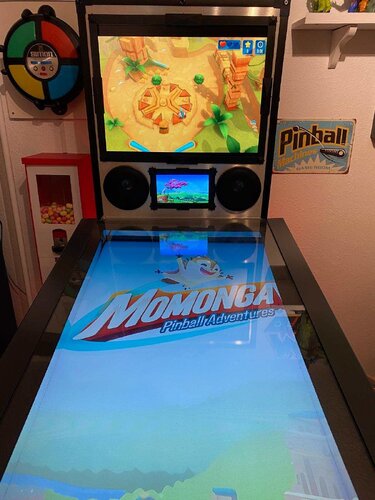
Today it's fun for all ages as we launch a small furry creature against hard objects in Momonga Pinball Adventures, released by Paladin Studios in 2016. As Momo the flying squirrel traverses the world in search of the evil owl soldiers who kidnapped his family, he meets a bunch of quirky characters and has to overcome many obstacles - mainly by curling up into a ball and smashing them to bits.
Momonga Pinball Adventures can't deny its origins as a casual game originally created for mobile devices. You will make many shots due more to luck than skill, but what the game lacks in accurate pinball physics, it more than makes up for in the charm department. The graphics are lush and colorful, the character designs are excellent, and the overall presentation is top-notch. Unfortunately, the game is rather short and ends on a cliffhanger that was never resolved, since the design studio closed its doors in 2024.
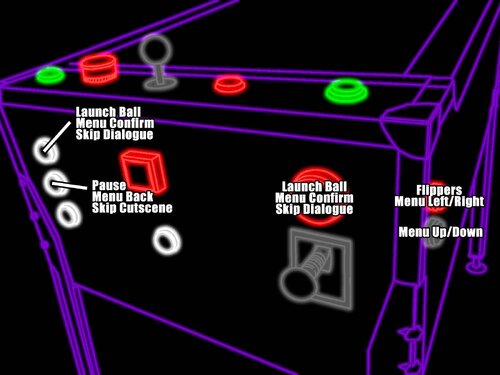
The included AutoHotKey script moves the game to the backglass, covers the playfield and DMD screen with filler images, and maps your cabinet's buttons to the game's keys.
I've included a ton of media:
- 4 frontend backglasses (two in 4:3 and two in 16:9 format)
- a company logo
- 2 DMD images, one for the frontend and a filler image used by the script
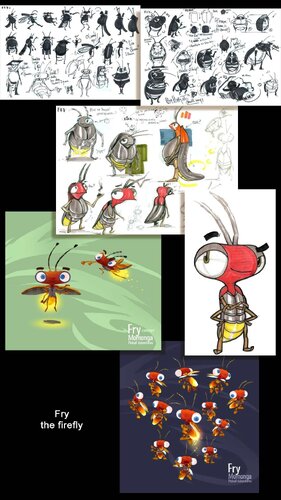
- 7 flyer images (collages of character concept art from Paladin Studio's production blog)
- 2 instruction cards
- a promo video (the launch trailer for the iOS version)
- table audio
- 2 table images, one for the frontend and a filler image used by the script
- a table video
- a wheel image
Image sources include Paladin Studio's website, the game's Steam page, MobyGames and the Launchbox Games Database
As usual, the launch script needs to be adapted to your system, but no fear - it's extensively annotated. Please take a good long look through it before asking for help in the comments section.
I'll gladly try to help, but please do make an effort first.
Share and enjoy!
SOME MORE NOTES:
Where to get it:
Momonga Pinball Adventures is available on Steam. At the time of this posting, it's on sale for less than a buck, but in my opinion the game is worth it even at the full Steam price (around $6).
How to run it:
The game should run "out of the box" on modern systems, but being a Steam game, the Steam client will launch along with it and hang around in the background. If you don't mind that, fine.
However, if you have an offline cabinet and want to run the game without the Steam client popping up:
- Download the Goldberg Emulator and extract the steam_api.dll.
- Go to your game folder and rename or backup the original steam_api.dll and replace it with the one from step 1.
- Create a simple Notepad text file in the same folder, name it steam_appid.txt and paste the game's Steam ID into it. You can find the ID number in the URL of the game's Steam Store website.
- Running the game's EXE file should now work without Steam.
It should be noted that use of a Steam emulator can be a legally gray area. Check your local jurisdiction and make sure you own a legal copy of the game.
The Phantom Input Menace:
If your cabinet has an analog device such as a VirtuaPin Controller that registers in Windows as a joystick, you may find that the game reads one of the joystick's axes as active, which can result in the "up" or "down" direction being pushed constantly - most visible during the main menu screen. This will either prevent you from quitting the game (if the "up-push" is active, since you can never move down to "Quit game") or from starting it (if the "down-push" is active, since you can never move up to "Start").
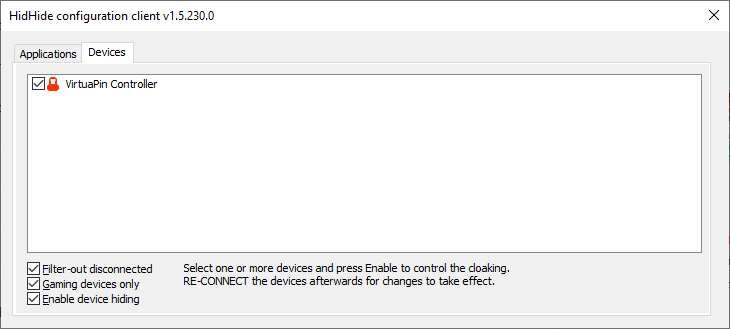
My solution for this was to install HIDHide, an insanely useful little tool which lets you create a white- or blacklist of software which is allowed (or not allowed) to "see" your gaming input devices.
Here is a quick rundown:
(Since I use my VirtuaPin Controller for many games on my cab in addition to Visual Pinball, a blacklist of "forbidden" games made more sense.)
1. In the "Devices" tab of HIDHide, select your gaming device and make sure to tick "Enable device hiding".
2. Then in the "Applications" tab, tick "Inverse application cloak" (which makes the selection a blacklist), and add the game's EXE file by clicking the plus button.
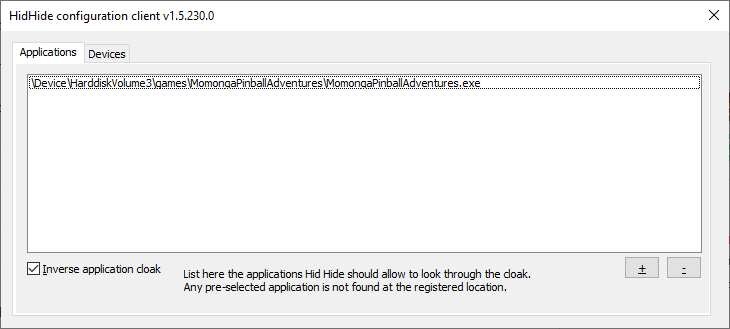
3. Unplug and replug your gaming device or (if, like me, you don't feel like opening up your cab and pulling out stuff) simply reboot your PC.
4. The next time you run Momonga Pinball Adventures, it won't see your device and the menus should work normally. You can use the flipper buttons (Shift) to move left and right and the magnasave buttons (Control) to move up and down.
Special thanks to:
@iwantpinball for testing the script on his cabinet and providing the alternate backglass images
Edited by SixOfTwelve
Formatting

User Feedback
Create an account or sign in to leave a review
You need to be a member in order to leave a review
Create an account
Sign up for a new account in our community. It's easy!
Register a new accountSign in
Already have an account? Sign in here.
Sign In NowThere are no reviews to display.