Backglass Resources
391 files
-
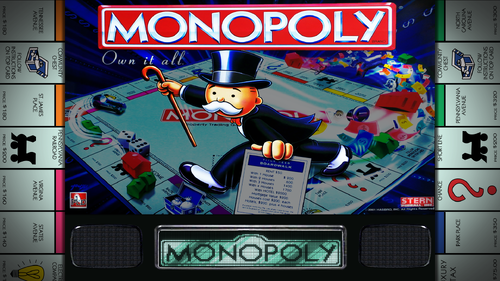
Monoply (Stern 2001) - 16:9 Background for B2S Backglass
This file is a custom background meant to display behind the B2S backglass. The B2S backglass by @Wildman is not included but it can be found here.
I. Purpose
Most backglass art is meant to be displayed in a 4:3 aspect ratio, while most monitors are 16:9. I dislike stretching the backglass to fit my monitor, but didn't want mere black showing on the left and right. I began creating simple, custom backgrounds to thematically tie into the table while not being too visually distracting. The screenshot shows how the backglass now appears on one of my desktop monitors when the table is loaded.
II. Package
Included in the download:
• A 1920x1080 background for this table's backglass
• Instructions
III. Instructions
Everyone's setup is different, so these instructions are general.
1. Put the background .png file in the same folder as your table. I have all my tables in in one folder (C:\vPinball\VisualPinball\Tables\VP10\)and my background in a subfolder (C:\vPinball\VisualPinball\Tables\VP10\Backgrounds\).
2. Rename the file to something you find simple and helpful. All my background files are follow this convention: [tablename]-BG.png
3. If you don't have a .res B2S file already present for this table, then generate one. Follow these steps:
• Double-click on the B2S file to launch it. When it opens, right-click on it to open the B2S option menu. At the bottom, click the button that says EDIT SCREEN RES.
• The Screen-Res Editor will now open. In the lower left, make sure GENERATE COMMENTS is checked but ENHANCED RES FILE is unchecked.
• Click SAVE SETTINGS.
• A .res file was just generated. Close the Screen-Res Editor by clicking the X in the top right.
4. Open the .res file in a text editor such as Notepad Notepad++ (I prefer this because it has tabs & line numbers).
5. Copy the .res settings I included below and replace the ones in your file.
6. Changes to make:
• Change line 10 to match whatever the number is of your display that shows the backglass.
• Change line 29 to match your folder structure and name of the background file.
7. Start the table in VPX. Right-click on the backglass to get the B2S options window. Change BACKGROUND to VISIBLE.
8. Quit and re-launch the table. Your backglass should now show in a 4:3 aspect ration, with the background behind it.
IV. Sample .res Settings
Below are the my .res settings for this table.
# This is a ScreenRes file for the B2SBackglassServer. # From release 1.3.1.1 comment lines like this starting with a '#' are supported. # Playfield Screen resolution width/height 1920 1080 # Backglass width/height 1920 1080 # Define Backglass screen using Display Devicename screen number (\\.\DISPLAY)x or screen coordinates (@x) or screen index (=x) 1 # Backglass x/y position relative to the upper left corner of the screen selected 0 0 # width/height of the B2S (or Full) DMD area 670 346 # x/y position of the B2S (or Full) DMD area - relative to the upper left corner of the backglass window 0 0 # Y-flip, flips the LED display upside down 0 # Background x/y position - relative to the backglass screen - has to be activated in the settings 250 0 # Background width/height 1420 1080 # path to the background image (C:\path\Frame) or black if none selected C:\vPinball\VisualPinball\Tables\VP10\Backgrounds\monopoly-BG.png # This line would turn off B2SWindowPunch if activated #B2SWindowPunch=off
42 downloads
- 4505
- background
- (and 3 more)
-
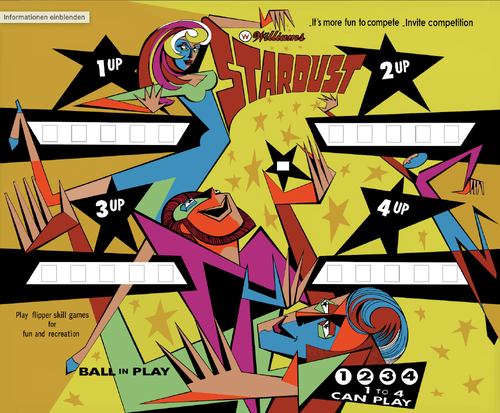
Stardust (Williams) JB.jpg
By Silversurfer
Redrawn as vector graphic by me. I'm not 100% sure about the colors (espeacially the bright orange). I've seen differnet version of that BG, but most follow this color pattern. See the vector drawing attached.
24 downloads
-

Spin Out (Gottlieb, 1975) JB.jpg
By Silversurfer
Touch-Up version. Software used: Affinity Photo
22 downloads
(0 reviews)0 comments
Submitted
-
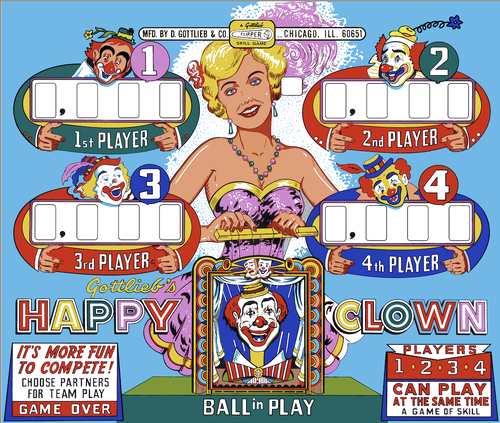
Happy Clown (Gottlieb, 1964) JB.jpg
By Silversurfer
Touch-Up of a picture taken some years ago. Software used: Affintiy Photo.
26 downloads
(0 reviews)0 comments
Submitted
-
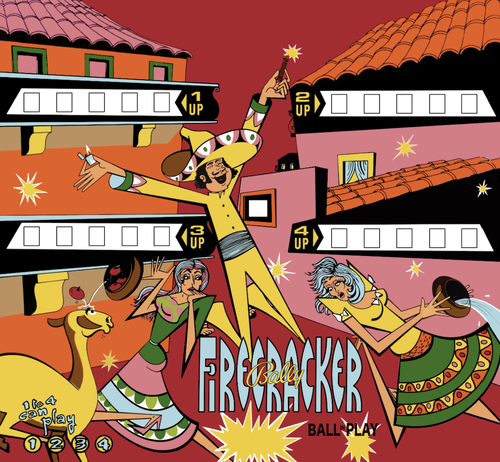
Firecracker (Bally, 1971) JB
By Silversurfer
Touch up version. This is the German backglass. Bally made some pins in the 70s with German wording, also on the playfield. Even to me as a German, that looks strange...
35 downloads
-
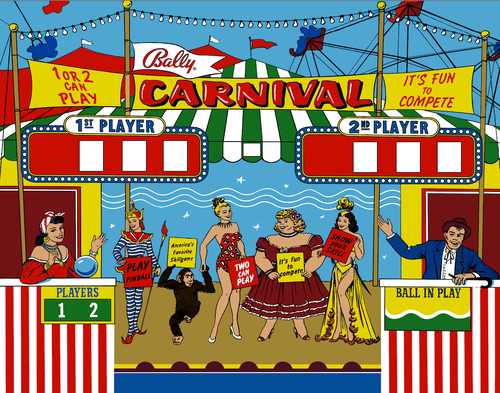
Carnival (Bally, 1957)JB.
By Silversurfer
Touch-up version of a picture, I took at the Pinball Hall of Fame in Vegas. Please see the original picture below.
17 downloads
(0 reviews)0 comments
Submitted
-

OXO (Williams, 1973)JB
By Silversurfer
Touch-up of a picture I took at the PHoF (Las Vegas). The vector version is still in work.
26 downloads
(0 reviews)0 comments
Submitted
-
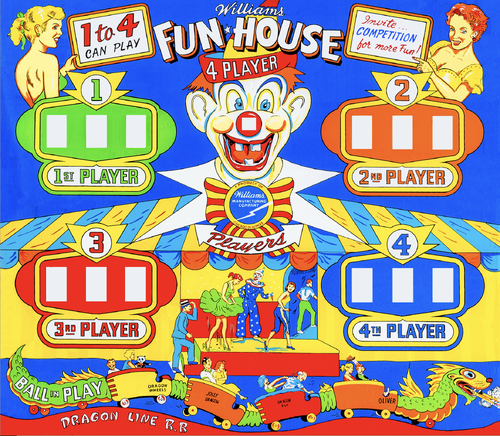
Fun House (Williams, 1956) (JB)
By Silversurfer
Touch-up version of a picture by "JackAZ". Please se the original picture here: https://pinballnirvana.com/forums/media/fun-house-williams-1956-3072x2681-jackaz-backglass.8630/
For me this ist one of the most beautyfull backglasses ever made. I'd like to have the complete game!
21 downloads
(0 reviews)0 comments
Updated
-

Dixieland (Bally, 1968)JB
By Silversurfer
Touch-up version of a picture I took at the PHoF (las Vegas) earlier this year. Original picture below. Software used: Affinity Photo.
27 downloads
(0 reviews)0 comments
Submitted
-
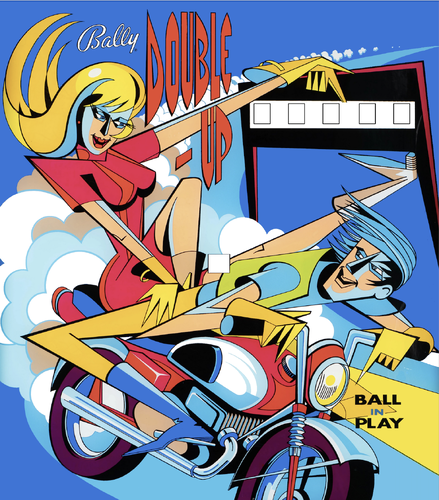
Double-Up(Bally,1970) (JB)
By Silversurfer
This is just a touch-up of a picture I found on the net. Softwre used: Affinity Photo.
19 downloads
-
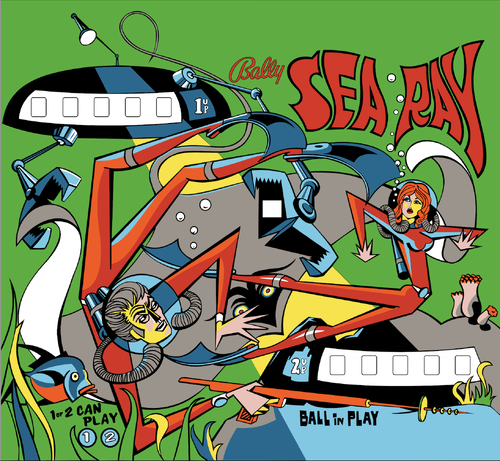
Sea Ray (Bally, 1971)JB
By Silversurfer
Re-drawn as vector graphic be me. Picture of wireframe vector file below.
37 downloads
-
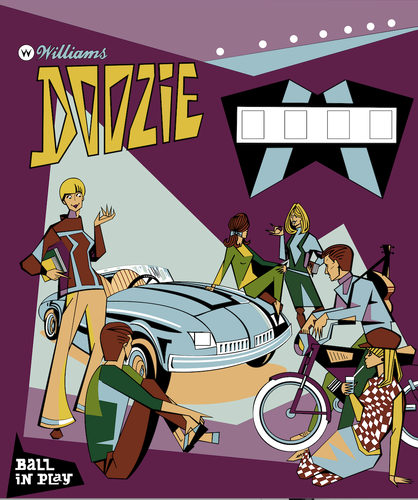
Doozie (Williams,1968)JB
By Silversurfer
Re-drawn as vector graphic be me. Picture of wireframe vector file below.
32 downloads
(0 reviews)0 comments
Submitted
-
.thumb.png.af8d110ff1c03ce9f49f872373cbc850.png)
Pit Stop (Williams 1968)
By Silversurfer
This is completly re-drawn by me. Based on a picture I've taken of a friends machine and done in Affinity Designer.
26 downloads
-
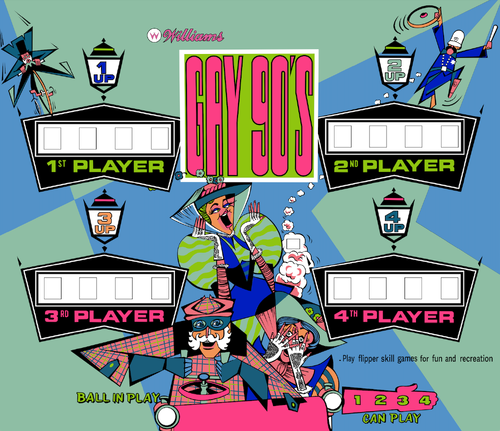
Gay 90's
By Silversurfer
This is completly re-drawn by me. Based on a picture I've taken of a friends machine and done in Affinity Designer.
This one was not as easy as it looks. The gloves of the ladies gave me a hard time.
22 downloads
(0 reviews)0 comments
Updated
-
.thumb.png.92381de7c260364bed8c203b93566df9.png)
Sinbad Adventures (Europlay 1979)
By Wildman
Sinbad Adventures (Europlay 1979) For Making db2s
29 downloads
- sinbad adventures
- europlay
- (and 3 more)
(0 reviews)0 comments
Submitted
-
.thumb.png.d838d22cd317ba93a572f10374efa900.png)
Cleopatra (Mondialmatic, 1979)
By Wildman
Cleopatra (Mondialmatic, 1979) For Making db2s
24 downloads
- cleopatra
- mondialmatic
- (and 3 more)
-
.thumb.png.d4744169b992029c559aef0ff4f82f51.png)
Africa Queen (Europlay 1977)
By Wildman
Africa Queen (Europlay 1977) For Making db2s
19 downloads
- africa queen
- europlay
- (and 3 more)
(0 reviews)0 comments
Submitted
-
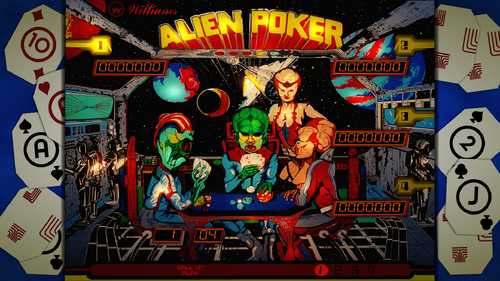
Alien Poker (Williams 1980) - 16:9 Background for B2S Backglass
This file is a custom background meant to display behind the B2S backglass. The B2S backglass by @hauntfreaks is not included but it can be found at here.
I. Purpose
Most backglass art is meant to be displayed in a 4:3 aspect ratio, while most monitors are 16:9. I dislike stretching the backglass to fit my monitor, but didn't want mere black showing on the left and right. I began creating simple, custom backgrounds to thematically tie into the table while not being too visually distracting. The screenshot shows how the backglass now appears on one of my desktop monitors when the table is loaded.
II. Package
Included in the download:
• A 1920x1080 background for this table's backglass
• Instructions
III. Instructions
Everyone's setup is different, so these instructions are general.
1. Put the background .png file in a particular place. I have all my tables in one folder called 'VP10' with the backgrounds in another [my structure is: ~/VisualPinball/Tables/VP10/Backgrounds]
2. Rename the file to something you find simple and helpful. All my background files are follow this convention: [tablename]-BG.png
3. If you don't have a .res B2S file already present for this table, then generate one. Follow these steps:
• Double-click on the B2S file to launch it. When it opens, right-click on it to open the B2S option menu. At the bottom, click the button that says EDIT SCREEN RES.
• The Screen-Res Editor will now open. In the lower left, make sure GENERATE COMMENTS is checked but ENHANCED RES FILE is unchecked.
• Click SAVE SETTINGS.
• A .res file was just generated. Close the Screen-Res Editor by clicking the X in the top right.
4. Open the .res file in a text editor such as Notepad Notepad++ (I prefer this because it has tabs & line numbers).
5. Copy the .res settings I included below and replace the ones in your file.
6. Changes to make:
• Change line 10 to match whatever the number is of your display that shows the backglass.
• Change line 29 to match your folder structure and name of the background file.
7. Start the table in VPX. Right-click on the backglass to get the B2S options window. Change BACKGROUND to VISIBLE.
8. Quit and re-launch the table. Your backglass should now show in a 4:3 aspect ration, with the background behind it.
IV. Sample .res Settings
Below are the my .res settings for this table.
# This is a ScreenRes file for the B2SBackglassServer. # From release 1.3.1.1 comment lines like this starting with a '#' are supported. # Playfield Screen resolution width/height 1920 1080 # Backglass width/height 1920 1080 # Define Backglass screen using Display Devicename screen number (\\.\DISPLAY)x or screen coordinates (@x) or screen index (=x) 1 # Backglass x/y position relative to the upper left corner of the screen selected 0 0 # width/height of the B2S (or Full) DMD area 670 346 # x/y position of the B2S (or Full) DMD area - relative to the upper left corner of the backglass window 0 0 # Y-flip, flips the LED display upside down 0 # Background x/y position - relative to the backglass screen - has to be activated in the settings 250 0 # Background width/height 1420 1080 # path to the background image (C:\path\Frame) or black if none selected C:\vPinball\VisualPinball\Tables\VP10\Backgrounds\alienpoker-BG.png # This line would turn off B2SWindowPunch if activated #B2SWindowPunch=off
41 downloads
- 48
- background
- (and 3 more)
(0 reviews)0 comments
Updated
-
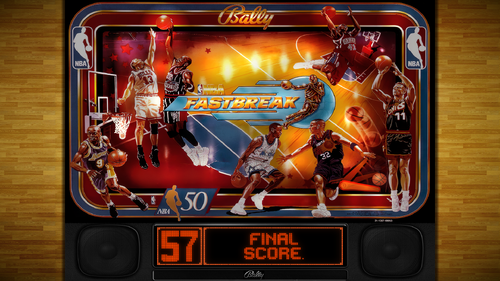
NBA Fastbreak (Bally 1997) - 16:9 Backgrounds for B2S Backglass
This file is a custom background meant to display behind the B2S backglass. The B2S backglass by @ryguy417 is not included but it can be found here.
I. Purpose
Most backglass art is meant to be displayed in a 4:3 aspect ratio, while most monitors are 16:9. I dislike stretching the backglass to fit my monitor, but didn't want mere black showing on the left and right. I began creating simple, custom backgrounds to thematically tie into the table while not being too visually distracting. The screenshot shows how the backglass now appears on one of my desktop monitors when the table is loaded.
II. Package
Included in the download:
• Two 1920x1080 backgrounds for this table's backglass
• Instructions
III. Instructions
Everyone's setup is different, so these instructions are general.
1. Put the background .png file in a particular place. I have all my tables in one folder called 'VP10' with the backgrounds in another [my structure is: ~/VisualPinball/Tables/VP10/Backgrounds]
2. Rename the file to something you find simple and helpful. All my background files are follow this convention: [tablename]-BG.png
3. If you don't have a .res B2S file already present for this table, then generate one. Follow these steps:
• Double-click on the B2S file to launch it. When it opens, right-click on it to open the B2S option menu. At the bottom, click the button that says EDIT SCREEN RES.
• The Screen-Res Editor will now open. In the lower left, make sure GENERATE COMMENTS is checked but ENHANCED RES FILE is unchecked.
• Click SAVE SETTINGS.
• A .res file was just generated. Close the Screen-Res Editor by clicking the X in the top right.
4. Open the .res file in a text editor such as Notepad Notepad++ (I prefer this because it has tabs & line numbers).
5. Copy the .res settings I included below and replace the ones in your file.
6. Changes to make:
• Change line 10 to match whatever the number is of your display that shows the backglass.
• Change line 29 to match your folder structure and name of the background file.
7. Start the table in VPX. Right-click on the backglass to get the B2S options window. Change BACKGROUND to VISIBLE.
8. Quit and re-launch the table. Your backglass should now show in a 4:3 aspect ration, with the background behind it.
IV. Sample .res Settings
Below are the my .res settings for this table.
# This is a ScreenRes file for the B2SBackglassServer. # From release 1.3.1.1 comment lines like this starting with a '#' are supported. # Playfield Screen resolution width/height 1920 1080 # Backglass width/height 1920 1080 # Define Backglass screen using Display Devicename screen number (\\.\DISPLAY)x or screen coordinates (@x) or screen index (=x) 1 # Backglass x/y position relative to the upper left corner of the screen selected 0 0 # width/height of the B2S (or Full) DMD area 670 346 # x/y position of the B2S (or Full) DMD area - relative to the upper left corner of the backglass window 0 0 # Y-flip, flips the LED display upside down 0 # Background x/y position - relative to the backglass screen - has to be activated in the settings 250 0 # Background width/height 1420 1080 # path to the background image (C:\path\Frame) or black if none selected C:\vPinball\VisualPinball\Tables\VP10\Backgrounds\nbafastbreak02-BG.png # This line would turn off B2SWindowPunch if activated #B2SWindowPunch=off
147 downloads
- 4023
- backgrounds
- (and 2 more)
(0 reviews)0 comments
Updated
-
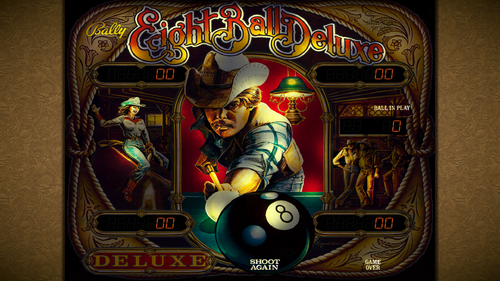
Eight Ball Deluxe (Bally 1982) - 16:9 Background for B2S Backglass
This file is a custom background meant to display behind the B2S backglass. The B2S backglass by @hauntfreaks is not included but it can be found here.
I. Purpose
Most backglass art is meant to be displayed in a 4:3 aspect ratio, while most monitors are 16:9. I dislike stretching the backglass to fit my monitor, but didn't want mere black showing on the left and right. I began creating simple, custom backgrounds to thematically tie into the table while not being too visually distracting. The screenshot shows how the backglass now appears on one of my desktop monitors when the table is loaded.
II. Package
Included in the download:
• A 1920x1080 background for this table's backglass
• Instructions
III. Instructions
Everyone's setup is different, so these instructions are general.
Put the background .png file in a particular place. I have all my tables in one folder called 'VP10' with the backgrounds in another [my structure is: ~/VisualPinball/Tables/VP10/Backgrounds] Rename the file to something you find simple and helpful. All my background files are follow this convention: [tablename]-BG.png If you don't have a .res B2S file already present for this table, then generate one. Follow these steps: Double-click on the B2S file to launch it. When it opens, right-click on it to open the B2S option menu. At the bottom, click the button that says EDIT SCREEN RES. The Screen-Res Editor will now open. In the lower left, make sure GENERATE COMMENTS is checked but ENHANCED RES FILE is unchecked. Click SAVE SETTINGS. A .res file was just generated. Close the Screen-Res Editor by clicking the X in the top right. Open the .res file in a text editor such as Notepad Notepad++ (I prefer this because it has tabs & line numbers). Copy the .res settings I included below and replace the ones in your file. Changes to make: Change line 10 to match whatever the number is of your display that shows the backglass. Change line 29 to match your folder structure and name of the background file. Start the table in VPX. Right-click on the backglass to get the B2S options window. Change BACKGROUND to VISIBLE. Quit and re-launch the table. Your backglass should now show in a 4:3 aspect ration, with the background behind it.
IV. Sample .res Settings
Below are the my .res settings for this table.
# This is a ScreenRes file for the B2SBackglassServer. # From release 1.3.1.1 comment lines like this starting with a '#' are supported. # Playfield Screen resolution width/height 1920 1080 # Backglass width/height 1920 1080 # Define Backglass screen using Display Devicename screen number (\\.\DISPLAY)x or screen coordinates (@x) or screen index (=x) 1 # Backglass x/y position relative to the upper left corner of the screen selected 0 0 # width/height of the B2S (or Full) DMD area 670 346 # x/y position of the B2S (or Full) DMD area - relative to the upper left corner of the backglass window 0 0 # Y-flip, flips the LED display upside down 0 # Background x/y position - relative to the backglass screen - has to be activated in the settings 250 0 # Background width/height 1420 1080 # path to the background image (C:\path\Frame) or black if none selected C:\vPinball\VisualPinball\Tables\VP10\Backgrounds\eightballdeluxe-BG.png # This line would turn off B2SWindowPunch if activated #B2SWindowPunch=off
91 downloads
- 762
- background
- (and 2 more)
(0 reviews)0 comments
Updated
-
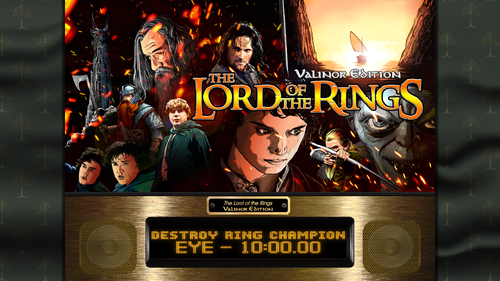
Lord of the Rings (Stern 2003) - 16:9 Background for B2S Backglass
This file is a custom background meant to display behind the B2S backglass. The B2S backglass I'm using is not included but can be found here. I've chosen the Tree of Gondor for this background.
I. Purpose
Most backglass art is meant to be displayed in a 4:3 aspect ratio, while most monitors are 16:9. I dislike stretching the backglass to fit my monitor, but didn't want mere black showing on the left and right. I began creating simple, custom backgrounds to thematically tie into the table while not being too visually distracting. The screenshot shows how the backglass now appears on one of my desktop monitors when the table is loaded.
II. Package
Included in the download:
• Three 1920x1080 background for this table's backglass
• Instructions
III. Instructions
Everyone's setup is different, so these instructions are general.
Put the background .png file in a particular place. I have all my tables in one folder with the backgrounds in another [my structure is: ~/VisualPinball/Tables/VP10/Backgrounds] Rename the file to something you find simple and helpful. All my background files are follow this convention: [tablename]-BG.png If you don't have a .res B2S file already present for this table, then generate one. Follow these steps: Double-click on the B2S file to launch it. When it opens, right-click on it to open the B2S option menu. At the bottom, click the button that says EDIT SCREEN RES. The Screen-Res Editor will now open. In the lower left, make sure GENERATE COMMENTS is checked but ENHANCED RES FILE is unchecked. Click SAVE SETTINGS. A .res file was just generated. Close the Screen-Res Editor by clicking the X in the top right. Open the .res file in a text editor such as Notepad Notepad++ (I prefer this because it has tabs & line numbers). Copy the .res settings I included below and replace the ones in your file. Changes to make: Change line 10 to match whatever the number is of your display that shows the backglass. Change line 29 to match your folder structure and name of the background file. Start the table in VPX. Right-click on the backglass to get the B2S options window. Change BACKGROUND to VISIBLE. Quit and re-launch the table. Your backglass should now show in a 4:3 aspect ration, with the background behind it.
IV. Sample .res Settings
Below are the my .res settings for this table.
# This is a ScreenRes file for the B2SBackglassServer. # From release 1.3.1.1 comment lines like this starting with a '#' are supported. # Playfield Screen resolution width/height 1920 1080 # Backglass width/height 1920 1080 # Define Backglass screen using Display Devicename screen number (\\.\DISPLAY)x or screen coordinates (@x) or screen index (=x) 2 # Backglass x/y position relative to the upper left corner of the screen selected 0 0 # width/height of the B2S (or Full) DMD area 670 346 # x/y position of the B2S (or Full) DMD area - relative to the upper left corner of the backglass window 0 0 # Y-flip, flips the LED display upside down 0 # Background x/y position - relative to the backglass screen - has to be activated in the settings 250 0 # Background width/height 1420 1080 # path to the background image (C:\path\Frame) or black if none selected C:\vPinball\VisualPinball\Tables\VP10\Backgrounds\lotr03-BG.png # This line would turn off B2SWindowPunch if activated #B2SWindowPunch=off
59 downloads
- 4858
- background
- (and 2 more)
(0 reviews)0 comments
Updated
-
-16x9BackgroundScreenshot01.thumb.png.6240416f153eab717cdba05beebe7f95.png)
Airborne Avenger (Atari 1977) - 16:9 Background for B2S Backglass
This file is a custom background meant to display behind the B2S backglass. The B2S backglass by @hauntfreaks is not included but it can be found here.
I. Purpose
Most backglass art is meant to be displayed in a 4:3 aspect ratio, while most monitors are 16:9. I dislike stretching the backglass to fit my monitor, but didn't want mere black showing on the left and right. I began creating simple, custom backgrounds to thematically tie into the table while not being too visually distracting. The screenshot shows how the backglass now appears on one of my desktop monitors when the table is loaded.
II. Package
Included in the download:
• Four 1920x1080 backgrounds for this table's backglass (One with the starfield showing behind it, the other clean and without)
• Instructions
III. Instructions
Everyone's setup is different, so these instructions are general.
1. Put the background .png file in a particular place. I have all my tables in one folder called 'VP10' with the backgrounds in another [my structure is: ~/VisualPinball/Tables/VP10/Backgrounds] Rename the file to something you find simple and helpful. All my background files are follow this convention: [tablename]-BG.png If you don't have a .res B2S file already present for this table, then generate one. Follow these steps: Double-click on the B2S file to launch it. When it opens, right-click on it to open the B2S option menu. At the bottom, click the button that says EDIT SCREEN RES. The Screen-Res Editor will now open. In the lower left, make sure GENERATE COMMENTS is checked but ENHANCED RES FILE is unchecked. Click SAVE SETTINGS. A .res file was just generated. Close the Screen-Res Editor by clicking the X in the top right. Open the .res file in a text editor such as Notepad Notepad++ (I prefer this because it has tabs & line numbers). Copy the .res settings I included below and replace the ones in your file. Changes to make: Change line 10 to match whatever the number is of your display that shows the backglass. Change line 29 to match your folder structure and name of the background file. Start the table in VPX. Right-click on the backglass to get the B2S options window. Change BACKGROUND to VISIBLE. Quit and re-launch the table. Your backglass should now show in a 4:3 aspect ration, with the background behind it.
IV Sample .res Settings
Below are the my .res settings for this table.
# This is a ScreenRes file for the B2SBackglassServer. # From release 1.3.1.1 comment lines like this starting with a '#' are supported. # Playfield Screen resolution width/height 1920 1080 # Backglass width/height 1920 1080 # Define Backglass screen using Display Devicename screen number (\\.\DISPLAY)x or screen coordinates (@x) or screen index (=x) 1 # Backglass x/y position relative to the upper left corner of the screen selected 0 0 # width/height of the B2S (or Full) DMD area 670 346 # x/y position of the B2S (or Full) DMD area - relative to the upper left corner of the backglass window 0 0 # Y-flip, flips the LED display upside down 0 # Background x/y position - relative to the backglass screen - has to be activated in the settings 250 0 # Background width/height 1420 1080 # path to the background image (C:\path\Frame) or black if none selected C:\vPinball\VisualPinball\Tables\VP10\Backgrounds\airborneavenger01-BG.png # This line would turn off B2SWindowPunch if activated #B2SWindowPunch=off
32 downloads
- 33
- background
- (and 3 more)
(0 reviews)0 comments
Updated
-
-16x9BackgroundScreenshot01.thumb.png.f807554a5ee92c80299801dc9c2b4f7e.png)
Old Chicago (Bally 1975) - 16:9 Background for B2S Backglass
This file is a custom background meant to display behind the B2S backglass. The B2S backglass is not included but Wildman's version can be found here.
I. Purpose
Most backglass art is meant to be displayed in a 4:3 aspect ratio, while most monitors are 16:9. I dislike stretching the backglass to fit my monitor, but didn't want mere black showing on the left and right. I began creating simple, custom backgrounds to thematically tie into the table while not being too visually distracting. The screenshot shows how the backglass now appears on one of my desktop monitors when the table is loaded.
II. Package
Included in the download:
• Two 1920x1080 backgrounds for this table's backglass
• Instructions
III. Instructions
Everyone's setup is different, so these instructions are general.
Put the background .png file in a particular place. I have all my tables in one folder called 'VP10' with the backgrounds in another [my structure is: ~/VisualPinball/Tables/VP10/Backgrounds] Rename the file to something you find simple and helpful. All my background files are follow this convention: [tablename]-BG.png If you don't have a .res B2S file already present for this table, then generate one. Follow these steps: Double-click on the B2S file to launch it. When it opens, right-click on it to open the B2S option menu. At the bottom, click the button that says EDIT SCREEN RES. The Screen-Res Editor will now open. In the lower left, make sure GENERATE COMMENTS is checked but ENHANCED RES FILE is unchecked. Click SAVE SETTINGS. A .res file was just generated. Close the Screen-Res Editor by clicking the X in the top right. Open the .res file in a text editor such as Notepad Notepad++ (I prefer this because it has tabs & line numbers). Copy the .res settings I included below and replace the ones in your file. Changes to make: Change line 10 to match whatever the number is of your display that shows the backglass. Change line 29 to match your folder structure and name of the background file. Start the table in VPX. Right-click on the backglass to get the B2S options window. Change BACKGROUND to VISIBLE. Quit and re-launch the table. Your backglass should now show in a 4:3 aspect ration, with the background behind it.
IV. Sample .res Settings
Below are the my .res settings for this table.
# This is a ScreenRes file for the B2SBackglassServer. # From release 1.3.1.1 comment lines like this starting with a '#' are supported. # Playfield Screen resolution width/height 1920 1080 # Backglass width/height 1920 1080 # Define Backglass screen using Display Devicename screen number (\\.\DISPLAY)x or screen coordinates (@x) or screen index (=x) 1 # Backglass x/y position relative to the upper left corner of the screen selected 0 0 # width/height of the B2S (or Full) DMD area 670 346 # x/y position of the B2S (or Full) DMD area - relative to the upper left corner of the backglass window 0 0 # Y-flip, flips the LED display upside down 0 # Background x/y position - relative to the backglass screen - has to be activated in the settings 250 0 # Background width/height 1420 1080 # path to the background image (C:\path\Frame) or black if none selected C:\vPinball\VisualPinball\Tables\VPX\Old Chicago (Bally 1975)\oldchicago-BG01.png # This line would turn off B2SWindowPunch if activated #B2SWindowPunch=off
35 downloads
- 1704
- background
- (and 2 more)
(1 review)0 comments
Updated
-
-16x9BackgroundScreenshot01.thumb.png.27da5b1a787e9ffc5adc0883a7911663.png)
The Atarians (Atari 1976) - 16:9 Backgrounds for B2S Backglass
This file is a custom background meant to display behind the B2S backglass. The B2S backglass is not included but Wildman's version can be found here.
I. Purpose
Most backglass art is meant to be displayed in a 4:3 aspect ratio, while most monitors are 16:9. I dislike stretching the backglass to fit my monitor, but didn't want mere black showing on the left and right. I began creating simple, custom backgrounds to thematically tie into the table while not being too visually distracting. The screenshot shows how the backglass now appears on one of my desktop monitors when the table is loaded.
II. Package
Included in the download:
• Two 1920x1080 backgrounds for this table's backglass
• Instructions
III. Instructions
Everyone's setup is different, so these instructions are general.
Put the background .png file in a particular place. I have all my tables in one folder called 'VP10' with the backgrounds in another [my structure is: ~/VisualPinball/Tables/VP10/Backgrounds] Rename the file to something you find simple and helpful. All my background files are follow this convention: [tablename]-BG.png If you don't have a .res B2S file already present for this table, then generate one. Follow these steps: Double-click on the B2S file to launch it. When it opens, right-click on it to open the B2S option menu. At the bottom, click the button that says EDIT SCREEN RES. The Screen-Res Editor will now open. In the lower left, make sure GENERATE COMMENTS is checked but ENHANCED RES FILE is unchecked. Click SAVE SETTINGS. A .res file was just generated. Close the Screen-Res Editor by clicking the X in the top right. Open the .res file in a text editor such as Notepad Notepad++ (I prefer this because it has tabs & line numbers). Copy the .res settings I included below and replace the ones in your file. Changes to make: Change line 10 to match whatever the number is of your display that shows the backglass. Change line 29 to match your folder structure and name of the background file. Start the table in VPX. Right-click on the backglass to get the B2S options window. Change BACKGROUND to VISIBLE. Quit and re-launch the table. Your backglass should now show in a 4:3 aspect ration, with the background behind it.
IV. Sample .res Settings
Below are the my .res settings for this table.
# This is a ScreenRes file for the B2SBackglassServer. # From release 1.3.1.1 comment lines like this starting with a '#' are supported. # Playfield Screen resolution width/height 1920 1080 # Backglass width/height 1920 1080 # Define Backglass screen using Display Devicename screen number (\\.\DISPLAY)x or screen coordinates (@x) or screen index (=x) 1 # Backglass x/y position relative to the upper left corner of the screen selected 0 0 # width/height of the B2S (or Full) DMD area 670 346 # x/y position of the B2S (or Full) DMD area - relative to the upper left corner of the backglass window 0 0 # Y-flip, flips the LED display upside down 0 # Background x/y position - relative to the backglass screen - has to be activated in the settings 250 0 # Background width/height 1420 1080 # path to the background image (C:\path\Frame) or black if none selected C:\vPinball\VisualPinball\Tables\VPX\Atarians (Atari 1976)\atarians-BG01.png # This line would turn off B2SWindowPunch if activated #B2SWindowPunch=off
86 downloads
- 102
- background
- (and 2 more)
-
-16x9BackgroundScreenshot.thumb.png.2a5a7da53a37e70756d7583af0dd16ef.png)
T'eed Off (Gottlieb 1993) - 16:9 Background for B2S Backglass
This file is a custom background meant to display behind the B2S backglass. The B2S backglass is not included but it can be found at here.
I. Purpose
Most backglass art is meant to be displayed in a 4:3 aspect ratio, while most monitors are 16:9. I dislike stretching the backglass to fit my monitor, but didn't want mere black showing on the left and right. I began creating simple, custom backgrounds to thematically tie into the table while not being too visually distracting. The screenshot on this page shows how the backglass now appears on one of my desktop monitors when the table is loaded.
II. Package
Included in the download:
• A 1920x1080 background for this table's backglass
• Instructions
III. Instructions
Everyone's setup is different, so these instructions are general.
Put the background .png file in a particular place. I have all my tables in one folder called 'VP10' with the backgrounds in another [my structure is: ~/VisualPinball/Tables/VP10/Backgrounds] Rename the file to something you find simple and helpful. All my background files are follow this convention: [tablename]-BG.png. If you don't have a .res B2S file already present for this table, then generate one. Follow these steps: Double-click on the B2S file to launch it. When it opens, right-click on it to open the B2S option menu. At the bottom, click the button that says EDIT SCREEN RES. The Screen-Res Editor will now open. In the lower left, make sure GENERATE COMMENTS is checked but ENHANCED RES FILE is unchecked. Click SAVE SETTINGS. A .res file was just generated. Close the Screen-Res Editor by clicking the X in the top right. Open the .res file in a text editor such as Notepad Notepad++ (I prefer this because it has tabs & line numbers). Copy the .res settings I included below and replace the ones in your file. Changes to make: Change line 10 to match whatever the number is of your display that shows the backglass. Change line 29 to match your folder structure and name of the background file. Start the table in VPX. Right-click on the backglass to get the B2S options window. Change BACKGROUND to VISIBLE. Quit and re-launch the table. Your backglass should now show in a 4:3 aspect ration, with the background behind it.
IV. Sample .res Settings
Below are the my .res settings for this table.
# This is a ScreenRes file for the B2SBackglassServer. # From release 1.3.1.1 comment lines like this starting with a '#' are supported. # Playfield Screen resolution width/height 1920 1080 # Backglass width/height 1920 1080 # Define Backglass screen using Display Devicename screen number (\\.\DISPLAY)x or screen coordinates (@x) or screen index (=x) 1 # Backglass x/y position relative to the upper left corner of the screen selected 0 0 # width/height of the B2S (or Full) DMD area 670 346 # x/y position of the B2S (or Full) DMD area - relative to the upper left corner of the backglass window 0 0 # Y-flip, flips the LED display upside down 0 # Background x/y position - relative to the backglass screen - has to be activated in the settings 250 0 # Background width/height 1420 1080 # path to the background image (C:\path\Frame) or black if none selected C:\vPinball\VisualPinball\Tables\VPX\Tee'd Off (Gottlieb 1993)\teedoff-BG.png # This line would turn off B2SWindowPunch if activated #B2SWindowPunch=off
56 downloads
- 2508
- background
- (and 2 more)
(0 reviews)0 comments
Updated
-
VPU Staff's Top Picks
-
New & Updated Visual Pinball
-
New & Updated Future Pinball
-
New & Updated Backglasses
-
New & Updated DMD Colorizations
-
New & Updated Virtual Reality Enabled Tables
-
VPU Remix & Mods
-
New & Updated Popper Media
-
Updated Files
-
Download Statistics
30694
Files108134
Comments45170
Reviews

.thumb.png.e46074ee0830fedaed7c6e2fcdd0ebdc.png)
BG.thumb.jpg.67ff1783d48e89db521122d337f7983f.jpg)

.thumb.png.5e6023b8304c9441da4e6e6b416d16da.png)













(Backglas).thumb.png.43bcc8916fc8d62524556460342b6555.png)
.thumb.png.9e2768ccc91095a59606f575abaab0fa.png)
.thumb.png.cb1c9b2b7401519583aed898d2e4b0e7.png)
FullDMD.thumb.jpg.b8ed7f1c2813c431d89589f92d664374.jpg)
FullDMD.thumb.jpg.960ceccfd847b0fe785251fa58dac58e.jpg)
.thumb.png.b6385516544938aac242050627936a2f.png)
FullDMD.thumb.png.9d08da3339354fbf9c618e600dd85366.png)
DMDSS.thumb.jpg.77331db5a90dffa9c97e9643ea61062e.jpg)
PuPPackFullDMD.thumb.jpg.8c81ee27b3726afced0f6646f563dd44.jpg)
PuPPackFullDMD.thumb.jpg.caa75ab29040b06ce8a5294faaf10680.jpg)
PuPPackFullDMD.thumb.jpg.270143f6ad7999810e382a57048092ab.jpg)



.thumb.png.7381782a389e1b5f4abfdbce0648d056.png)












QuickPlayRules.thumb.png.5053efa465ebbb3c9646786510f71a6a.png)
InstructionCard.thumb.png.f75c739cb4502aa4ef5bd185fe7f5740.png)
.thumb.png.4f417d3b2d446135a74dd64bbfea3019.png)




v1_29.thumb.png.058a04a57c51329fc323034f0674c90c.png)