-
SYSTEM SEARCH
System Scanners Online:
Username: Guest
>> System Scan?
>> The Universe >
Incoming Message:
Due to system limitations searching with words of 3 or less characters will not return results. For instance; Doctor Who. This will not return results as the system is trying to search for both Doctor AND Who in which Who will not be found as it's a 3 character word. To find Doctor Who; you'd search for either Doctor or "Doctor Who".
Search Tips:
For specific searches; enclose your search with quotes. Example: "Doctor Who" or "Addams Family".
Search the Community
Showing results for tags '4505'.
Found 3 results
-

Version 1.0.0
36 downloads
Monopoly (Stern 2001) Animated Wheel APNG (to save me some work I have based this one on @ionman99 apng, I have changed the order of animation so it now starts with a bright logo not black screen, also removed some unnecessary frames and made a loop, so the file is now smaller and loads faster and loops nicely...) -
sm.thumb.png.e634156044a66b41a16e87bd602f47c7.png)
Version 1.3
270 downloads
I've had most of this media on the PinballX FTP for a while, but I wanted to highlight it because I did put a bit of work into it. And the instruction cards were re-exported to center them a little better than what is currently found on the PinballX FTP. The factory PDF is available at Inkochnito's but I replaced the graphics and logos with vector-based versions. All of them except for the PLD logo. There is a red, black, and white card as it appears in the factory PDF and a full back and white card as it appears on machines I've seen in public. An era appropriate coinage card is included. Old style Stern Pinball logo I created myself. It's publicly available here: https://www.gameex.info/forums/topic/17886-new-stern-old-gottlieb-and-old-taito-company-logos/?do=findComment&comment=158055 Monopoly logo came from brandsoftheworld.com and was lightly modified by me. This in turn was used to create the ultra hi-rez wheel image. 300dpi scans of flyers courtesy http://flyers.cdyn.com/ Special thanks to Inkochnito. This work is free to use by the community without attribution. All sources are trademarks / copyrights of their respective owners. This is to be privately used in front-ends or for other non-commercial (or at least non-profit) pinball-related applications. I hold no responsibility for their misuse. -

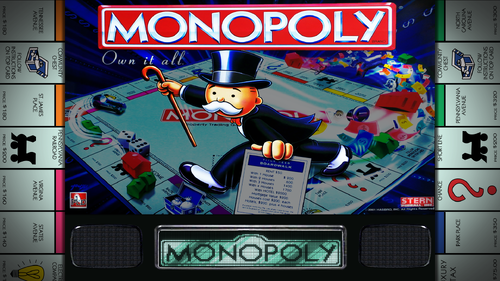
Version 1.0.0
41 downloads
This file is a custom background meant to display behind the B2S backglass. The B2S backglass by @Wildman is not included but it can be found here. I. Purpose Most backglass art is meant to be displayed in a 4:3 aspect ratio, while most monitors are 16:9. I dislike stretching the backglass to fit my monitor, but didn't want mere black showing on the left and right. I began creating simple, custom backgrounds to thematically tie into the table while not being too visually distracting. The screenshot shows how the backglass now appears on one of my desktop monitors when the table is loaded. II. Package Included in the download: • A 1920x1080 background for this table's backglass • Instructions III. Instructions Everyone's setup is different, so these instructions are general. 1. Put the background .png file in the same folder as your table. I have all my tables in in one folder (C:\vPinball\VisualPinball\Tables\VP10\)and my background in a subfolder (C:\vPinball\VisualPinball\Tables\VP10\Backgrounds\). 2. Rename the file to something you find simple and helpful. All my background files are follow this convention: [tablename]-BG.png 3. If you don't have a .res B2S file already present for this table, then generate one. Follow these steps: • Double-click on the B2S file to launch it. When it opens, right-click on it to open the B2S option menu. At the bottom, click the button that says EDIT SCREEN RES. • The Screen-Res Editor will now open. In the lower left, make sure GENERATE COMMENTS is checked but ENHANCED RES FILE is unchecked. • Click SAVE SETTINGS. • A .res file was just generated. Close the Screen-Res Editor by clicking the X in the top right. 4. Open the .res file in a text editor such as Notepad Notepad++ (I prefer this because it has tabs & line numbers). 5. Copy the .res settings I included below and replace the ones in your file. 6. Changes to make: • Change line 10 to match whatever the number is of your display that shows the backglass. • Change line 29 to match your folder structure and name of the background file. 7. Start the table in VPX. Right-click on the backglass to get the B2S options window. Change BACKGROUND to VISIBLE. 8. Quit and re-launch the table. Your backglass should now show in a 4:3 aspect ration, with the background behind it. IV. Sample .res Settings Below are the my .res settings for this table. # This is a ScreenRes file for the B2SBackglassServer. # From release 1.3.1.1 comment lines like this starting with a '#' are supported. # Playfield Screen resolution width/height 1920 1080 # Backglass width/height 1920 1080 # Define Backglass screen using Display Devicename screen number (\\.\DISPLAY)x or screen coordinates (@x) or screen index (=x) 1 # Backglass x/y position relative to the upper left corner of the screen selected 0 0 # width/height of the B2S (or Full) DMD area 670 346 # x/y position of the B2S (or Full) DMD area - relative to the upper left corner of the backglass window 0 0 # Y-flip, flips the LED display upside down 0 # Background x/y position - relative to the backglass screen - has to be activated in the settings 250 0 # Background width/height 1420 1080 # path to the background image (C:\path\Frame) or black if none selected C:\vPinball\VisualPinball\Tables\VP10\Backgrounds\monopoly-BG.png # This line would turn off B2SWindowPunch if activated #B2SWindowPunch=off- 6 comments
-
- 9
-

-
- 4505
- background
- (and 3 more)