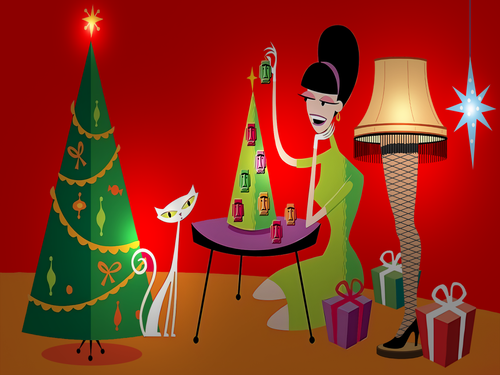
Backglass Resources
391 files
-
-16x9BackgroundScreenshot.thumb.png.7e5b17445dfebbc59945a814d4448d08.png)
Jive Time (Williams 1970) - 16:9 Background for B2S Backglass
This file is a custom background meant to display behind the B2S backglass. The B2S backglass is not included but it does come packaged with @rothbauerw's table, which can be found here.
I. Purpose
Most backglass art is meant to be displayed in a 4:3 aspect ratio, while most monitors are 16:9. I dislike stretching the backglass to fit my monitor, but didn't want mere black showing on the left and right. I began creating simple, custom backgrounds to thematically tie into the table while not being too visually distracting. The screenshot on this page shows how the backglass now appears on one of my desktop monitors when the table is loaded.
II. Package
Included in the download:
• A 1920x1080 background for this table's backglass
• Instructions
III. Instructions
Everyone's setup is different, so these instructions are general.
Put the background .png file in the same folder as your table. I have all my tables in individual folders. Rename the file to something you find simple and helpful. All my background files are follow this convention: [tablename]-BG.png If you don't have a .res B2S file already present for this table, then generate one. Follow these steps: Double-click on the B2S file to launch it. When it opens, right-click on it to open the B2S option menu. At the bottom, click the button that says EDIT SCREEN RES. The Screen-Res Editor will now open. In the lower left, make sure GENERATE COMMENTS is checked but ENHANCED RES FILE is unchecked. Click SAVE SETTINGS. A .res file was just generated. Close the Screen-Res Editor by clicking the X in the top right. Open the .res file in a text editor such as Notepad Notepad++ (I prefer this because it has tabs & line numbers). Copy the .res settings I included below and replace the ones in your file. Changes to make: Change line 10 to match whatever the number is of your display that shows the backglass. Change line 29 to match your folder structure and name of the background file. Start the table in VPX. Right-click on the backglass to get the B2S options window. Change BACKGROUND to VISIBLE. Quit and re-launch the table. Your backglass should now show in a 4:3 aspect ration, with the background behind it.
IV. Sample .res Settings
Below are the my .res settings for this table.
# This is a ScreenRes file for the B2SBackglassServer. # From release 1.3.1.1 comment lines like this starting with a '#' are supported. # Playfield Screen resolution width/height 1920 1080 # Backglass width/height 1920 1080 # Define Backglass screen using Display Devicename screen number (\\.\DISPLAY)x or screen coordinates (@x) or screen index (=x) 1 # Backglass x/y position relative to the upper left corner of the screen selected 0 0 # width/height of the B2S (or Full) DMD area 670 346 # x/y position of the B2S (or Full) DMD area - relative to the upper left corner of the backglass window 0 0 # Y-flip, flips the LED display upside down 0 # Background x/y position - relative to the backglass screen - has to be activated in the settings 250 0 # Background width/height 1420 1080 # path to the background image (C:\path\Frame) or black if none selected C:\vPinball\VisualPinball\Tables\VPX\Jive Time (Williams 1970)\jivetime-BG.png # This line would turn off B2SWindowPunch if activated #B2SWindowPunch=off
49 downloads
- 1298
- background
- (and 2 more)
(0 reviews)0 comments
Submitted
-
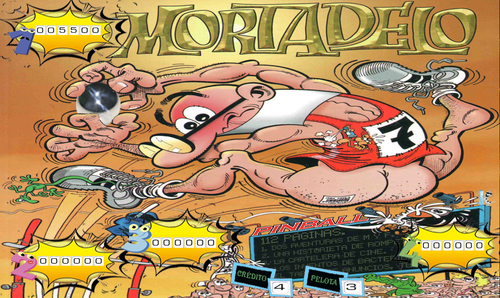
Mortadelo (Spain) (Clever & Smart RESKIN Table)
By icepinball
Here the Spanish original backglass for the Spanish pinball fans Mortadelo .... for the (Clever & Smart RESKIN Table)
Aquí está el backglass original español para los aficionados al pinball español Mortadelo .... para la (Clever & Smart RESKIN Table)
44 downloads
(1 review)0 comments
Submitted
-
-16x9BackgroundScreenshot.thumb.png.67833c23d0c156a4cba3441fa806bc6f.png)
Teacher's Pet (Williams 1965) - 16:9 Background for 4:3 B2S Backglass
This file is a custom background meant to display behind the B2S backglass. The B2S backglass is not included but it does come packaged with @loserman76's table. The original table can be found here and the patch can be found here.
I. Purpose
Most backglass art is meant to be displayed in a 4:3 aspect ratio, while most monitors are 16:9. I dislike stretching the backglass to fit my monitor, but didn't want mere black showing on the left and right. I began creating simple, custom backgrounds to thematically tie into the table while not being too visually distracting. The screenshot on this page shows how the backglass now appears on one of my desktop monitors when the table is loaded.
II. Package
Included in the download:
• A 1920x1080 background for this table's backglass
• Instructions
III. Instructions
Everyone's setup is different, so these instructions are general.
Put the background .png file in the same folder as your table. I have all my tables in individual folders. Rename the file to something you find simple and helpful. All my background files are follow this convention: [tablename]-BG.png If you don't have a .res B2S file already present for this table, then generate one. Follow these steps: Double-click on the B2S file to launch it. When it opens, right-click on it to open the B2S option menu. At the bottom, click the button that says EDIT SCREEN RES. The Screen-Res Editor will now open. In the lower left, make sure GENERATE COMMENTS is checked but ENHANCED RES FILE is unchecked. Click SAVE SETTINGS. A .res file was just generated. Close the Screen-Res Editor by clicking the X in the top right. Open the .res file in a text editor such as Notepad Notepad++ (I prefer this because it has tabs & line numbers). Copy the .res settings I included below and replace the ones in your file. Changes to make: Change line 10 to match whatever the number is of your display that shows the backglass. Change line 29 to match your folder structure and name of the background file. Start the table in VPX. Right-click on the backglass to get the B2S options window. Change BACKGROUND to VISIBLE. Quit and re-launch the table. Your backglass should now show in a 4:3 aspect ration, with the background behind it.
IV. Sample .res Settings
Below are the my .res settings for this table.
# This is a ScreenRes file for the B2SBackglassServer. # From release 1.3.1.1 comment lines like this starting with a '#' are supported. # Playfield Screen resolution width/height 1920 1080 # Backglass width/height 1920 1080 # Define Backglass screen using Display Devicename screen number (\\.\DISPLAY)x or screen coordinates (@x) or screen index (=x) 1 # Backglass x/y position relative to the upper left corner of the screen selected 0 0 # width/height of the B2S (or Full) DMD area 670 346 # x/y position of the B2S (or Full) DMD area - relative to the upper left corner of the backglass window 0 0 # Y-flip, flips the LED display upside down 0 # Background x/y position - relative to the backglass screen - has to be activated in the settings 250 0 # Background width/height 1420 1080 # path to the background image (C:\path\Frame) or black if none selected C:\vPinball\VisualPinball\Tables\VPX\Teacher's Pet (Williams 1965)\tracherspet-BG.png # This line would turn off B2SWindowPunch if activated #B2SWindowPunch=off
37 downloads
- 2506
- background
- (and 2 more)
(0 reviews)0 comments
Submitted
-
-16x9BG01SCreenshot.thumb.png.c24514c0cfd81ddab6a2d8369fc55a1f.png)
Robocop (Data East 1989) - 16:9 Background for B2S Backglass
This file is a custom background meant to display behind the B2S backglass. The B2S backglass by @walterwhiteis not included in this download but can be found here.
I. Purpose
Most backglass art is meant to be displayed in a 4:3 aspect ratio, while most monitors are 16:9. I dislike stretching the backglass to fit my monitor, but didn't want mere black showing on the left and right. I began creating simple, custom backgrounds to thematically tie into the table while not being too visually distracting. The screenshot shows how the backglass now appears on one of my desktop monitors when the table is loaded.
II. Package
Included in the download:
• Two 1920x1080 backgrounds for this table's backglass: one with a beveled edge and one without
• Instructions
III. Instructions
Everyone's setup is different, so these instructions are general.
Put the background .png file in the same folder as your table. I have all my tables in individual folders. Rename the file to something you find simple and helpful. All my background files are follow this convention: [tablename]-BG.png If you don't have a .res B2S file already present for this table, then generate one. Follow these steps: Double-click on the B2S file to launch it. When it opens, right-click on it to open the B2S option menu. At the bottom, click the button that says EDIT SCREEN RES. The Screen-Res Editor will now open. In the lower left, make sure GENERATE COMMENTS is checked but ENHANCED RES FILE is unchecked. Click SAVE SETTINGS. A .res file was just generated. Close the Screen-Res Editor by clicking the X in the top right. Open the .res file in a text editor such as Notepad Notepad++ (I prefer this because it has tabs & line numbers). Copy the .res settings I included below and replace the ones in your file. Changes to make: Change line 10 to match whatever the number is of your display that shows the backglass. Change line 29 to match your folder structure and name of the background file. Start the table in VPX. Right-click on the backglass to get the B2S options window. Change BACKGROUND to VISIBLE. Quit and re-launch the table. Your backglass should now show in a 4:3 aspect ration, with the background behind it.
IV. Sample .res Settings
Below are the my .res settings for this table.
# This is a ScreenRes file for the B2SBackglassServer. # From release 1.3.1.1 comment lines like this starting with a '#' are supported. # Playfield Screen resolution width/height 1920 1080 # Backglass width/height 1920 1080 # Define Backglass screen using Display Devicename screen number (\\.\DISPLAY)x or screen coordinates (@x) or screen index (=x) 1 # Backglass x/y position relative to the upper left corner of the screen selected 0 0 # width/height of the B2S (or Full) DMD area 670 346 # x/y position of the B2S (or Full) DMD area - relative to the upper left corner of the backglass window 0 0 # Y-flip, flips the LED display upside down 0 # Background x/y position - relative to the backglass screen - has to be activated in the settings 250 0 # Background width/height 1420 1080 # path to the background image (C:\path\Frame) or black if none selected C:\vPinball\VisualPinball\Tables\VPX\Robocop (Data East 1989)\robocop-BG01.png # This line would turn off B2SWindowPunch if activated #B2SWindowPunch=off
51 downloads
- 1976
- background
- (and 2 more)
(0 reviews)0 comments
Submitted
-
-16x9BackgroundforB2SScreenshot.thumb.png.f4a2d21cc1d92fae555674f7abcc37ef.png)
Addams Family (Bally 1992) - 16:9 Background for B2S Backglass
This file is a custom background meant to display behind the B2S backglass. The B2S backglass by @hauntfreaks is not included in this download but can be found here.
I. Purpose
Most backglass art is meant to be displayed in a 4:3 aspect ratio, while most monitors are 16:9. I dislike stretching the backglass to fit my monitor, but didn't want mere black showing on the left and right. I began creating simple, custom backgrounds to thematically tie into the table while not being too visually distracting. The screenshot shows how the backglass now appears on one of my desktop monitors when the table is loaded.
II. Package
Included in the download:
• A 1920x1080 background for this table's backglass
• Instructions including sample .res settings
III. Instructions
Everyone's setup is different, so these instructions are general.
Put the background .png file in a particular place. I have all my tables in one folder called 'VP10' with the backgrounds in another [my structure is: ~/VisualPinball/Tables/VP10/Backgrounds] Rename the file to something you find simple and helpful. All my background files are follow this convention: [tablename]-BG.png If you don't have a .res B2S file already present for this table, then generate one. Follow these steps: Double-click on the B2S file to launch it. When it opens, right-click on it to open the B2S option menu. At the bottom, click the button that says EDIT SCREEN RES. The Screen-Res Editor will now open. In the lower left, make sure GENERATE COMMENTS is checked but ENHANCED RES FILE is unchecked. Click SAVE SETTINGS. A .res file was just generated. Close the Screen-Res Editor by clicking the X in the top right. Open the .res file in a text editor such as Notepad Notepad++ (I prefer this because it has tabs & line numbers). Copy the .res settings I included below and replace the ones in your file. Changes to make: Change line 10 to match whatever the number is of your display that shows the backglass. Change line 29 to match your folder structure and name of the background file. Start the table in VPX. Right-click on the backglass to get the B2S options window. Change BACKGROUND to VISIBLE. Quit and re-launch the table. Your backglass should now show in a 4:3 aspect ration, with the background behind it.
IV. Sample .res Settings
Below are the my .res settings for this table.
# This is a ScreenRes file for the B2SBackglassServer. # From release 1.3.1.1 comment lines like this starting with a '#' are supported. # Playfield Screen resolution width/height 1920 1080 # Backglass width/height 1920 1080 # Define Backglass screen using Display Devicename screen number (\\.\DISPLAY)x or screen coordinates (@x) or screen index (=x) 1 # Backglass x/y position relative to the upper left corner of the screen selected 0 0 # width/height of the B2S (or Full) DMD area 670 346 # x/y position of the B2S (or Full) DMD area - relative to the upper left corner of the backglass window 0 0 # Y-flip, flips the LED display upside down 0 # Background x/y position - relative to the backglass screen - has to be activated in the settings 250 0 # Background width/height 1420 1080 # path to the background image (C:\path\Frame) or black if none selected C:\vPinball\VisualPinball\Tables\VPX\Addams Family (Bally 1992)\addamsfamily-BG.png # This line would turn off B2SWindowPunch if activated #B2SWindowPunch=off
195 downloads
- 20
- background
- (and 2 more)
(0 reviews)0 comments
Updated
-
-16x9BGScreenshot.thumb.png.e5419f70a9fb48d66600b7e05e4fb642.png)
Star Trek (25th Anniversary) (Data East 1991) - 16:9 Background for B2S Backglass
This file is a custom background meant to display behind the B2S backglass. The B2S backglass by @hauntfreaks is not included in this download but can be found here.
I. Purpose
Most backglass art is meant to be displayed in a 4:3 aspect ratio, while most monitors are 16:9. I dislike stretching the backglass to fit my monitor, but didn't want mere black showing on the left and right. I began creating simple, custom backgrounds to thematically tie into the table while not being too visually distracting. The screenshot shows how the backglass now appears on one of my desktop monitors when the table is loaded.
II. Package
Included in the download:
• A 1920x1080 background for this table's backglass
• Instructions including sample .res settings
III. Instructions
Everyone's setup is different, so these instructions are general. Put the background .png file in the same folder as your table. I have all my tables in individual folders. Rename the file to something you find simple and helpful. All my background files are follow this convention: [tablename]-BG.png If you don't have a .res B2S file already present for this table, then generate one. Follow these steps: Double-click on the B2S file to launch it. When it opens, right-click on it to open the B2S option menu. At the bottom, click the button that says EDIT SCREEN RES. The Screen-Res Editor will now open. In the lower left, make sure GENERATE COMMENTS is checked but ENHANCED RES FILE is unchecked. Click SAVE SETTINGS. A .res file was just generated. Close the Screen-Res Editor by clicking the X in the top right. Open the .res file in a text editor such as Notepad Notepad++ (I prefer this because it has tabs & line numbers). Copy the .res settings I included below and replace the ones in your file. Changes to make: Change line 10 to match whatever the number is of your display that shows the backglass. Change line 29 to match your folder structure and name of the background file. Start the table in VPX. Right-click on the backglass to get the B2S options window. Change BACKGROUND to VISIBLE. Quit and re-launch the table. Your backglass should now show in a 4:3 aspect ration, with the background behind it.
IV. Sample .res Settings
Below are the my .res settings for this table.
# This is a ScreenRes file for the B2SBackglassServer. # From release 1.3.1.1 comment lines like this starting with a '#' are supported. # Playfield Screen resolution width/height 1920 1080 # Backglass width/height 1920 1080 # Define Backglass screen using Display Devicename screen number (\\.\DISPLAY)x or screen coordinates (@x) or screen index (=x) 1 # Backglass x/y position relative to the upper left corner of the screen selected 0 0 # width/height of the B2S (or Full) DMD area 670 346 # x/y position of the B2S (or Full) DMD area - relative to the upper left corner of the backglass window 0 0 # Y-flip, flips the LED display upside down 0 # Background x/y position - relative to the backglass screen - has to be activated in the settings 250 0 # Background width/height 1420 1080 # path to the background image (C:\path\Frame) or black if none selected C:\vPinball\VisualPinball\Tables\VPX\Star Trek (Data East 1991)\startrek1991-BG.png # This line would turn off B2SWindowPunch if activated #B2SWindowPunch=off
92 downloads
- 2356
- background
- (and 2 more)
(0 reviews)0 comments
Submitted
-
-BG01Screenshot.thumb.png.937fcf8478ece18a135f3ccfc7d3dc5e.png)
Star Trek - The Next Generation (Williams 1993) - 16:9 Backgrounds for B2S Backglass
This file is a custom background meant to display behind the B2S backglass. The B2S backglass by @hauntfreaks is not included in this download but can be found here.
I. Purpose
Most backglass art is meant to be displayed in a 4:3 aspect ratio, while most monitors are 16:9. I dislike stretching the backglass to fit my monitor, but didn't want mere black showing on the left and right. I began creating simple, custom backgrounds to thematically tie into the table while not being too visually distracting. The screenshot shows how the backglass now appears on one of my desktop monitors when the table is loaded.
II. Package
Included in the download:
• Two 1920x1080 background for this table's backglass: Command Red or Science Blue.
• Instructions including sample .res settings
III. Instructions
Everyone's setup is different, so these instructions are general.
Put the background .png file in the same folder as your table. I have all my tables in individual folders. Rename the file to something you find simple and helpful. All my background files are follow this convention: [tablename]-BG.png If you don't have a .res B2S file already present for this table, then generate one. Follow these steps: Double-click on the B2S file to launch it. When it opens, right-click on it to open the B2S option menu. At the bottom, click the button that says EDIT SCREEN RES. The Screen-Res Editor will now open. In the lower left, make sure GENERATE COMMENTS is checked but ENHANCED RES FILE is unchecked. Click SAVE SETTINGS. A .res file was just generated. Close the Screen-Res Editor by clicking the X in the top right. Open the .res file in a text editor such as Notepad Notepad++ (I prefer this because it has tabs & line numbers). Copy the .res settings I included below and replace the ones in your file. Changes to make: Change line 10 to match whatever the number is of your display that shows the backglass. Change line 29 to match your folder structure and name of the background file. Start the table in VPX. Right-click on the backglass to get the B2S options window. Change BACKGROUND to VISIBLE. Quit and re-launch the table. Your backglass should now show in a 4:3 aspect ration, with the background behind it.
IV. Sample .res Settings
Below are the my .res settings for this table.
# This is a ScreenRes file for the B2SBackglassServer. # From release 1.3.1.1 comment lines like this starting with a '#' are supported. # Playfield Screen resolution width/height 1920 1080 # Backglass width/height 1920 1080 # Define Backglass screen using Display Devicename screen number (\\.\DISPLAY)x or screen coordinates (@x) or screen index (=x) 1 # Backglass x/y position relative to the upper left corner of the screen selected 0 0 # width/height of the B2S (or Full) DMD area 670 346 # x/y position of the B2S (or Full) DMD area - relative to the upper left corner of the backglass window 0 0 # Y-flip, flips the LED display upside down 0 # Background x/y position - relative to the backglass screen - has to be activated in the settings 250 0 # Background width/height 1420 1080 # path to the background image (C:\path\Frame) or black if none selected C:\vPinball\VisualPinball\Tables\VPX\Star Trek - The Next Generation (Williams 1993)\sttng01-BG.png # This line would turn off B2SWindowPunch if activated #B2SWindowPunch=off
108 downloads
- 2357
- background
- (and 2 more)
(0 reviews)0 comments
Submitted
-
-BG02Screenshot.thumb.png.95c31997fd5e122dd267a7410250caf1.png)
Pinball Magic (Capcom 1995) - 16:9 Background for B2S Backglass
This file is a custom background meant to display behind the B2S backglass. The B2S backglass by @hauntfreaks is not included in this download but can be found here.
I. Purpose
Most backglass art is meant to be displayed in a 4:3 aspect ratio, while most monitors are 16:9. I dislike stretching the backglass to fit my monitor, but didn't want mere black showing on the left and right. I began creating simple, custom backgrounds to thematically tie into the table while not being too visually distracting. The screenshot shows how the backglass now appears on one of my desktop monitors when the table is loaded.
II. Package
Included in the download:
• Two 1920x1080 backgrounds for this table's backglass: one with and one without the flourishes on the side curtains.
• Instructions including sample .res settings
III. Instructions
Everyone's setup is different, so these instructions are general. Put the background .png file in the same folder as your table. I have all my tables in individual folders. Rename the file to something you find simple and helpful. All my background files are follow this convention: [tablename]-BG.png If you don't have a .res B2S file already present for this table, then generate one. Follow these steps: Double-click on the B2S file to launch it. When it opens, right-click on it to open the B2S option menu. At the bottom, click the button that says EDIT SCREEN RES. The Screen-Res Editor will now open. In the lower left, make sure GENERATE COMMENTS is checked but ENHANCED RES FILE is unchecked. Click SAVE SETTINGS. A .res file was just generated. Close the Screen-Res Editor by clicking the X in the top right. Open the .res file in a text editor such as Notepad Notepad++ (I prefer this because it has tabs & line numbers). Copy the .res settings I included below and replace the ones in your file. Changes to make: Change line 10 to match whatever the number is of your display that shows the backglass. Change line 29 to match your folder structure and name of the background file. Start the table in VPX. Right-click on the backglass to get the B2S options window. Change BACKGROUND to VISIBLE. Quit and re-launch the table. Your backglass should now show in a 4:3 aspect ration, with the background behind it.
IV. Sample .res Settings
Below are the my .res settings for this table.
# This is a ScreenRes file for the B2SBackglassServer. # From release 1.3.1.1 comment lines like this starting with a '#' are supported. # Playfield Screen resolution width/height 1920 1080 # Backglass width/height 1920 1080 # Define Backglass screen using Display Devicename screen number (\\.\DISPLAY)x or screen coordinates (@x) or screen index (=x) 1 # Backglass x/y position relative to the upper left corner of the screen selected 0 0 # width/height of the B2S (or Full) DMD area 670 346 # x/y position of the B2S (or Full) DMD area - relative to the upper left corner of the backglass window 0 0 # Y-flip, flips the LED display upside down 0 # Background x/y position - relative to the backglass screen - has to be activated in the settings 250 0 # Background width/height 1420 1080 # path to the background image (C:\path\Frame) or black if none selected C:\vPinball\VisualPinball\Tables\VPX\Pinball Magic (Capcom 1995)\pinballmagic01-BG.png # This line would turn off B2SWindowPunch if activated #B2SWindowPunch=off
58 downloads
- 3596
- background
- (and 2 more)
(0 reviews)0 comments
Submitted
-
-BG01Screenshot.thumb.png.a4dc6074e0ae6d22650dcba8a30dd3dc.png)
Theatre of Magic (Bally 1995) - 16:9 Background for B2S
This file is a custom background meant to display behind the B2S backglass. The B2S backglass by @hauntfreaks is not included in this download but can be found here.
I. Purpose
Most backglass art is meant to be displayed in a 4:3 aspect ratio, while most monitors are 16:9. I dislike stretching the backglass to fit my monitor, but didn't want mere black showing on the left and right. I began creating simple, custom backgrounds to thematically tie into the table while not being too visually distracting. The screenshot shows how the backglass now appears on one of my desktop monitors when the table is loaded.
II. Package
Included in the download:
• A 1920x1080 background for this table's backglass
• Instructions
• A sample backglass .res file showing my settings
III. Instructions
Everyone's setup is different, so these instructions are general.
Put the background .png file in a particular place. I have all my tables in one folder called 'VP10' with the backgrounds in another [my structure is: ~/VisualPinball/Tables/VP10/Backgrounds] Rename the file to something you find simple and helpful. All my background files are follow this convention: [tablename]-BG.png If you don't have a .res B2S file already present for this table, then generate one. Follow these steps: Double-click on the B2S file to launch it. When it opens, right-click on it to open the B2S option menu. At the bottom, click the button that says EDIT SCREEN RES. The Screen-Res Editor will now open. In the lower left, make sure GENERATE COMMENTS is checked but ENHANCED RES FILE is unchecked. Click SAVE SETTINGS. A .res file was just generated. Close the Screen-Res Editor by clicking the X in the top right. Open the .res file in a text editor such as Notepad Notepad++ (I prefer this because it has tabs & line numbers). Copy the .res settings I included below and replace the ones in your file. Changes to make: Change line 10 to match whatever the number is of your display that shows the backglass. Change line 29 to match your folder structure and name of the background file. Start the table in VPX. Right-click on the backglass to get the B2S options window. Change BACKGROUND to VISIBLE. Quit and re-launch the table. Your backglass should now show in a 4:3 aspect ration, with the background behind it.
IV. Sample .res Settings
Below are the my .res settings for this table.
# This is a ScreenRes file for the B2SBackglassServer. # From release 1.3.1.1 comment lines like this starting with a '#' are supported. # Playfield Screen resolution width/height 1920 1080 # Backglass width/height 1920 1080 # Define Backglass screen using Display Devicename screen number (\\.\DISPLAY)x or screen coordinates (@x) or screen index (=x) 1 # Backglass x/y position relative to the upper left corner of the screen selected 0 0 # width/height of the B2S (or Full) DMD area 670 346 # x/y position of the B2S (or Full) DMD area - relative to the upper left corner of the backglass window 0 0 # Y-flip, flips the LED display upside down 0 # Background x/y position - relative to the backglass screen - has to be activated in the settings 250 0 # Background width/height 1420 1080 # path to the background image (C:\path\Frame) or black if none selected C:\vPinball\VisualPinball\Tables\VPX\Theatre of Magic (Bally 1995)\theatreofmagic-BG.png # This line would turn off B2SWindowPunch if activated #B2SWindowPunch=off
95 downloads
- 2845
- background
- (and 2 more)
-
-BackgroundScreenshot.thumb.png.dd68a2ffc0b741f6c172c16e2928f7f9.png)
Harlem Globetrotters On Tour (Bally 1979) - 16:9 Background for B2S Backglass
This file is a custom background meant to display behind the B2S backglass. The B2S backglass by @hauntfreaks is not included in this download but can be found here.
I. Purpose
Most backglass art is meant to be displayed in a 4:3 aspect ratio, while most monitors are 16:9. I dislike stretching the backglass to fit my monitor, but didn't want mere black showing on the left and right. I began creating simple, custom backgrounds to thematically tie into the table while not being too visually distracting. The screenshot shows how the backglass now appears on one of my desktop monitors when the table is loaded.
II. Package
Included in the download:
• A 1920x1080 background for this table's backglass
• Instructions
• A sample backglass .res file showing my settings
III. Instructions
Everyone's setup is different, so these instructions are general. Put the background .png file in the same folder as your table. I have all my tables in individual folders. Rename the file to something you find simple and helpful. All my background files are follow this convention: [tablename]-BG.png If you don't have a .res B2S file already present for this table, then generate one. Follow these steps: Double-click on the B2S file to launch it. When it opens, right-click on it to open the B2S option menu. At the bottom, click the button that says EDIT SCREEN RES. The Screen-Res Editor will now open. In the lower left, make sure GENERATE COMMENTS is checked but ENHANCED RES FILE is unchecked. Click SAVE SETTINGS. A .res file was just generated. Close the Screen-Res Editor by clicking the X in the top right. Open the .res file in a text editor such as Notepad Notepad++ (I prefer this because it has tabs & line numbers). Copy the .res settings I included below and replace the ones in your file. Changes to make: Change line 10 to match whatever the number is of your display that shows the backglass. Change line 29 to match your folder structure and name of the background file. Start the table in VPX. Right-click on the backglass to get the B2S options window. Change BACKGROUND to VISIBLE. Quit and re-launch the table. Your backglass should now show in a 4:3 aspect ration, with the background behind it.
IV. Sample .res Settings
Below are the my .res settings for this table.
# This is a ScreenRes file for the B2SBackglassServer. # From release 1.3.1.1 comment lines like this starting with a '#' are supported. # Playfield Screen resolution width/height 1920 1080 # Backglass width/height 1920 1080 # Define Backglass screen using Display Devicename screen number (\\.\DISPLAY)x or screen coordinates (@x) or screen index (=x) 1 # Backglass x/y position relative to the upper left corner of the screen selected 0 0 # width/height of the B2S (or Full) DMD area 670 346 # x/y position of the B2S (or Full) DMD area - relative to the upper left corner of the backglass window 0 0 # Y-flip, flips the LED display upside down 0 # Background x/y position - relative to the backglass screen - has to be activated in the settings 250 0 # Background width/height 1420 1080 # path to the background image (C:\path\Frame) or black if none selected C:\vPinball\VisualPinball\Tables\VPX\Harlem Globetrotters On Tour (Bally 1979)\harlemglobetrotters-BG.png # This line would turn off B2SWindowPunch if activated #B2SWindowPunch=off
101 downloads
(0 reviews)0 comments
Submitted
-
-16x9BackgroundScreenshot.thumb.png.24429838f520d27c0b4943f57d6775f8.png)
Mousin' Around! (Bally 1989) - 16:9 Background for B2S Backglass
This file is a custom background meant to display behind the B2S backglass. The B2S backglass by @hauntfreaks is not included in this download but can be found here.
I. Purpose
Most backglass art is meant to be displayed in a 4:3 aspect ratio, while most monitors are 16:9. I dislike stretching the backglass to fit my monitor, but didn't want mere black showing on the left and right. I began creating simple, custom backgrounds to thematically tie into the table while not being too visually distracting. The screenshot shows how the backglass now appears on one of my desktop monitors when the table is loaded.
II. Package
Included in the download:
• A 1920x1080 background for this table's backglass
• Instructions
• A sample backglass .res file showing my settings
III. Instructions
Everyone's setup is different, so these instructions are general.
Put the background .png file in the same folder as your table. I have all my tables in individual folders. Rename the file to something you find simple and helpful. All my background files are follow this convention: [tablename]-BG.png If you don't have a .res B2S file already present for this table, then generate one. Follow these steps: Double-click on the B2S file to launch it. When it opens, right-click on it to open the B2S option menu. At the bottom, click the button that says EDIT SCREEN RES. The Screen-Res Editor will now open. In the lower left, make sure GENERATE COMMENTS is checked but ENHANCED RES FILE is unchecked. Click SAVE SETTINGS. A .res file was just generated. Close the Screen-Res Editor by clicking the X in the top right. Open the .res file in a text editor such as Notepad Notepad++ (I prefer this because it has tabs & line numbers). Copy the .res settings I included below and replace the ones in your file. Changes to make: Change line 10 to match whatever the number is of your display that shows the backglass. Change line 29 to match your folder structure and name of the background file. Start the table in VPX. Right-click on the backglass to get the B2S options window. Change BACKGROUND to VISIBLE. Quit and re-launch the table. Your backglass should now show in a 4:3 aspect ration with the background behind it.
IV. Sample .res Settings
Below are the my .res settings for this table.
# This is a ScreenRes file for the B2SBackglassServer. # From release 1.3.1.1 comment lines like this starting with a '#' are supported. # Playfield Screen resolution width/height 1920 1080 # Backglass width/height 1920 1080 # Define Backglass screen using Display Devicename screen number (\\.\DISPLAY)x or screen coordinates (@x) or screen index (=x) 1 # Backglass x/y position relative to the upper left corner of the screen selected 0 0 # width/height of the B2S (or Full) DMD area 670 346 # x/y position of the B2S (or Full) DMD area - relative to the upper left corner of the backglass window 0 0 # Y-flip, flips the LED display upside down 0 # Background x/y position - relative to the backglass screen - has to be activated in the settings 250 0 # Background width/height 1420 1080 # path to the background image (C:\path\Frame) or black if none selected C:\vPinball\VisualPinball\Tables\VPX\Mousin' Around (Bally 1989)\mousinaround-BG.png # This line would turn off B2SWindowPunch if activated #B2SWindowPunch=off
35 downloads
(0 reviews)0 comments
Updated
-
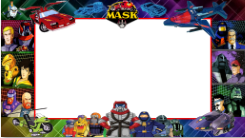
Mask-Overlay-mini puppack
By franck
Mask-Overlay-mini puppack a rajouter pour ce qui le desire
90 downloads
-

BACKGLASS IMAGES FOR PINBALL FX
By ZandysArcade
https://mega.nz/folder/Tdw3TTgR#ZO6hM224_zgBgHcBdutGFw
420 downloads
(1 review)0 comments
Submitted
-
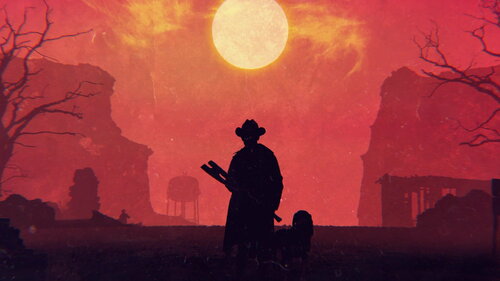
TheWalkingDead(Stern2014) Alt Background
By hanbrujocl
alternative background image for
762179826_TheWalkingDead(Stern2014)-EBv1.vpx
30 downloads
(0 reviews)0 comments
Submitted
-
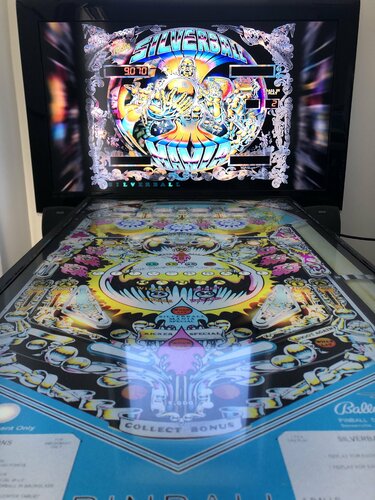
backglass frame Silverball Mania - backglass frame
By Gravy
Experimental backglass frame intended to display the backglass at a more natural ratio on 16:9 screen with added reflections. This is intended to be used in conjunction with Hauntfreaks B2S file for this table (example shown framing that particular B2S).
Click the black square for a preview of the actual frame image, unfortunately the thumbnail crops either side of the image so it just appears black.
I'd be interested to know if this is something of interest to other players, I may create more if it proves popular.
See following link for how to add the frame to the backglass.
Look for section 3 that starts with:
"3) New Feature - proportional backglass"
53 downloads
-
 (0 reviews)
0 comments
Submitted
-
 (0 reviews)
0 comments
Submitted
-
 (0 reviews)
0 comments
Submitted
-
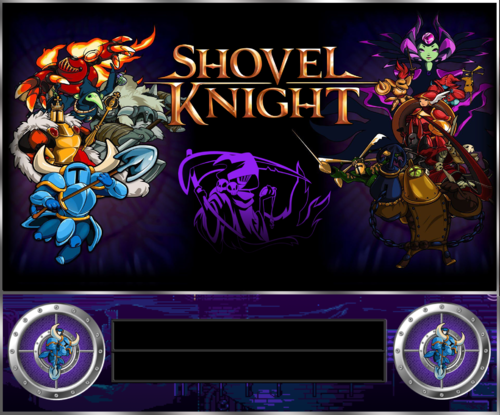
Shovel Knight Backglass Image for DMD
By RusstyT
This background image is for the purpose of building a DMD type back glass
71 downloads
(0 reviews)0 comments
Updated
-
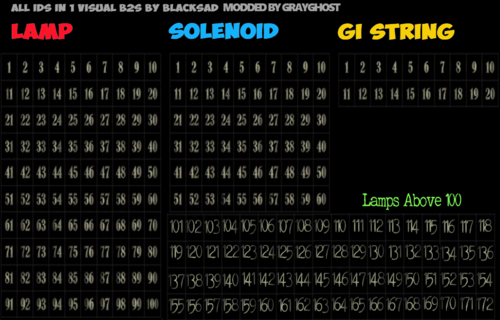
AllInOneBackGlassIDFinder
I don't know were I found this Back-Glass,but it has helped me many times in finding the Rom ID of some games. I added many new lamps as well as color coded the lamps. The original Back-Glass came from BlackSad or BlackSand not sure on the spelling, thanks BlackSad for allowing me to mod your Back-Glass. The best way to use it is to rename a copy of the table you are working on to the same as the Back-Glass, then run the pinball in question. you can then write down the numbers of the lamps. And input them into the back-glass or pinball you are working on.
104 downloads
-
(Custom).thumb.png.a28f4c7bbd3f6ca8bdfbfefb37713118.png)
Slick Chick (Gottlieb 1963)
By Wildman
Slick Chick (Gottlib 1963) for making db2s
94 downloads
- slick chick
- gottlieb
- (and 3 more)
(0 reviews)0 comments
Submitted
-
(Custom).thumb.png.bc08dbfb31978e9df7fcb7c6e69635c3.png) (0 reviews)
(0 reviews)0 comments
Submitted
-
(Custom).thumb.png.263f9f1611e4d1d9692f6c346931b243.png) (0 reviews)
(0 reviews)0 comments
Submitted
-
(Custom).thumb.png.6ebf9c96362b93c1904c5b92821da2ec.png) (0 reviews)
(0 reviews)0 comments
Submitted
-
(Custom).thumb.png.62701d70bdd9b88c61c7c3ef926eab08.png) (0 reviews)
(0 reviews)0 comments
Submitted
Playfield.thumb.png.f88f3b97f56a5baf97032d3dd7d2fd23.png)
.thumb.png.819ca38f5a97412f7acd399b8fc43d5c.png)
SS.thumb.png.73fe6be8979bbacda947b93020218177.png)

.thumb.png.1a240180ed63b6b5d3dfc0aaeb5c7741.png)
TableImageWithTopper.thumb.png.f8c610ca6030a7e31acbbdb1214c55c2.png)

.thumb.png.cec808e8b058fde901e411dbcf2c7984.png)





BG.thumb.jpg.983e5c5881d8fac9cc37344b25ab45a8.jpg)





BG.thumb.jpg.995fda378a6992a25dde673780d8ffbf.jpg)
BG.thumb.jpg.8b11216f592066a6d57f75f8e8d108c5.jpg)

BG.thumb.jpg.5e84d0f816e85020ad7543d8bb54ff5f.jpg)

FullDMD.thumb.jpg.512a4da5dac469c30d30d4492c0317b4.jpg)
.thumb.jpg.a602513f0b53fe9c58c3f81d29fdb5e0.jpg)
.thumb.jpg.f166d4b0aac7996cb7c26b8e04d30d7b.jpg)
_dmd.thumb.png.df002d0c95792901ebb881b074855572.png)
.thumb.png.d149ff9925723a54025724409c89cdc0.png)
Wheel.thumb.png.3c759a45da5257e29a5a159a1bf70ed9.png)
.thumb.jpg.afbec040bacb0b32e1b036db5834e084.jpg)
.thumb.jpg.b3d8b9ce34b20092bc73e81a0f485304.jpg)
1.0.0.thumb.png.d74a1c4720c673917f3fc0fa19e510ad.png)

.thumb.jpg.bc4dbba2fc4e237a6f2c8235b4e36c48.jpg)
.thumb.jpg.7d28f432479c71519e1d4773450c8b4f.jpg)
_4k.thumb.jpg.7d5aa25e7bfc4d69e72e5b28c399da1d.jpg)
PuPPackWheel.thumb.png.eaae9c4ec1857bf51e246a141fb74ca1.png)
.thumb.png.a926f2ef37eb2169e5fd67adff46b67d.png)
t.thumb.png.c7dc295265f849da0f6f8d171f60c8f8.png)
.thumb.png.36ac0b70b581047878644237fc559459.png)


.thumb.png.35b172f2fb1a80a21ae173c315f0ae1d.png)