6 files
-

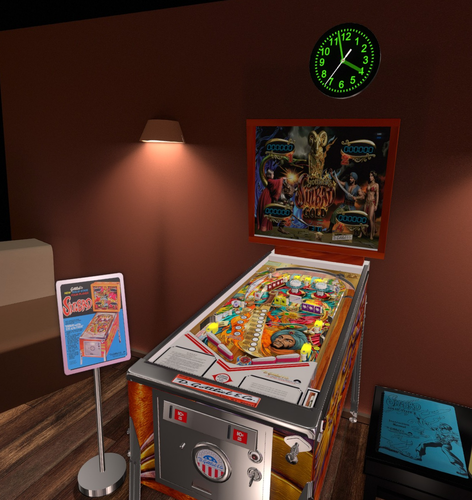
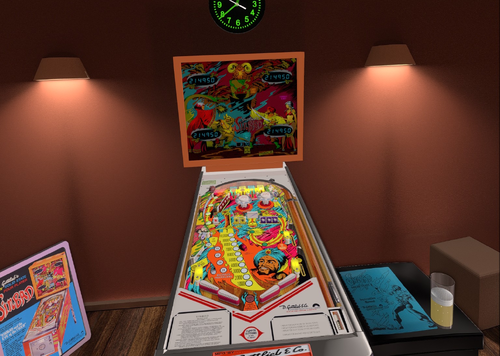
Sinbad (Gottlieb 1978) tutorial HD
By Rumbaabaa
This video is an in-depth tutorial for Sinbad (Gottlieb 1978), breaking down the table elements, scoring and key shots. It’s designed to fit a cabinet backglass or widescreen monitor.
The video can be found on YouTube at: www.youtube.com/@RumbaabaaPinVids.
Massive thanks to the incredible creators who make the virtual tables. This is a small thank-you, and hopefully a help to players.
13 downloads
(0 reviews)0 comments
Submitted
-
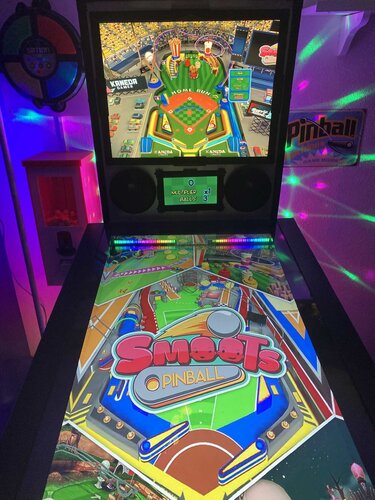
Smoots Pinball (JanduSoft 2023) Media Files & Cabinet Instructions
By SixOfTwelve
Curb your enthusiasm, it's another episode of
Let's Put Things On Cabinets That Were Never Meant To Be On Cabinets!
Oh dear. How do I put this.
Usually, the games featured in this series have something that immediately grabs me. Maybe it’s historical significance, a quirky mechanic, or simply enough charm to make me feel they deserve a place on a virtual pinball cabinet.
This is not one of those times.
Now, before anyone gets the wrong idea, Smoots Pinball was brought to my attention by user @iwantpinball, whose help with scripting and artwork for this release is hugely appreciated. Mentioning the game to me was not some grand declaration that it was a forgotten masterpiece; it was more a case of “hey, this odd little thing exists.” And, in fairness, odd little things are exactly the sort of rabbit hole this series tends to disappear into.
That said... after spending some time with it, I have to admit the game itself really didn’t win me over.
Warning: longish rant incoming.
You’d be forgiven for not knowing what a Smoot is - I certainly didn’t. Think somewhere between Nintendo Miis and Funko Pops, without the charm of either, and you’re not far off the mark. These little customizable guys starred in a whole lineup of multiplayer sports games that were released on just about every platform imaginable and received consistently lukewarm reviews across the board. Not quite shovelware, but never exactly striving for greatness either.
Now: It is a truth universally acknowledged that a gaming franchise in possession of dwindling ideas must be in want of a final cash grab. Which usually takes the form of either a kart racer or a pinball game.
And so we arrive at Smoots Pinball, proudly continuing the series’ long-standing tradition of "Yeah, that'll do."
The game features five tables themed around sports: baseball, summer games, tennis, golf - and of course that most popular sporting event of all: zombies. (And if you've ever seen Olympic-level zombieing, you know what I'm talking about.)
Sadly, Smoots Pinball really doesn't have a lot to recommend it. Yes, tables are colorful, imaginative, and fit their themes nicely. There are neat little bits of animation, like the linesman's head turning to follow the ball on the tennis table. The simple controls and unlockables may make it accessible to children who are too young to get the hang of The Twilight Zone-level complexity. The goals for each table are telegraphed clearly by blinking arrows. The music is fine. But there's a persistent sense that the developers haven't actually spent much time around real pinball tables.
For starters: Four balls. That just feels wrong. Three balls? Sure. Five balls? Also common. But four? It constantly feels like one too many, or one too few.
Then there's the nudging. You don’t get directional nudges, just a single "nudge" button. That alone would be forgivable, but there are no tilt warnings, no sounds, no feedback whatsoever. Take it too far and the flippers just stop. Good luck figuring out where the limit is.
The user interface somehow manages the impressive feat of being both too basic and awkward to use at the same time. More on that further below under "Quitting the game".
And, of course, there’s no cabinet mode. A quick look at the Steam discussions pages suggests the developers' general approach is to release a game and then quietly move on. Given that the Smoots series has also been released on PlayStation 5, PlayStation 4, Xbox Series X/S, Xbox One, and Nintendo Switch, it's pretty clear that the PC version was never a priority, much less the virtual pinball niche market. And while you certainly can play the game in portrait mode, a significant part of the screen will be cut off to the left and right, so I decided to make it playable on the backglass screen.
Sorry, folks. I did what I could to make this presentable on a cabinet, and I did pick up a few useful scripting tricks along the way (especially with resolutions and DMDExt) while I wrestled the game into submission.
But I can’t blame you for giving this one a miss.
Longish rant over. For now.
This time, there are two AutoHotkey scripts included. The main one does the usual: It pushes the game window to the backglass screen, fills playfield and DMD with decorative images, launches the game, auto-skips the intro videos and maps the controls to standard cabinet buttons. Optionally, it offers support for analog nudging and plunger use via JoyToKey, and can also use DMDExt to mirror the score display on your DMD screen.
The other script serves as a selection menu: You can pick the table you want to play, and the previous script launches much like it did before, but will continue to auto-select the desired table and auto-start a one player game. Once again, I am indebted to @iwantpinball for this part.
Also included are a number of goodies:
2 backglass images (4:3 and 16:9) a company logo 2 DMD images (one for the frontend, one as a filler image for the script) 5 instruction cards (depending on which script additions you're using) table audio (recorded directly from the game) a table image for your frontend and a filler image for the script (the same image, rotated differently for each purpose) a wheel image Most of these images were graciously provided by @iwantpinball.
Share and enjoy!
SOME MORE NOTES:
Where to get it:
Smoots Pinball is available on Steam.
How to run it:
The game should run "out of the box" on current Windows systems, but being a Steam game, the Steam client will launch along with it and hang around in the background. If you don't mind that, fine.
However, if you have an offline cabinet and want to run the game without the Steam client popping up:
Download the Goldberg Emulator and extract the steam_api64.dll. Go to the game's SmootsPinball_Data\Plugins\x86_64 folder and rename or back up the original steam_api64.dll and replace it with the one from step 1. Create a simple Notepad text file in the same folder, name it steam_appid.txt and paste the game's Steam ID into it. You can find the ID number in the URL of the game's Steam Store website. Running the game's EXE file should now work without Steam. It should be noted that use of a Steam emulator can be a legally gray area. Check your local jurisdiction and make sure you own a legal copy of the game.
Quitting the game: The hard and the easy way
To leave the game, you usually have to navigate your way back to the main menu (using flippers for left/right and magnasave buttons for up/down). Then navigate to the rightmost menu and push up (magnasave/nudge left) to light up the little ball with the x in it in the top corner. That's the game's close button. And it will still ask you one more time if you really want to leave. For this reason, I mapped an extra key (Buy-In, or 2) as an insta-killswitch that will end the game from any place.
Use of JoyToKey:
As I said above, I’ve included optional support for JoyToKey, though I’m hesitant to recommend it in this case.
First, the game only supports a single “nudge” key, so it doesn’t matter where you hit or shake the cabinet - the result is always the same.
Second, and more bizarrely, the game uses the same key for both nudging and the plunger. That means if your analog plunger has a bit of recoil when released, those extra triggered nudges can occasionally tilt the game before the ball has even left the shooter lane.
AI use disclaimer:
No AI was used in the creation of the artwork for this media pack.
However, the launch selection menu script is mostly the result of me arguing with ChatGPT until it finally cooperated.
Finally, here are two videos showing the game running on my cabinet.
Here is the version without running the selector menu first: You get to pick your own table and select your number of players. I also demonstrate the analog nudge by kneeing my cabinet in the groin. The video also shows the tedious way you have to use the exit menu to quit the game. (Also note that on a 4:3 backglass, the menus will look a bit out of place until you get to the game proper, then everything looks fine.)
And this is the version with the selector menu. It launches the table directly and starts a 1 player game. In this video you also get a better look at the DMD screen.
15 downloads
(0 reviews)0 comments
Submitted
-
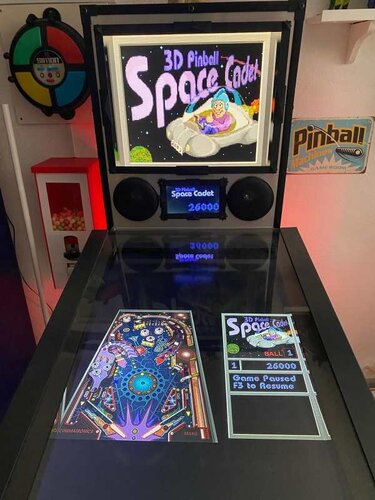
Space Cadet (Maxis 1995) Media Files & Cabinet Instructions
By SixOfTwelve
Houston,
Let's Put Things On Cabinets That Were Never Meant To Be On Cabinets!
This is the big one, kids. The OG. The granddaddy of them all. It's 3D Pinball: Space Cadet, released by Microsoft in 1995 as part of their Plus! package and bundled with every Windows operating system afterwards, up to and including Windows XP in 2001.
To call this game influential would be an understatement. It was in everyone's home, and everybody and their grandmother played it. For a lot of people, this was their first taste of virtual pinball. And the best part? It still runs on modern systems, so of course I had to give this one the special full cabinet treatment.
Yeah, but… why?
We’ve got an excellent VPX recreation by the venerable JP Salas. It got a fantastic overhaul in 2025 with @funkatron101’s Galaxy Edition. There are multiple high-quality mods out there. So why go back to the clunky old Windows version and put it on a cabinet?
I can only answer that for myself: Because it’s there. Because I wanted to see if I could - which is kind of the entire point of this series.
And because when someone steps up to the cab and says, “Hey… this reminds me of that game I used to play as a kid,” I want to be able to smile, say: “You mean this one?”, fire it up, and watch the nostalgia hit.
And honestly? It deserves to be there. Out of respect.
So, today's included AutoHotKey script makes Space Cadet run on your cab: It rotates the playfield to portrait mode, lowers the resolution to 600x800, places filler images on the backglass and DMD screens, launches the game, covers up some of the Windows-specific interfaces and maps your cabinet buttons to the appropriate keys. Optionally, it offers support for analog nudge and plunger via JoyToKey, and DMDExt support for showing the score on your DMD screen.
Brace yourselves for a space freighter full of goodies:
4 backglass images (two in 4:3, two in 16:9, featuring both original and AI reimagined art) 3 company logos (you pick: Maxis, Cinematronics or Microsoft) 2 DMD images (one for the frontend, one as a filler image for the script) 3 flyer images (shots of the Microsoft Plus! packaging, courtesy of Archive.org) a whopping 71 instruction cards (text taken from the offical rules document, fully illustrated in loving detail by myself, plus a few extra pages from an online strategy guide - this may well be the most comprehensive guide to the game out there, and it should be usable for the VPX version as well!) launch audio (the classic wormhole sound effect) a promo video (a short vintage Microsoft Plus! TV ad) table audio (recorded from the game) 2 table images (one for your frontent, one to hide the game's Windows UI during startup) a wheel image (courtesy of the Launchbox Games Database)
As always, the script will need a bit of tweaking to fit your setup, but don’t worry - it’s heavily annotated. Give it a proper read-through before heading to the comments for help.
I’m happy to assist where I can, but do try to meet me halfway first 😉
Share and enjoy!
SOME MORE NOTES:
Where to get it:
Space Cadet is no longer bundled with Windows, but it’s still easy to find online, either as part of old Windows ISOs or as a standalone download. Archive.org is probably your best starting point.
How to run it:
Amazingly, the game still runs without a hitch on modern Windows systems - or at least the later versions do. Some original Windows 95 builds floating around may not cooperate, so make sure you grab a working version and test it before wiring it up to the script.
You may need to tweak the timing of a couple of Sleep commands in the script, depending on how quickly the game launches on your system:
The first Sleep covers the time until the game’s “3D Pinball” splash screen disappears (after which the script’s loading overlay takes over) The second Sleep waits for the game to fully load before sending F4 to switch to fullscreen and remove the overlay.
A word about controls:
The Coin button acts as Pause (F3). The menu bar is hidden by the script. The Start button pulls double duty: It restarts the game (F2) and acts as Enter for high score entry. The script assumes you're using the game's default controls. With a US keyboard layout, everything should work out of the box. On other layouts, the default / key for the right flipper may cause issues. If so, remap it in-game and adjust the script accordingly. (Details are in the script comments.)
What I'm not completely happy with:
The game always launches in windowed mode and needs to be switched to fullscreen (via F4) once it’s loaded. The script handles this and hides the transition behind an overlay image.
That said, the game window will sometimes briefly pop in front of the overlay before going fullscreen. Not every time though, and I haven’t figured out why. If you crack that one, let me know.
What's not working (yet):
Right now, the setup is locked to single-player.
In theory, enabling more players should be as simple as having the script send: Alt+O → P → [1–4]
Feel free to experiment, and definitely let me know if you get it working 🙂
AI use disclaimer:
The alternate backglass was created with ChatGPT, using the original screenshot as a starting point.
Fun fact: AI is terrible at left and right hands. The Cadet’s thumbs-up hand kept switching sides like it was in a mirror universe. After about 30 iterations and corrections, this was the best result I could get. Hope you like it!
Would you like to know more?™
Absolute madman Timothy Peterson has created a YouTube playlist in which he shows how to beat every single mission the game has to offer. These videos have been invaluable to me in putting together the Instruction Cards, since the official rules document that came with the game does contain a handful of errors and unclear definitions, which have been corrected for this version.
45 downloads
-
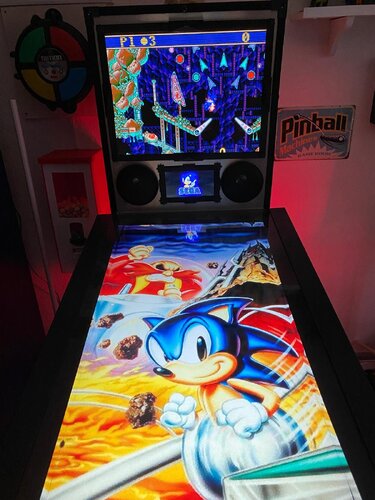
Sonic the Hedgehog: Spinball (SEGA 1993) Media Files & Cabinet Instructions
By SixOfTwelve
And now for a very special edition of
Let's Put Things On Cabinets That Were Never Meant To Be On Cabinets!
Today it's time for a true classic: Ask any retro gamer to compile a list of influential pinball video games, and chances are that 1993's Sonic the Hedgehog: Spinball will pop up somewhere in their top ten. The game was developed in a relatively short amount of time by an American team after it became clear that the Japanese team working on Sonic the Hedgehog 3 wouldn't have the game ready in time to take advantage of the 1993 Christmas shopping season.
The ball physics are pretty bad, the control mechanism - a mixture of flipping, jumping and moving - is pretty clunky, but the Sonic factor still makes the game fun to play and it has a special place in many people's hearts.
The included AutoHotKey script launches the Megadrive/Genesis version of the game via RetroArch, covers the backglass and DMD screen with filler images and maps your cabinet's buttons to the game's keys.
A word about the controls:
Since most cabinets don't have a joystick on them, I needed to map the game's left/right movement to the Magnasave buttons in order to keep the Flipper buttons free to do the actual flipping. The game's Down button is mapped to the cab's Launch button. It's used in combination with the flippers for Sonic's dash maneuver. The game's Up button is only used for looking up and not really necessary in the game. I mapped it to the Buy-in button, but if your cab doesn't have one, it's no big loss. There is a maneuver that can be performed during bonus rounds originally by pressing all three controller buttons on the SEGA controller simultaneously. Since it's very impractical to push three buttons on a cab at the same time, I mapped the two Magnasave buttons to trigger all three controller buttons when pressed at the same time. The only time you'll notice this is when you enter the bonus rounds and use it to tilt Sonic's pinball table.
Another word about the controls:
If you look at the script, you'll notice that I used a sort of "double mapping": First I mapped keys to buttons in RetroArch, and then I used AutoHotKey to map other keys (the cabinet buttons) to those RetroArch keys.
The reason is that I use RetroArch to emulate other systems as well, and the key for "left flipper" in one game isn't always the same in another. Rather than work with half a dozen control schemes in RetroArch, I find it easier to stick to one and adapt the controls for each particular game in AutoHotKey.
Included media:
a backglass image (in 4:3 format) a company logo 2 DMD images, one for the frontend and a filler image used by the script 7 flyer images (courtesy of MobyGames) 15 instruction cards (taken from the game's PDF manual) table audio (recorded from the game) a wheel image (courtesy of the LaunchBox Games Database)
As usual, the script needs to be adapted to your system, but no fear - it's extensively annotated. Please take a good long look through it before asking for help in the comments section.
I'll gladly try to help, but please do make an effort first.
Share and enjoy!
SOME MORE NOTES:
Where to get it:
Oohh no. Nope. Uh-uh. Not touching that one with a thirty-nine-and-a-half-foot pole. You're on your own here.
How to run it:
As stated above, the game requires RetroArch to run.
Setting up RetroArch is a bit of a science in and of itself, and is frankly beyond the scope of this post. Make sure you have the game up and running to your satisfaction before attempting to use the AutoHotKey script.
Some pointers though:
My version uses the genesis_plus_gx_libretro core. Look at Settings -> Video -> Output -> Monitor Index to select the right monitor for your backglass screen (it was "2" in my case). Settings -> Input -> Port 1 Controls is where you map your keys. For my own setup, I had them set differently than the standard, because I re-use the same configuration files for RetroArch on some of my other (non-pinball) arcade cabinets and didn't want to revamp them completely for my pinball cabinet. You can map them to anything you like, just make sure you adjust the key mappings at the end of the script accordingly. My own mappings are listed in the script. It's also a good idea to set Settings -> On-Screen Display -> On-Screen Notifications to OFF (otherwise you'll get notifications like "ROM loaded" on screen) once you've set everything up the way you need it. Also make sure to set Settings -> Input -> Hotkeys -> Confirm Quit to OFF, or else RetroArch will make you press the Exit button twice before quitting. If you have extra cabinet buttons free, you can go to Settings -> Input -> Hotkeys and map them to "Load State" and "Save State" - very convenient and highly recommended.
AI use disclaimer:
No AI was used in the creation of the artwork. ChatGPT was helpful in figuring out the "fire three virtual buttons at the same time when pressing two actual buttons simultaneously" part. It got the actual code wrong, but put my brain on the right track 😉25 downloads
(0 reviews)0 comments
Submitted
-
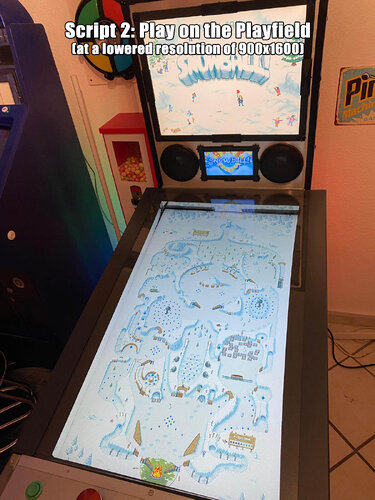
Snowball! (PixelJAM 2016) Media Files & Cabinet Instructions
By SixOfTwelve
Baby, it's cold outside! Come on in, warm yourself by the fire and
Let's Put Things On Cabinets That Were Never Meant To Be On Cabinets!
This time, thanks to my stupidity, you get two scripts for the price of one as we tackle Snowball!, a 2016 indie game by PixelJAM.
Snowball! is a cute and, honestly, pretty relaxing pinball game full of neat detailed pixel art. You shoot snowballs around a wintery slope, trying to avoid a fire at the bottom. The game is full of clever details: Ocasionally you hit a tree or some other obstacle, and another little snowball will form, creating a spontaneous multiball. Then there's a section of the playfield that suddenly turns your game into a Breakout variant. Two huge electromagnets act as stationary magnasaves that can also slingshot your ball into different directions if you handle them with the right timing. It's really imaginative stuff.
The game can be played in portrait mode, giving you a complete view of the playfield - which makes it ideal for use on a cabinet.
However, on my screen (resolution 1080x1920 when upright), the game would always start flickering like crazy after a few seconds, making it effectively unplayable.
So I decided to write a script to move the game window to the backglass and have it play there, with the game's field of view scrolling up and down. I had the whole script ready and finished, when I suddenly had a thought:
Snowball! was a ten-year-old game. What if my playfield's resolution was simply too high?
And indeed, once I reduced the resolution to 900x1600 - no more flickering, and the game behaved as it should.
So rather than scrap my first script, I decided to include it here as a bonus. Who knows, maybe on someone else's setup the playfield variation may not work for whatever reason - it's nice to have options.
The second (newer) script
rotates the playfield to portrait mode lowers the resolution to 900x1600 puts filler images on the backglass and dmd screens maps the game's keys and functions to standard cabinet buttons restores rotation and original resolution on exit
The original first script
moves the game window to the backglass puts filler images on the playfield and dmd screens maps the game's keys and functions to standard cabinet buttons
There's a bunch of media included:
2 backglass images (in 4:3 and 16:9 formats) a backglass video for your frontend for the "play on the backglass" variation a company logo 2 DMD images, one for the frontend and a filler image used by the script (taken from the game's press kit on PixelJAM's website) 3 instruction cards, depending on how you set up your nudging (more on that further below) a promo video from YouTube (the Steam launch trailer for the game) table audio (recorded from the game) 2 table images (one for the frontend, one for use in the script - they're the same image, but for some reason the two need different rotation directions) a frontend table video for the "play on the playfield" variation 2 wheel images (one taken from the game title screen, one from the game's press kit on PixelJam's website)
As usual, the scripts need to be adapted to your systems, but no fear - they are extensively annotated. Please take a good long look through them before asking for help in the comments section right away.
I'll gladly try to to help, but please do make an effort first.
Share and enjoy!
SOME MORE NOTES:
Where to get it:
Snowball! is available on Steam. At the time of this posting, you can get it for under 3€. You can run the game's .EXE without Steam, wich is always nice.
Annoying stuff about the game:
Apart from the "needs a low resolution to run" issue, there were two more problems:
Firstly, all the menus can only be navigated by clicking on buttons. There is no "move up/down" or "move left/right" that could be mapped to flipper buttons. Instead, I had to program the keys to position the mouse at a certain spot and click there. Which would be fine if the damn menu buttons were always in the same spot. But no: The button to (re)start a game is in three different locations, depending on whether you're in the start menu, in the pause menu, or on the "Game Over" screen. So when you press "Start", the game now rapidly clicks three different locations each time for it to work in each case. That was fun to figure out.
In the "play on the playfield" version of the script, you probably won't have to change any of these coordinates, since 900x1600 is the fixed resolution.
Should you want to use the "play on the backglass" version, you'll probably have to do a bit of work on the coordinates (unless your backglass has a resolution of 1600x1200 like mine).
Secondly, the game uses the Space bar to activate the magnasave pylons, but if you press Space along with a direction key, you nudge the ball.
No problem, so I simply map the magnasave buttons to perform both functions. Which would be fine if nudging didn't incure a score penalty in the game.
Since I didn't want to punish the player for using the magnasave (which would also count as a nudge, lowering your score), I came up with two alternate solutions:
My cabinet has extra buttons on the top left and right. I simply mapped the magnets (Space) to these and mapped the nudge function (Space+direction) to my magnasave buttons. But not everyone's cab has extra buttons, so... If you have an analog input (like a VirtuaPin controller) that registers as a joystick, you can also use JoyToKey to map the nudge function to [Space+direction], freeing up the magnasave buttons for [Space]. The JoyToKey option can be disabled in the script. The default is set to enabled.
AI use disclaimer:
The "nudge" hand in the instruction card was created with ChatGPT, the rest is all good old-fashioned Photoshop.
I also used ChatGPT to help with some script functions (like reading monitor resolutions automatically without having to hardcode them) that probably would've taken me ages to figure out otherwise.
Special thanks:
iwantpinball for pointing me in the direction of displaying images directly in AutoHotKey instead of using an external tool, as I did in my previous scripts.
12 downloads
-
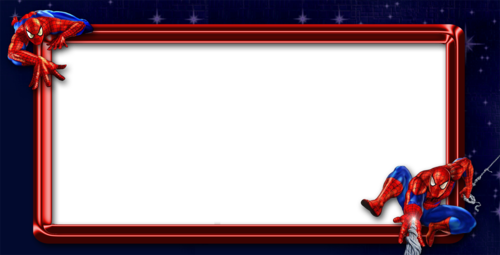
Spiderman Frame for DMDext
By Tikimaster
This is a Spiderman Frame for DMDext
put it in your Visual Pinball\VPinMAME\DMDext\textures\frames dir and configure it
61 downloads
(0 reviews)0 comments
Updated

CabCapture.thumb.png.a2c00b61a6b7043444898e3394166c93.png)
FS-DT-VRSoundMODv1_0DT.thumb.PNG.2a85890970d2bfab35d2d7a79c1e7838.PNG)
SoundMODv1_0a.thumb.PNG.564dbfe3b1d4c963de4833fc9299394b.PNG)
.thumb.png.fcf8d2ea2a552dca023d7ef142b6c01e.png)


(Custom).thumb.png.fdc01bc14fd91bd66f346f469b9e3b12.png)
(Custom).thumb.png.2ee3235d6effa14cccc028a70fb279ac.png)
![More information about "[ZEN] BioLab Colorization - Serum v2"](https://vpuniverse.com/screenshots/monthly_2025_03/biolab.thumb.gif.fa5b38df28b153a7653705f666d6033a.gif)
![More information about "[ZEN] Sorcerer's Lair Colorization - Serum v2"](https://vpuniverse.com/screenshots/monthly_2024_12/sorc.thumb.jpg.d2ef9e80d43523c642d44b6b3837eb30.jpg)
.thumb.jpeg.e47615603d7ef896f4a724574c81e815.jpeg)
.thumb.jpg.29992146f7750d9ecbec6623b75ee49d.jpg)
.thumb.jpg.a4090ce5464f95c7227bf783f5dcb53a.jpg)
kopia.thumb.png.fc2260e2fed052ad572ae20bdad05b18.png)
_desktop.thumb.jpg.77bae81ae3f013df12ce835deeaaad1f.jpg)
FullDMD.thumb.jpg.44f1c410fb5e0fd8529f560ef23c8184.jpg)
.thumb.jpg.9ef6da3db26406bb4746a4400b088989.jpg)
.thumb.jpg.2c912aeb2c31d9d9415b0fe4e9ea5807.jpg)
.thumb.jpg.7d2d4da4e0228a50219c1c62e07199d5.jpg)
.thumb.gif.b85d576bae1110fbcace00756bf509ac.gif)

.thumb.jpg.a41212864658134e898ad38b56678b5b.jpg)
ComfyUI.thumb.jpg.3999d3d496799a0cc0e8c4fc792707d4.jpg)

_4k.thumb.jpg.8f964c1503669c8608d368f25149830b.jpg)
PuPPackWheel.thumb.png.2bf66245ca08b7c65be8258c7fb371f9.png)




(HurstyToppersBorder).thumb.png.d926ab9009412d8cb0080b38089c0618.png)
.thumb.png.90c0f8d3dfe4399580399b2017f00c7a.png)