
-
SYSTEM SEARCH
System Scanners Online:
Username: Guest
>> System Scan?
>> The Universe >
Incoming Message:
Due to system limitations searching with words of 3 or less characters will not return results. For instance; Doctor Who. This will not return results as the system is trying to search for both Doctor AND Who in which Who will not be found as it's a 3 character word. To find Doctor Who; you'd search for either Doctor or "Doctor Who".
Search Tips:
For specific searches; enclose your search with quotes. Example: "Doctor Who" or "Addams Family".
Search the Community
Showing results for tags 'window'.
Found 4 results
-
 [FREE TOOL] Pincab Toolbox — scan your VPX/Popper install and find what's broken (missing ROMs, 64-bit mismatches, backglasses…) Hi everyone, Like many of you, I've spent more evenings fixing my cab than playing it. A table crashing with a cryptic VPinMAME error, a DMD that died after moving to 64-bit, a backglass that stopped showing… and every time, an hour of digging through folders to find the cause. So I built the tool I wished existed: Pincab Toolbox, a free scanner that diagnoses your install in seconds (a bit longer on a large collection). What it checks: Missing ROMs — reads every table script (cGameName), resolves VPMAlias.txt, and names the exact missing .zip in VPinMAME\roms. Original/EM tables are recognized, so it doesn't flag them. Extracted ROMs — a ROM unzipped into a folder won't be loaded by VPinMAME; it flags that. 32/64-bit mismatches — THE trap of the VPX 10.8 transition: it inventories the bitness of every exe/DLL (VPinMAME, dmddevice, B2S, FlexDMD) and flags broken hybrid installs. Windows-blocked DLLs — a file extracted from a downloaded ZIP can be quarantined ("Mark of the Web") and fail to load; it detects that. Missing dependencies — B2S Backglass Server or FlexDMD required by your tables but absent. Backglass & Popper — missing .directb2s files, tables not registered in the PinUP Popper database, PUP-Pack presence. Compatibility — nFozzy/Roth physics signatures and minimum VPX versions declared in scripts. Outdated tables (beta) — checks against the open-source Virtual Pinball Spreadsheet database and links to the official page only. Script Diff — compare two versions of a table side by side before overwriting yours. Ground rules I committed to (because this community rightly cares): 100% local — nothing is uploaded, zero telemetry, no account. Read-only — the scanner NEVER modifies a file, a registry key or a database. Never downloads content — no tables, no ROMs, no media, ever. This is a diagnostic tool, not a downloader. The community sites remain THE source. Screenshot: [insert scan screenshot] Download: https://pincab-toolbox.vercel.app/ (Unsigned exe for now → the usual SmartScreen warning: "More info" → "Run anyway". Code signing lands in the next release.) There's a built-in demo mode if you want to see it in action before pointing it at your real setup. It's a v0.1 and I'm looking for blunt feedback — false positives, exotic tables, confusing messages. I fix fast. If it proves useful, a version that repairs some of what the scanner finds is in the works — always with a backup first, a preview of what will change, and undo. The scanner itself stays free and read-only, forever. Thanks, and happy flipping! Flipsync V
- 26 replies
-
- 2
-

-
- vpx
- visual pinball x
- (and 5 more)
-

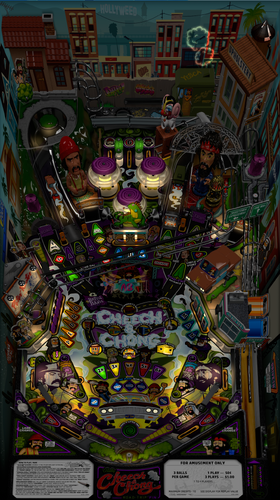
Version 1.0.0
40 downloads
This is a Cabinet POV for 43" display, using VPX10.8. It is an alternate option to those offered by LoadedWeapon. The objective of this POV is to maximise the depth perception of the playfield utilising the "Window" option in "View Layout Mode". The result is, when viewed directly from above, the image may look distorted - as shown in the attached screen shot - but when viewed from the front of the cabinet, the images regain their perspective (much like "STOP" painted on a road surface). Although specifically customised for this particular table, it should also be a close fit for the same table made by other creators. Link to Table: Installation procedure: 1. Make a backup copy of your *.ini file for this table which will be located in your "Tables" folder. 2. Paste the downloaded *.ini file into your "Tables" folder 3. Rename the downloaded file to be exactly the same as your table file and B2S file. The most reliable way to do this is to select all files Table file,B2S and ini file. Right click with mouse. Select rename option. Rename the file. All 3 files will then be renamed automatically Troubleshooting: a) If you start the table and it is not visible or not centred properly 1. press f12. 2. Make sure you are on the page with heading "Point of View" which is the POV setting screen. 3. Use the Magna button to scroll down until "Vertical Offset" is highlighted 4. Use your flipper keys to adjust this value which will move playfield either up or down. 5. If the playfield is "black colour" it means that the playfield is "beyond" the location of your screen display. In such a case the "Vertical Offset" value is most likely a high negative value. In that case press the right flipper key. The value should reduce towards zero. As you get near to zero the playfield will become visible. Continue to adjust it until the edge of the apron is aligned with the bottom of your display screen. b) In the unlikely event that you cannot get the screen to size to your playfield, simply delete the ini file and replace it with your backup copy. -
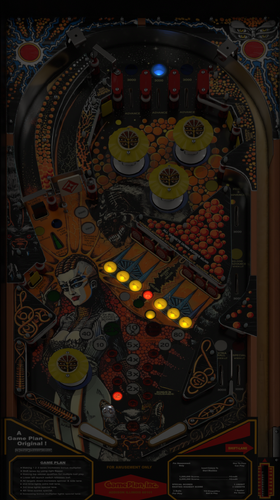
Version 1.0.0
37 downloads
This is a Cabinet POV for 43" display, using VPX10.8. It is an alternate option to those offered by LoadedWeapon. The objective of this POV is to maximise the depth perception of the playfield utilising the "Window" option in "View Layout Mode". The result is, when viewed directly from above, the image may look distorted - as shown in the attached screen shot - but when viewed from the front of the cabinet, the images regain their perspective (much like "STOP" painted on a road surface). Although specifically customised for this particular table, it should also be a close fit for the same table made by other creators. Link to Table: Installation procedure: 1. Make a backup copy of your *.ini file for this table which will be located in your "Tables" folder. 2. Paste the downloaded *.ini file into your "Tables" folder 3. Rename the downloaded file to be exactly the same as your table file and B2S file. The most reliable way to do this is to select all files Table file,B2S and ini file. Right click with mouse. Select rename option. Rename the file. All 3 files will then be renamed automatically Troubleshooting: a) If you start the table and it is not visible or not centred properly 1. press f12. 2. Make sure you are on the page with heading "Point of View" which is the POV setting screen. 3. Use the Magna button to scroll and highlight "Vertical Offset" 4. Use your flipper keys to adjust this value which will move playfield up or down. 5. If the playfield is "black colour" it means that it is "beyond" the location of your display screen. In such a case the "Vertical Offset" value is most likely a high negative value. In that case press the right Magna key. The value should reduce towards zero. As you get near to zero the playfield will become visible. Continue to adjust it until the apron is aligned with the bottom of your display screen. b) In the unlikely event that you cannot get the screen to size to your playfield, simply delete the ini file and replace it with your backup copy. -
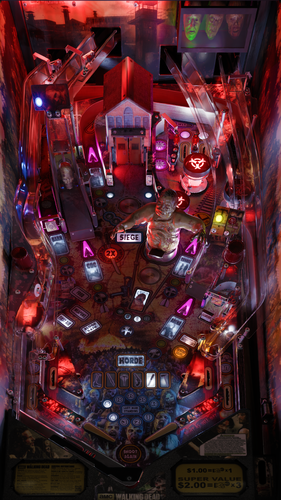
Version 1.0.0
142 downloads
This POV is for 43" display in cabinet mode using VPX10.8. It is an alternate option to those offered by LoadedWeapon. The objective of this POV is to maximise the depth perception of the playfield utilising the "window" POV mode. The result is that, when viewed from directly from above, the image may look distorted - as shown in the attached screen shot - but when viewed from the front of the cabinet, the images regain their perspective (much like "STOP" painted on a road surface). Although specifically customised for this particular table, it should also be a close fit for the same table made by other creators. Installation procedure: 1. Make a backup copy of your *.ini file for this table. 2. Paste the downloaded file into your "Tables" folder 3. Rename the downloaded file to be exactly the same as your table file and B2S file. The most reliable way to do this is to select all files, right click with mouse, then select rename option on one of the files. All 3 files will then be renamed automatically Troubleshooting: a) If you start the table and it is not visible or not centred properly 1. press f12. 2. Make sure you are on "page 2/3" which is the POV setting screen. 3. Use the Magna button to highlight "Vertical Offset" 4. Use your flipper keys to adjust this value which will move playfield up or down. 5. If the playfield is "black colour" it means that it is "beyond" the location of your display screen. In such a case the "Vertical Offset" value is most likely a high negative value. In that case press the right Magna key. The value should reduce towards zero. As you get near to zero the playfield will become visible. Continue to adjust it until the apron is aligned with the bottom of your display screen.-
- 8
-
-
- walking dead
- pov
- (and 2 more)