Pinup Popper Themes
3 files
-
Grayson's Minimal Pinup Popper Theme
By AddamsFam
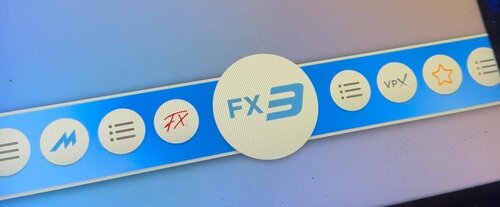
This is a theme that dramatically changes look of the Popper navigation UI (the main wheel icons navigation system). It is a simpler, more minimal design style.
Before trying this out, make a back up of any folders you edit, so that you can go back your old setup if you wish.
The installation is basically just replacing some of the image files.
There are two parts, the wheel icons, and the "WheelBar" (the horizontal bar behind the icons. It seems to also be called T bar, or Toolbar sometimes).
WHEEL BAR
To use my horizontal Wheelbar (the thing behind the wheel icons sometimes called T Bar), you will first need to install the "T Bar Option 2" t bar theme here: https://www.nailbuster.com/wikipinup/doku.php?id=popper_themes
That installation in the link will get your Wheelbar to be horizontal , rather than curved.
Once you have that working, you can replace the pup_default_toolbar.png and pup_default_loading.mp4 files. I will explain the exact file locations below.
Alternatively, you can just replace the icons, but the theme goes together well when you update both aspects of the UI.
WHEEL ICONS
These are simple .png files that can replace the originals. The primary icons are updated with a new look.
I have created the menu actions, as well as the default "wheel" icon for games that don't have a wheel.
I have also made icons for popular emulators such as:
VPX
Future Pinball
Pinball FX
Pinball FX3
MAME
Demon's Tilt
Xenotilt
INSTALLATION
REPLACING THE FILES
Installation is as easy as replacing the files. There are a couple locations you'll need to update them in. It took me awhile to figure out all the little places, so bare with me if I forgot any, and give feedback if anything didn't update after doing the steps. I'll update this guide as needed.
POPMedia/Default/System
This is the main folder the images live. Remember to make a backup before replacing files.
My download contains a folder called 'System'. Select all the contents (If you arent updating the Wheelbar, or havent installed "T Bar Option 2" , dont copy over the pup_default_toolbar.png and pup_default_loading.mp4 files.)
Copy those files into 'vPinball/PinUPSystem/POPMedia/Default/System' and replace the original files.
POPMedia/Default/Wheel
Now open this folder, 'vPinball/PinUPSystem/POPMedia/Default/System'
Replace any of the Wheel images that I have made updated versions of.
RESETTING THE THUMBS
The icons won't show up quite yet. You'll need to press a button in Pinup Popper.
Open Pinup Popper setup and go to "Popper Setup > GlobalConfig > Game/Wheel Toolbar"
Press "Reset All Thumbs"
Now the new icons should show up when you load up Popper!
UPDATE THE WHEELBAR
There are a few places that the Wheelbar image/video lives. We already updated the Default/System location, but there is an additional step we need to do.
Open the Popper setup app and go to Media Manager.
Select "Playlists"
Click the Playlist called "Home"
In the top right of the media options there is a box for "Wheelbar"
Drag and drop my wheelbar image on it: pup_default_toolbar.png
Now run Pinup Popper and load a game and see if the Wheelbar is loading in the correct location for both the static background and the loading image.
Adjusting the position of the Wheelbar
In Popper Setup, go to "Screens/Theme"
There are several media elements on the left, and their coordinates listed as numbers on the right. There are several values, separated by commas.
To adjust the height of the media, edit the SECOND number value. (I can't remember if increasing the value raises or lowers the position)
Adjust the "Wheel BAR" co-ordinates as needed.
It is also possible the "Loading" media item refers to the Loading animation of the Wheel bar. Please let me know if that is the case and I'll update the instructions.
Additional Considerations
If the LOADING animation is still not the new animation, then you probably need to drag and drop my pup_default_loading.mp4 file onto the "Loading" box just below "Wheelbar". If someone can confirm that is necessary in the comments, I can update these instructions.
If you want this to be the Wheelbar for all of your playlists, click on the other Playlists in the Popper Media Manager. Then Delete the media for the Wheelbar. I believe that makes it rely on that "Home" Wheelbar media. .Maybe someone can confirm that also.
Let me know how it goes, and if there are any bits of the guide I can simplify. The tricky part was figuring out all the little things I had to do for Popper to find the right images. Because I already have it set up on my cab, it has been awhile since I did the process, so let me know if I need to update any of these steps!
54 downloads
(1 review)0 comments
Submitted
-
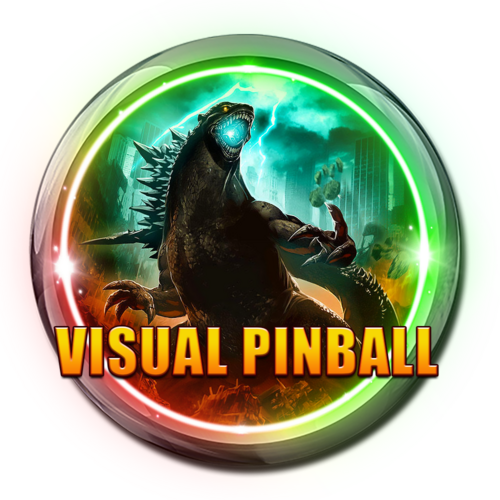
GODZILLA Themed Cab Wheels and T-Arcs
By ZandysArcade
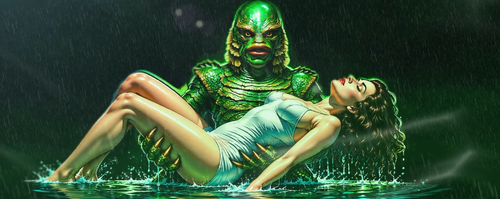
Godzilla Themed Cab Wheels and T-Arcs
https://mega.nz/folder/DUBWSAAK#HD2fkljemnsBo1__9QOEpg
226 downloads
(0 reviews)0 comments
Submitted
-
 (0 reviews)
0 comments
Submitted
-
VPU Staff's Top Picks
-
New & Updated Visual Pinball
-
New & Updated Future Pinball
-
New & Updated Backglasses
-
New & Updated DMD Colorizations
-
New & Updated Virtual Reality Enabled Tables
-
VPU Remix & Mods
-
New & Updated Popper Media
-
Updated Files
-
Download Statistics
30747
Files108399
Comments45234
Reviews
.thumb.png.3f9f3a4dfbda28a294be17729b5fc521.png)
.thumb.jpg.43e8e593e06b822c89eaeeb98d31997e.jpg)
2.thumb.png.81ef2376f59b5b593bf11a00c7748a05.png)
.thumb.png.e7dc79548a983370f821704427f6da6b.png)
.thumb.png.d51a931ff30fe59b563aa7204516156c.png)
.thumb.png.549f4f0bd3458b66eb03fb4c16dc19bb.png)
fulldmdDark.thumb.png.4adb14d919e19de0927e9e71ba2c1ae5.png)






.thumb.png.1bf3b130b7ed14824e5859d542a1d85e.png)

.thumb.png.c1f6cdb8f87794103c517ed1454f8e7b.png)
.thumb.png.28300e9a653a01ade6bcc5b1e91f5d4c.png)

2.thumb.jpg.157901c34294205c4891caebb57509e9.jpg)
.thumb.png.6fcb2ba697c8618ffc3a8483f63e0b74.png)
_desktop.thumb.jpg.8644cf03e94391723f4a3eb1b42c5d56.jpg)
.thumb.png.d1dea273256c43315c5c2ce8a4289462.png)
FullDMD.thumb.jpg.075c519165cf2f2aa187eefe80c7bf35.jpg)
FullDMD.thumb.jpg.ed411c2c07f52aa0136b3fcca7c56bac.jpg)


Rules.thumb.png.833ea0dece231b1c27787bd325cc11e1.png)

Wheel.thumb.png.5ba343fcfb364e4162fcc13cc3b086d1.png)



VPWv1.2.2.thumb.png.421f22a9974c4e398270f66c5f7a99a0.png)
.thumb.png.4922fe4cff631fca4173f1af0488f65a.png)