-
SYSTEM SEARCH
System Scanners Online:
Username: Guest
>> System Scan?
>> The Universe >
Incoming Message:
Due to system limitations searching with words of 3 or less characters will not return results. For instance; Doctor Who. This will not return results as the system is trying to search for both Doctor AND Who in which Who will not be found as it's a 3 character word. To find Doctor Who; you'd search for either Doctor or "Doctor Who".
Search Tips:
For specific searches; enclose your search with quotes. Example: "Doctor Who" or "Addams Family".
Search the Community
Showing results for tags 'fx'.
Found 7 results
-
Version 1.0.0
15 downloads
Leave a "LIKE" if you do. Table 202- 1 review
-
- 3
-

-
- zen
- zen studios
- (and 2 more)
-

Version 1.0.0
39 downloads
Mind you I am an idiot, but I took my existing Pinball FX pupgames export and added an entry for the new Judge Dredd. I was able to launch directly into it, so people might be able to use it. Or somebody smarter than me will create a better one. Table_202 = Judge Dredd -

Version 1.0.0
46 downloads
I like flame wheels, so I thought I would create some for Pinball Midnight. Please leave a "LIKE" if you do.- 1 comment
-
- 8
-
-
- zen studios
- zen
- (and 4 more)
-
 So much great information on here, but I couldn't quite get the Pinscape accelerometers working with the Zen stuff. I finally got it working and wanted to share what's working on mine and how I did it. This is for a KL25Z/Pinscape Controller and the current Steam versions of: · Pinball FX - Steam app 2328760 · Pinball FX Midnight - Steam app 2337640; the install folder may still be named Pinball M · Pinball FX Classic - Steam app 442120; the install folder may still be named Pinball FX3 My cabinet also runs VPX and Future Pinball. This setup did not change their controls because the nudge adjustment is made in Steam and then tuned per Zen game. The short version I did not need x360ce. Steam can read the Pinscape directly as a generic controller. The reason nudge originally looked dead was Steam's joystick deadzone. My normal cabinet nudge produced readings of only about -3000 to +3000, while Steam's default deadzone was 10000. Steam was throwing away the entire accelerometer signal. The finished mapping is: · Pinscape accelerometer X/Y -> left joystick X/Y -> analog nudge · Pinscape plunger Z -> right joystick Y -> analog plunger · No Pinscape buttons are mapped through Steam, so my existing keyboard/cabinet controls stay as they were Back up first I strongly recommend making a rollback copy before changing Steam's controller setup, especially on a working cabinet. 1. Completely exit Steam. 2. Back up the entire <Steam folder>\config folder. 3. Also back up: <Steam folder>\userdata\<your Steam user ID>\config and, if it exists: <Steam folder>\steamapps\common\Steam Controller Configs\<your Steam user ID>\config If anything goes wrong, exit Steam and restore those copies. Step 1: Verify the Pinscape readings Open the Pinscape Config Tool and choose Joystick. Confirm that: · The Accelerometer X/Y display reacts when you nudge the cabinet. · The Plunger Z bar follows the physical plunger through its range. If the accelerometer and plunger already work correctly in VPX or Future Pinball, I would not change their Pinscape calibration just to fix Zen. The problem in my case was on the Steam side. Step 2: Add an axes-only Pinscape mapping to Steam Copy this entire line to the Windows clipboard: 03004c8009120000eaea000000000000,mjrnet Pinscape Controller,leftx:a0,lefty:a1,righty:a2,platform:Windows, Then go to: Steam -> Settings -> Controller -> mjrnet Pinscape Controller -> Begin Setup When Steam displays Press the A button, do not press a cabinet button and do not press Ctrl+C. Click Paste from Clipboard. Steam should create the controller definition from the copied line. The mapping contains only three axes: · leftx:a0 = accelerometer X · lefty:a1 = accelerometer Y · righty:a2 = plunger Z There are deliberately no A/B/X/Y, flipper, Start, Exit, or D-pad mappings. That is how I avoided disturbing my existing cabinet controls. Steam may save a second Pinscape line that looks like this: 0300000009120000eaea000000000000,mjrnet Pinscape Controller,leftx:a0,lefty:a1,righty:a2,platform:Windows,crc:804c, That happened on mine and is normal. Step 3: Remove Steam's global deadzone Go to: Steam -> Settings -> Controller -> mjrnet Pinscape Controller -> Details -> Calibration & Advanced Settings Set: · Left Joystick Deadzone = 0 · Right Joystick Deadzone = 0 I did not run automatic calibration. Now use Test Device Inputs / Begin Test. · Nudging the cabinet should move Left Joystick X/Y. · Pulling the plunger should move Right Joystick Y. The accelerometer can be a little twitchy around center in this raw test. That is expected. We will control the useful nudge range in the individual game's controller settings. Step 4: Enable Steam Input for the Zen game In the Steam Library: 4. Right-click Pinball FX. 5. Select Properties -> Controller. 6. Set Override for Pinball FX to Enable Steam Input. 7. Confirm that Generic Controller says Enabled, per-game override. Repeat this later for FX Midnight and FX Classic. I recommend getting one game working first. Step 5: Increase nudge sensitivity for that game Open the game's Controller Layout, then go to: Joysticks -> Left Joystick Behavior settings -> Deadzones These are the values that worked on my cabinet: · Inner deadzone: 0 · Outer/max-output point: 18 · Deadzone shape: Circle · Anti-Deadzone: 0 · Anti-Deadzone Buffer: 0 An outer value of 18 felt about right on mine. I may eventually use 20, but 18 is my current setting. This setting works a little backward from what some people might expect: · Lower outer value = stronger/more sensitive nudge · Higher outer value = weaker/less sensitive nudge Steam stored my setting internally as: "deadzone_outer_radius" "5686" You do not need to edit that file manually; I am including the value only as a reference. Step 6: Test the plunger on the right kind of table If Steam's input test shows the plunger moving smoothly and proportionally through its range, I would leave the right-stick scaling alone at first. Some Zen tables do not use a conventional mechanical shooter rod. A special or table-specific launcher can make a partial pull look like a full-power launch even though the controller axis is working properly. I first noticed this on a Tomb Raider table. Worked correctly on PinBot. Test the final plunger behavior on a table with an obvious manual shooter rod before changing the axis response. Step 7: Check everything before repeating it Before applying the per-game settings to FX Midnight and FX Classic, I checked: · Left/right and forward/back nudge directions · Nudge strength and tilt behavior · Smooth plunger travel in Steam's test · Plunger operation on a manual-plunger table · Flippers, Start, Exit, and the rest of the cabinet buttons · VPX and Future Pinball controls Once the first Zen title works, enable Steam Input and apply the same left-stick deadzone settings separately to the other two titles. What did not work for me I initially tried x360ce 4. It could list the Pinscape, but the DirectInput source stayed offline at 0,0 and it never produced a useful virtual controller. Steam's native generic-controller support worked once I fixed the deadzone. I removed x360ce from my cabinet after backing it up, but I would not recommend blindly deleting it from another cabinet. If it is already used by another emulator or game, preserve that setup. Also, ViGEmBus is a separate shared driver and does not need to be removed just because x360ce is no longer being used. Summary of my working values Device: mjrnet Pinscape Controller (KL25Z/Pinscape) Steam Input: Enabled per Zen game Axes: a0 -> Left Stick X a1 -> Left Stick Y a2 -> Right Stick Y Global Steam deadzones: Left stick = 0 Right stick = 0 Per-game left-stick settings: Inner deadzone = 0 Outer/max-output = 18 Shape = Circle Anti-deadzone = 0 Anti-deadzone buffer = 0 Hopefully this saves someone else the trial and error. The big breakthrough for me was realizing that the Pinscape accelerometer was already reaching Steam-the default 10000 deadzone was simply hiding it.
- 1 reply
-
- 2
-
-
- zen studios
- zen
- (and 4 more)
-
 Zen Studios recently added direct command line table loading for PinballFX in Steam for pinball front-ends. Here's what I did to get it working in PinballY. The same should work for PinballX. Please note, this only works for Steam and assumes you've already set up cab mode in FX. Download the zip file below and add it to your PinballY directory. ...\PinballY\Databases\PinballFX\PinballFX.xml Then use the following settings in PBY options. You can also define a media folder if you'd like. But I think PBY will create that for you automatically. If you prefer something other than classic mode, just change that parameter. Your options are Classic, Pro, Hotseat_2, Hotseat_3, Hotseat_4, Practice. This will add all the FX tables (as of 6/12/2023) to your PBY install. I suggest going through and hiding the ones you don't own. You can unhide them later if you buy them. After that, add media as usual. I ended up checking the "backglass" box in the bottom row. It displays my PBY backglass file instead of the FX cab backglass. It just means I don't have to put the pngs in the FX cab folder and I can use video backglasses instead if I want. If you use a different front-end (like Popper) I don't know if this will help you. I'm a PBY guy . FX-PBY.zip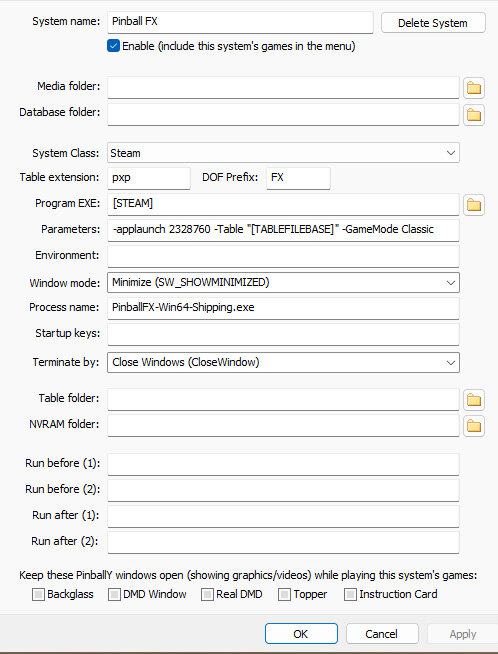
-


Version 1.0.0a
68 downloads
Pinball FX Gold Wheels for Camp Bloodbrook and System Shock - Used the template from @hawkeyez88 and modified them for the FX versions of Camp Bloodbrook (Table_191) and System Shock (Table_183). These PG version tables have since been made scarier for Pinball M. -
untilWelcome to The Bob & Fae Show, Bob here and we have news for you - The International Pinball Show Tournaments (TIPS FX) TIPS FX Tournament Information (this has the most update information on the Tournaments). Our website that keeps track of: tables, scores and more: https://tipspinball.com/ The International Pinball Shows tournaments is hosted by The B0b & Fae Show (https://twitch.tv/luc1f3rb0b) -USA, Helder (https://twitch.tv/HelderScr0ll) - Basque Region, spain, OttoBus (https://www.twitch.tv/otto_pinball) - France, and NemoExSirius (https://twitch.tv/NemoExSirius) Tasmania, Australia. ATTN SCORES: Only top 100 Scores can be counted in any given tournament, pubic or private, OPEN or LIVE. This is a limitation of Zen FX, we do apologize. Those players will not receive any points, so bring your best game always! NOTE: We are working towards a TIPS Rankings which will combine all Official TIPS FX Tournaments into a single 'leaderboard' (TBA). This will give us an IFPA style points system accounting for a slew of variables to produce rankings based player skill. (TBA) Bob [TIPS]: TIPS FX Tournaments: Open verse Live We hold Official TIPS Tournaments on the regular. We hold Open (ie, no password) Tournaments on various platforms and a Live tournament hosted on Twitch, with a password (i.e. private). Bonus Tournament are held on occasion, all use their own leaderboard and rankings given from Zen FX leaderboards. All TIPS Tournaments are posted on the website and in the discord. FX Open Tournament We hold 1 Open Tournament Table every Monday to Monday aprox. 4pm EDT to 4pm EDT. (sometimes its a little earlier or later, we try to keep it on time) These are hosted by Luciferbob.com and Fae. The FX OPEN Tournament is its own tournament, with different tables from the FX Live Monthly Tournament. If you are a winner please contact Lucifer Bob on this discord. See Rules for more details. TIPS FX Bonus Tournaments ANY Bonus TIPS FX tournaments will be announced and then listed on the website and often have prizes associated to them. Once we have a TIPS Ranking system in place these will also be weighted and included in these global long term rankings. See Rules for more details. Bob [TIPS]: TIMES & DAYS for TIPS Live FX Tournament (Private - ie, password) The LIVE Tournaments are held weekly. Winner determined weekly. See Rules. We pick two tables that are available to play LIVE 5x a week with currently 5 different hosts from around the world. Whenever you play in a host tournament your BEST Score is Retained. Play with as many hosts as you like to increase your chances at your best game. Days, Times, & Hosts Monday-- HelderScr0ll (Basque Country, Spain): 9pm-11pm CEST or 3pm-5pm EDT (same 2 Tables, 1 hr each) Tuesday-- USA (Bob & Fae): 7pm-9pm EDT or 12am-2am CEST (same 2 Tables, 1 hr each) Wednesday -- Day off- enjoy our weekly OPEN Thursday -- OttoBus of Otto_Pinball (France): 9pm-11pm CEST or 3pm-5pm EDT (same 2 Tables, 1 hr each) Friday -- NemoExSirius (Tasmania, Australia): 2:30pm-4:30pm AEST or Saturday 12:30am-2:30am (same 2 Table, 1 hr each) Watch the Streams for the Latest Tournament Rule Changes & Updates, where they are announced 1st. (edited) Bob [TIPS]: RULES For the Weekly LIVE prized TIPS Tournament you must participat in 1 of the 2 tables that week. Your participation is your entry into the tournament. The two live tables are each scored and then given a combined score, see below for methodology. Each Week we give out $25 in a weighted raffle, we might need your paypal or a way to give your winnings. On special occasions verification maybe required to get your prize (a new and unknown player, example). Good Luck & Have Fun TIPS TEAM (https://tipspinball.com/) TIPS Points/Scoring Method New format with new Scoring method. Score also equals your weighted raffle tickets for the weekly drawing done each 1st Monday of the Tournament after the weeks 2 tables end. Tournament scoring and raffle formula: number of people in tournament - position + 1 = score (score1 (2)) + (score2 (2)) = scoreT scoreT/2 = final tournament score & tickets for raffle example table 1 had 31 total people in tournament and the player is in position 5th. (31-5)+1 = 26 points example table 2 had 11 total people in the tournament and the player is in position 2. (11-2)+1= 10 then we take both tournaments scores and multiple each by 2. example 262= 52 and 10*20 = 20. These new scores are added together and divided by 2. Example 52+20= 72. We now divide by 2 to get the final tournament score for both table. Example 72/2 = 36 I multiply by 2 in order to remove odd number from the division. TIPS Rankings: "global TIPS FX leaderboard" Our plan is that all Official TIPS Tournaments for FX will have a single continual ranking leaderboard. This will enable us to create special divisional tournaments in the future, as well as track the skill level and rank of each player who participates in the TIPS FX Tournaments. We are working to devise a ranking system based on tournament participants skill. We are looking into Match Play* to give IFPA style points mythology to our own system. Until the we are first moving to a weekly tournament structure. Two tables hosted LIVE. Our TIPS open tables are separate and not prized, although we reserve the right to give out random prizes for TIPS participation. Prizes Prizes are drawn via weighted-random drawings which are then publicly posted with URLs on the discord, drawn live via twitch. Each Monday on HelderScr0ll's Stream Bob announce the winner of the Weekly Tournament and draws the weekly $25 Raffle based on the final score of the two tables, see scoring above. Winning a Raffle/Claiming Prize IF You win a raffle you have 28 days to claim the giveaway after it is drawn LIVE on Twitch. Raffles are held on the Monday after the Tournament week ends. While we attempt to contact all players. Winners do need to contact Lucifer Bob. You can reach us via DM or on this discord. or contact us here:https://discord.gg/yVxMYWqHJh Host are not included into the raffle Mods are eligible for prizes like any other player. Special Note on Saves, bugs, and exploits: We implore you to start with your best foot forward and to not try and do anything you'd consider unethical. If you discover a way to gain an unfair non-skill related advantage please let us all know so we can address the issues as fairly as possible for all players involved. Death Saves are legal and currently allow in FX Tournaments, and so we allow them. This is not standard IFPA we know. If a table is found to have an bug or exploit we will remove it until such time as that table can be fixed. You are encouraged to report any bugs to Zen Pinball, this allows both to review and for us to remove the tables, if needed, from tournament play. When possible, please video record all said bugs and present a copy to one of the hosts or moderators for review. Rules may be amended up until the 1st day of tournament or by executive decision in extreme cases as needed YOU SENT AN INVITE TO JOIN A SERVER The Bob & Fae Show rules

.thumb.png.3df8f0805ef31e55cc324efeae07483a.png)
