
Tarcisio Style Wheels
Tarcisio Style Wheel Images
5518 files
-
.thumb.jpg.08b7f05e68f4be64182ae8e5ff95a5cb.jpg)
Rocky (Gottlieb 1982) Diagonal Wheel
By Harley-Boy
Rocky (Gottlieb 1982) Diagonal Wheel 🙃
Based on the playfield
16 downloads
(0 reviews)0 comments
Submitted
-
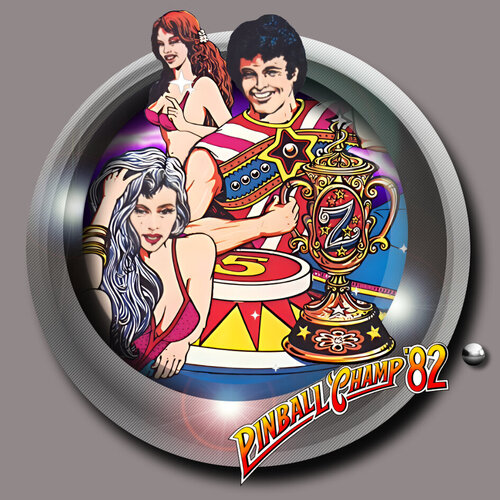 (0 reviews)
0 comments
Submitted
-

Thunderbirds - Diagonale Style Wheel
By vortex73
Thunderbirds with Diagonale Style Wheel from this Template : https://vpuniverse.com/files/file/16580-best-of-300-wheels-collection- diagonale/?do=download&r=180902&confirm=1&t=1&csrfKey=3d8cdf32030d32f8d481cfcc792e67f0
23 downloads
(1 review)0 comments
Submitted
-

Robocop (Data East 1989) - Diagonale Style Wheel
By vortex73
Robocop with Diagonale Style Wheel from this Template : https://vpuniverse.com/files/file/16580-best-of-300-wheels-collection- diagonale/?do=download&r=180902&confirm=1&t=1&csrfKey=3d8cdf32030d32f8d481cfcc792e67f0
37 downloads
(2 reviews)0 comments
Submitted
-

Dungeons & Dragons - Diagonale Style Wheel
By vortex73
Dungeons and Drangons with Diagonale Style Wheel from this Template : https://vpuniverse.com/files/file/16580-best-of-300-wheels-collection- diagonale/?do=download&r=180902&confirm=1&t=1&csrfKey=3d8cdf32030d32f8d481cfcc792e67f0
32 downloads
(2 reviews)0 comments
Updated
-
.thumb.jpg.ea3141767b1fbae73e2f403bf8cc0752.jpg)
Big Trouble in Little China (original) Diagonal Wheel
By Harley-Boy
Big Trouble in Little China (original) Diagonal Wheel 🙃
Images taken from Vpxpinballwizards 🤩
80 downloads
(2 reviews)0 comments
Updated
-

Three Angels - Diagonale Style Wheel
By vortex73
Three Angels with Diagonale Style Wheel from this Template : https://vpuniverse.com/files/file/16580-best-of-300-wheels-collection- diagonale/?do=download&r=180902&confirm=1&t=1&csrfKey=3d8cdf32030d32f8d481cfcc792e67f0
25 downloads
(1 review)0 comments
Submitted
-

JOHN RAMBO Diagonal Wheel
By Harley-Boy
JOHN RAMBO Diagonal Wheel 🙃
Images taken from marty02 🤩
18 downloads
(2 reviews)0 comments
Submitted
-

Mystical Ninja starring Goemon - Diagonale Style Wheel
By vortex73
Mystical Ninja starring Goemon with Diagonale Style Wheel from this Template : https://vpuniverse.com/files/file/16580-best-of-300-wheels-collection- diagonale/?do=download&r=180902&confirm=1&t=1&csrfKey=3d8cdf32030d32f8d481cfcc792e67f0
21 downloads
(1 review)0 comments
Submitted
-
.thumb.jpg.2abec9cf73e96059a965e13ddce3e860.jpg)
Juke Box (Chicago Coin 1976) Diagonal Wheel
By Harley-Boy
Juke Box (Chicago Coin 1976) Diagonal Wheel 🙃
It’s certainly not my finest creation
but everything is taken from of a photo genuine, damaged backglass
logo included 🤪
18 downloads
(0 reviews)0 comments
Updated
-

Captain Spaulding's Museum Of Monsters and Madmen - Diagonale Style Wheel
By vortex73
Captain Spaulding's Museum Of Monsters and Madmen with Diagonale Style Wheel from this Template : https://vpuniverse.com/files/file/16580-best-of-300-wheels-collection- diagonale/?do=download&r=180902&confirm=1&t=1&csrfKey=3d8cdf32030d32f8d481cfcc792e67f0
31 downloads
(2 reviews)0 comments
Submitted
-
.thumb.jpg.063ed4a20bfeafc78ad0f6483aa5b482.jpg)
Valencia (Williams 1975) Diagonal Wheel
By Harley-Boy
Valencia (Williams 1975) Diagonal Wheel 🙃
Images taken from a photo of the Toledo backglass
which is practically the same as Valencia 🤪
34 downloads
(0 reviews)0 comments
Submitted
-
.thumb.jpg.eeb362fda912e7b6d1bc91c0d37f98fa.jpg)
Cinema (Chicago Coin 1976) Diagonal Wheel
By Harley-Boy
Cinema (Chicago Coin 1976) Diagonal Wheel 🙃
This one almost ended up in the trash...
I unified the color so that everything would match up better 🤪
29 downloads
-

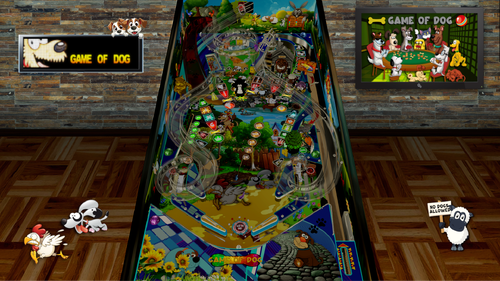
Game Of Dog Diagonal Wheel
By Harley-Boy
Game Of Dog Diagonal Wheel 🙃
All images are from captures by RusstyT 🙂
79 downloads
(0 reviews)0 comments
Updated
-

The Beach Boys - Diagonale Style Wheel
By vortex73
The Beach Boys with Diagonale Style Wheel from this Template : https://vpuniverse.com/files/file/16580-best-of-300-wheels-collection- diagonale/?do=download&r=180902&confirm=1&t=1&csrfKey=3d8cdf32030d32f8d481cfcc792e67f0
58 downloads
(2 reviews)0 comments
Submitted
-

Michael Jackson - Diagonale Style Wheel
By vortex73
Michael Jackson with Diagonale Style Wheel from this Template : https://vpuniverse.com/files/file/16580-best-of-300-wheels-collection- diagonale/?do=download&r=180902&confirm=1&t=1&csrfKey=3d8cdf32030d32f8d481cfcc792e67f0
46 downloads
(1 review)0 comments
Submitted
-

Trick'r Treat - Diagonale Style Wheel
By vortex73
Trick'r Treat with Diagonale Style Wheel from this Template : https://vpuniverse.com/files/file/16580-best-of-300-wheels-collection- diagonale/?do=download&r=180902&confirm=1&t=1&csrfKey=3d8cdf32030d32f8d481cfcc792e67f0
26 downloads
(2 reviews)0 comments
Submitted
-

Superman and The Justice League Wheel V2
By Harley-Boy
Superman and The Justice League Wheel V2
===========================================
Superman and The Justice League Wheel V2
Harley-Boy 🤪
163 downloads
(1 review)0 comments
Updated
-
.thumb.png.90346a68adb6ee6e58d5d88369750ba8.png)
Hollywood (Chicago Coin 1976).png
By RepairDan57
A quick logo fro Pinball Y type front end media
25 downloads
-
.thumb.png.d8a09eb60093171064e33a6c7495968b.png) (1 review)
(1 review)0 comments
Submitted
-
.thumb.jpg.065e2b98c8172135248f670d62b875aa.jpg)
Amazing Spiderman (Gottlieb 1980) Diagonal Wheel
By Harley-Boy
Amazing Spiderman (Gottlieb 1980) Diagonal Wheel 🙃
26 downloads
(0 reviews)0 comments
Submitted
-

Superman and The Justice League Diagonal Wheel
By Harley-Boy
Superman and The Justice League Diagonal Wheel 🙃
V3 with Superman logo
17 downloads
(0 reviews)0 comments
Submitted
-

Spider-Man Classic Diagonal Wheel
By Harley-Boy
Spider-Man Classic Diagonal Wheel 🙃
I already created this Diagonal Wheel, but I can't find it anymore
so here it is again, in an improved version.
11 downloads
(0 reviews)0 comments
Submitted
-
.thumb.png.ba1139a3d514e38ecbab9a92a6dc04d7.png)
Valencia (Williams1975)
Valencia (Williams1975) - Wheels to accompany JP´s & Halen´s latest recreation!
Cheers,
FD.
90 downloads
(0 reviews)0 comments
Submitted
-
 (0 reviews)
0 comments
Submitted
-
VPU Staff's Top Picks
-
New & Updated Visual Pinball
-
New & Updated Future Pinball
-
New & Updated Backglasses
-
New & Updated DMD Colorizations
-
New & Updated Virtual Reality Enabled Tables
-
VPU Remix & Mods
-
New & Updated Popper Media
-
Updated Files
-
Download Statistics
31060
Files109152
Comments45506
Reviews

.thumb.png.7ba565be6e6de21664996c30ff261a55.png)
.thumb.png.1f1587894de4031af1711c9cab12fb62.png)
.thumb.png.4fed455e6fe435e6d0ed576430ccaefe.png)
Screenshot.thumb.png.9077adc9434e976d9fe5b91e85062ba5.png)

AltB2SwithFullDMDss.thumb.png.2c40717e6bdbbccab69ec7a207568de9.png)
.thumb.png.85033277c8e20968a765361789c8a6be.png)
.thumb.png.480ccd27eee863a689bbd5773712b451.png)
.thumb.png.ea3fee98572c2872208e177931efd7b5.png)
.thumb.png.5a990e5c323fd6164aa9885ea6b06665.png)




.thumb.png.f450a9ccd2cbf450b5b3aaf7663b19bd.png)


Illuminated.thumb.png.14480180d30f65f5cfe74edf577300de.png)










.thumb.jpg.c30c90acd2ee5e74325fc265b9aaebb7.jpg)
fullDMD.thumb.png.d5b7f53f18164ff93bcf624ccf220fe0.png)
.thumb.png.ffd24cbf13a91dbc73610e5f79b4962d.png)




.thumb.jpg.48f7733c145a20bd79f95b037dcd15f5.jpg)
.thumb.png.4679c393a3f950ee4811f1f31c7cb59f.png)

2.thumb.png.9e8176cca3ff20e63d76cad155868a6f.png)


-frameat0m7s.thumb.jpg.6584a6a54212f4b594b76646524aa668.jpg)
1.0.1-frameat0m4s.thumb.jpg.1990291e411712686745bee8d79de306.jpg)


.thumb.jpg.f72fb589a7149db9f2e135c8091deb76.jpg)

FullDMD.thumb.jpg.d4aded63d54a8631a6a35c8a9a3e8d0c.jpg)
.thumb.png.14ad7a006a34cc94e81bc9569946cace.png)




1.thumb.png.af8ba175dc22df0d6be122a668a5a749.png)

1.0.0.thumb.png.74731c60a10f932288b30278f2b4e639.png)
ComfyUI.thumb.jpg.ec11a7bd7e54eca7bc77f3182057b969.jpg)
.thumb.jpg.8308735f4b0478336ffafc3db9325e9d.jpg)





_4k.thumb.jpg.6cf79e30e37584aa9495f6e1081d0f9d.jpg)
_4k.thumb.jpg.d6c3d9c6674a209ca5caa3972222b417.jpg)
-1.2_4k_4k.thumb.jpg.083b3aff5db673de92d0d1642359c230.jpg)

(2).thumb.png.c424668e5a5b53c0ec46a52d3853a4b1.png)
(1).thumb.png.69f356ad982093321d60471e04bd8ddb.png)

.thumb.png.5436f34b31da395c472f89defbbf23f3.png)