




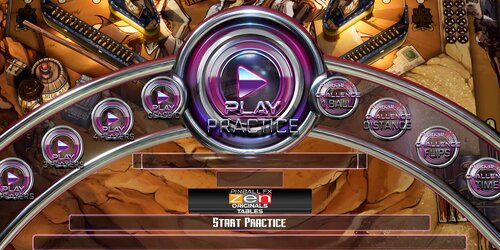
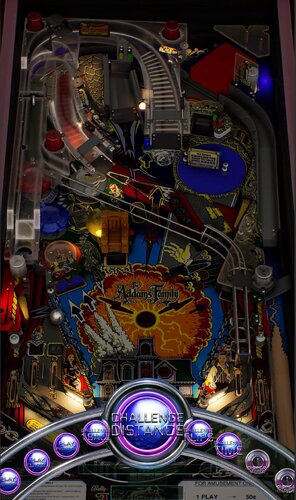
About This File
WHAT'S NEW
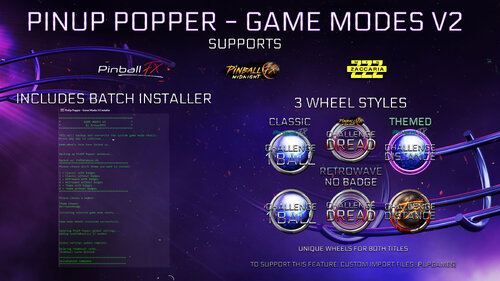
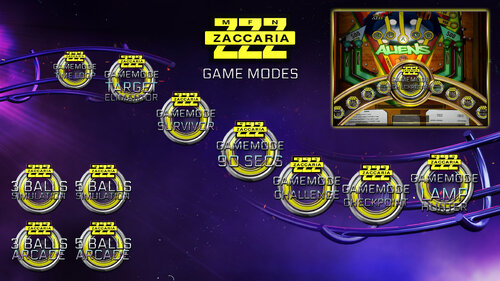
Game Modes V2 adds full support for:
- Pinball FX
- Pinball FX Midnight (Formerly known as Pinball M)
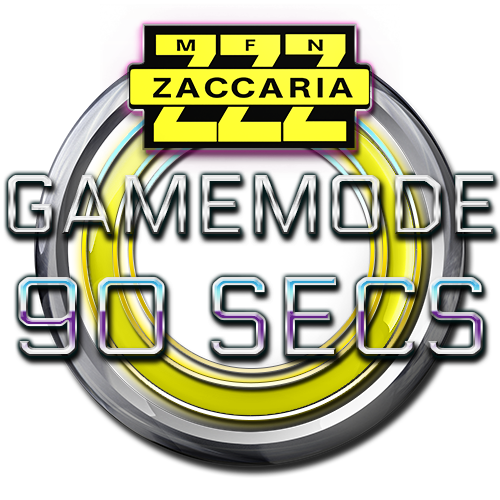
- Zaccaria Pinball
This update includes launch scripts, custom game mode wheels, and an installer to help set up the required wheel media for PinUp Popper.
Three wheel theme styles are included:
- Classic
- Retrowave
-
Themed
- Neon style for Pinball FX
- Horror style for Pinball FX Midnight
Each theme includes:
- With badge version
-
No badge version
You can now launch supported game modes directly from PinUp Popper using alternate run modes and custom wheels.
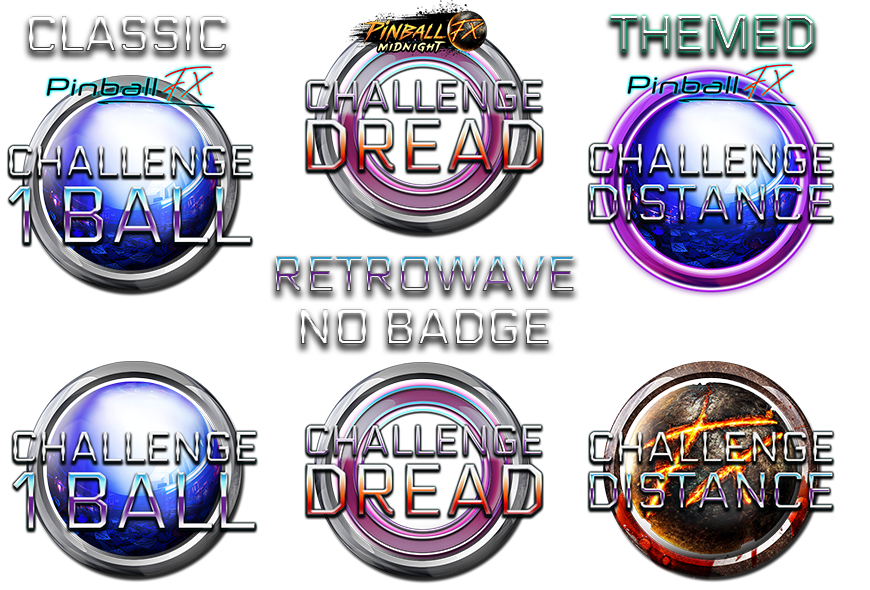
So now you can launch all game modes for both FX and FX Midnight from the Pinup-Popper!
ABOUT THESE FILES
This package allows you to launch Pinball FX and Pinball FX Midnight game modes directly from the PinUp Popper front-end using custom wheels and launch parameters.
Custom launch scripts are included for both titles, allowing each table to boot directly into the selected game mode from within PinUp Popper.
Supported Game Modes
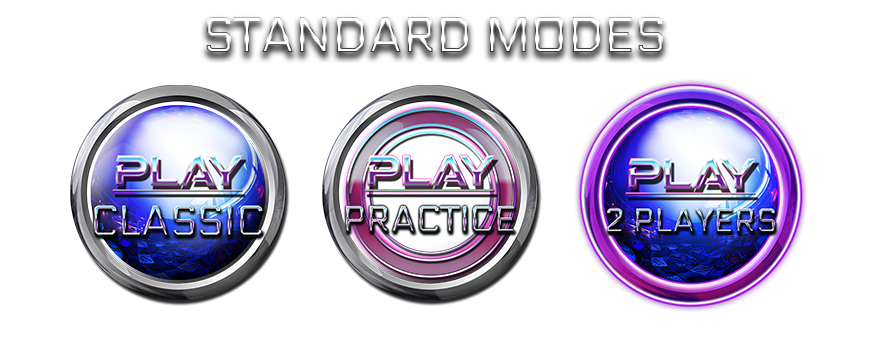
Standard Modes
- Classic (Default)
- Practice
- Hotseat 2 Player
- Hotseat 3 Player
-
Hotseat 4 Player
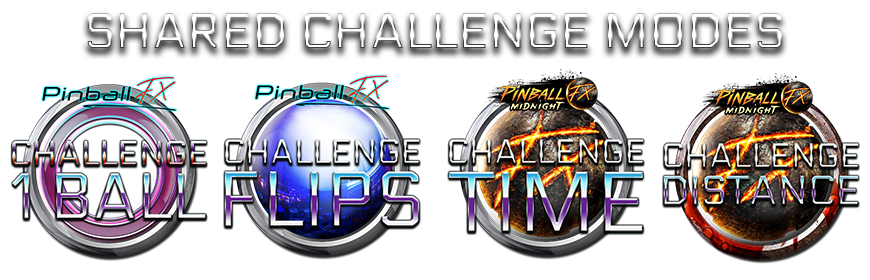
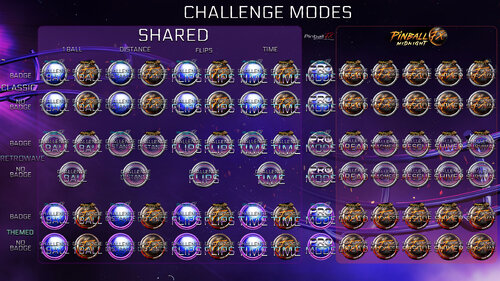
Shared Challenge Modes (Both titles)
- 1 Ball Challenge
- Distance Challenge
- Flips Challenge
- Time Challenge
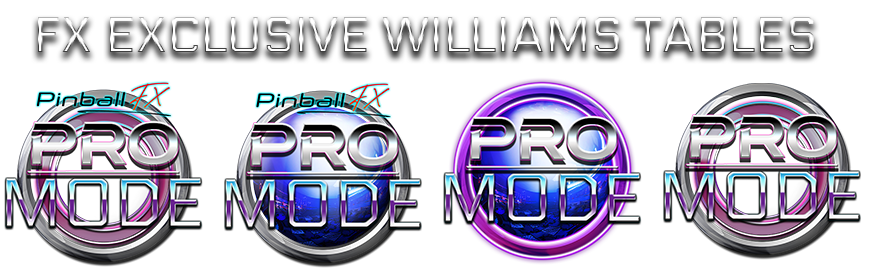
FX Exclusive Modes
-
Pro
- Bally/Williams Tables Only
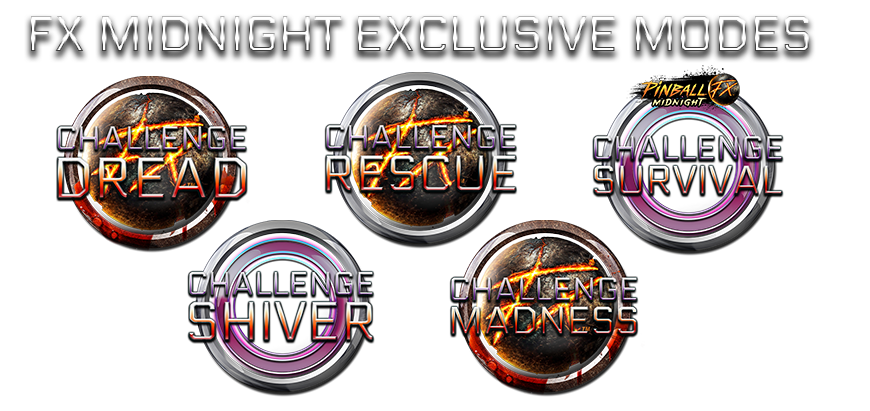
Pinball FX Midnight Exclusive Modes
- Challenge Dread
- Challenge Survival
- Challenge Rescue
- Challenge Madness
- Challenge Shiver

INSTALLATION - SIMPLE SETUP
1. Copy the entire GameModesV2 folder into your PinUPSystem folder. So, you have the folder GameModesV2.
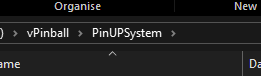
2. Open the GameModesV2 folder.
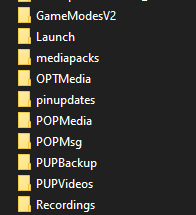
3. Copy InstallGameModesV2.bat into your main PinUPSystem folder.
4. Run InstallGameModesV2.bat from inside PinUPSystem.
5. Follow the on-screen instructions.
The installer will:
• Check that it is being run from the correct location
• Back up existing game mode wheels
• Back up PuPDatabase.db
• Ask which wheel theme you want to install
• Copy the selected wheels into the correct Popper media folder
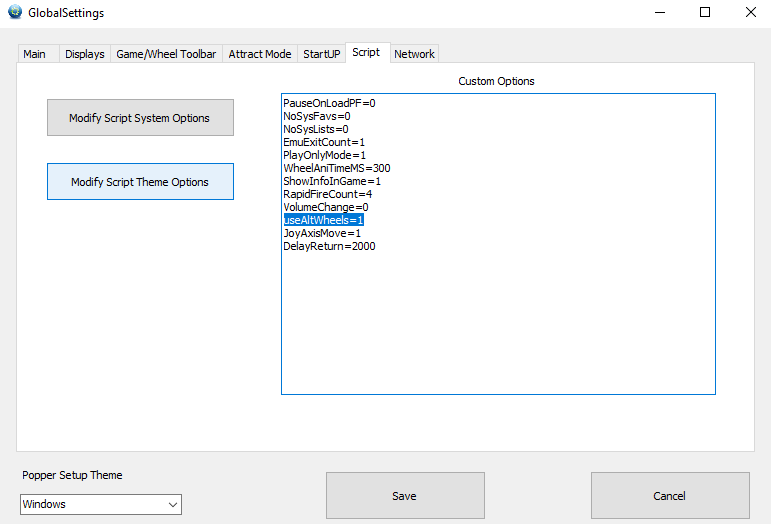
• Enable useAltWheels=1 if needed
• Delete thumbnail cache
• Open the Readme guide for the remaining setup steps
Advanced

1 - Install Wheel Media
Step 1
Download and extract the package.
Step 2
Open the folder:
Wheels
Step 3
Choose your preferred wheel theme:
- Classic
- Retrowave
- Themed
Then select:
- With Badge
- Without Badge
IMPORTANT:
Only install ONE wheel theme at a time.
Step 4
Copy all files to:
C:\vPinball\PinUPSystem\POPMedia\Default\System
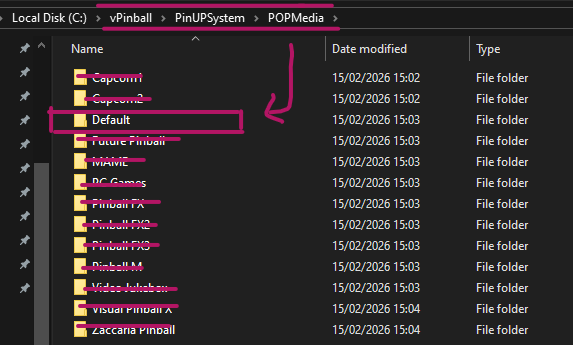
Step 5
Replace files when prompted.
Step 6
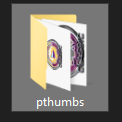
Delete:
C:\vPinball\PinUPSystem\POPMedia\Default\System\pthumbs
This forces PinUp Popper to regenerate thumbnails.
2 - IMPORT UPDATED TABLE FILES
Included in the download are updated .pupgames files. (currently on April 2026 for FX and Feb 2026 for FX Midnight)
These contain:
- Updated table data
- Alternate Run Modes
- Game Mode support for compatible tables
Step 1
Place these files anywhere convenient:
• Export_Pinball_FX_DATE.pupgames
• Export_Pinball_FX_Midnight_DATE.pupgames
Import Pinball FX Tables
Step 2
Open:
PinUp Popper Setup
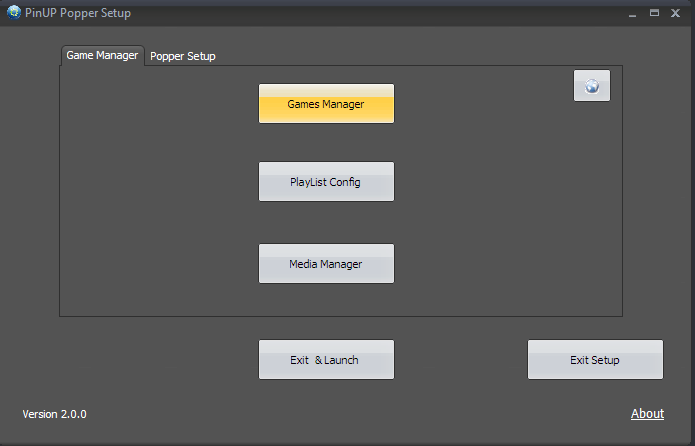
Step 3
Click:
Games Manager
Step 4
Select:
Pinball FX
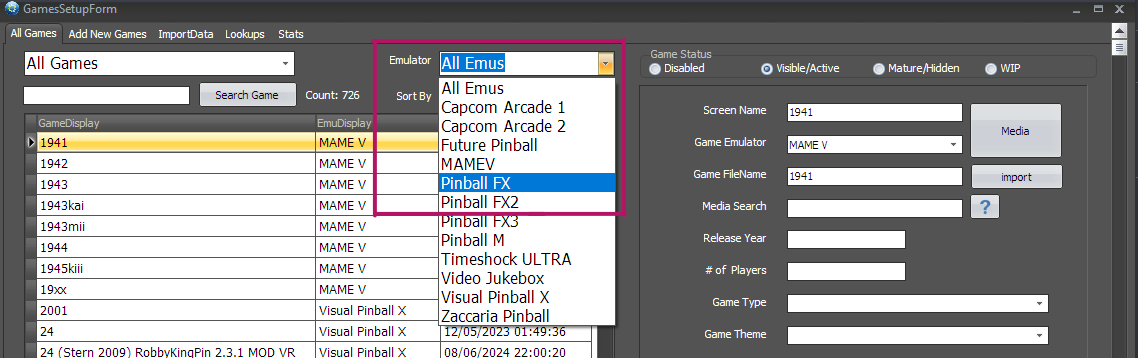
Located top-right under Emulators.
Step 5
Right-click any table in the left panel.
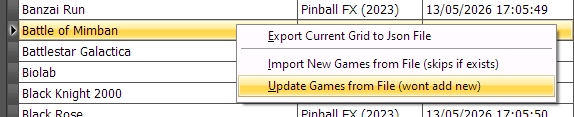
Step 6
Choose:
Update Games from File (won't add new)
Step 7
Select:
Export_Pinball_FX_DATE.pupgames
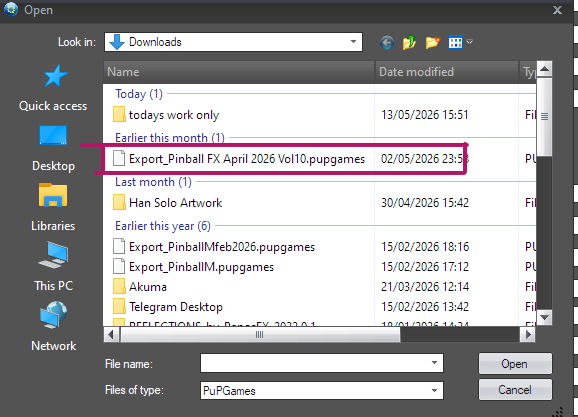
Step 8
When prompted:
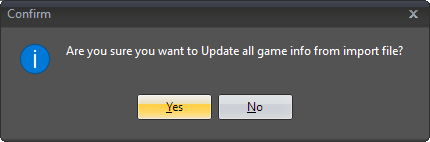
"Are you sure you want to Update all game info from import file?"
Click:
Yes
Step 9
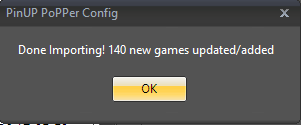
Click OK.
3 - Import Pinball FX Midnight Tables
Repeat the same process for FX Midnight like above
NOTE:
If your emulator still shows as "Pinball M"
you do not need to rename it.
The launcher still works correctly.
Select:
Export_Pinball_FX_Midnight_DATE.pupgames
4 - Enable Alternate Wheels
Step 1
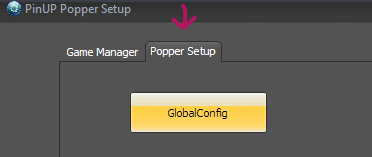
Select Popper Setup and click GlobalConfig:
Step 2
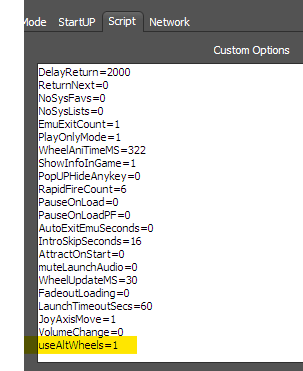
Open the tab:
Script

Step 3
Add the following line:
useAltWheels=1
IMPORTANT:
This is case sensitive.
Step 4
Click Save.

5 - Pinball FX Launch Script
Step 1
Open:
Popper Setup > Emulators
Step 2
Select:
Pinball FX
Step 3
Open the tab:
Launch Setup
Step 4
Paste the provided script into:
• Launch Script
• Close Script
6 - Pinball FX Midnight Launch Script
Step 1
Select:
Pinball FX Midnight
(or Pinball M if still using the older emulator name)
Step 2
Paste the provided script into:
• Launch Script
• Close Script
IMPORTANT:
The executable name changed from:
Pinball M.exe
to:
Pinball FX Midnight.exe
BELOW IS OLD - will be Deleted after I finish the Install steps
Step 3: Delete pthumbs (Thumbnails) from PinUP\POPMedia\Default\System folder
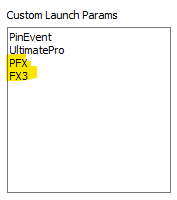
Step 4: Add PFX and FX3 to Games Setup form in the lookups tab
Step 5: For tables that support both physic models, add your desired physics to Custom launch param.
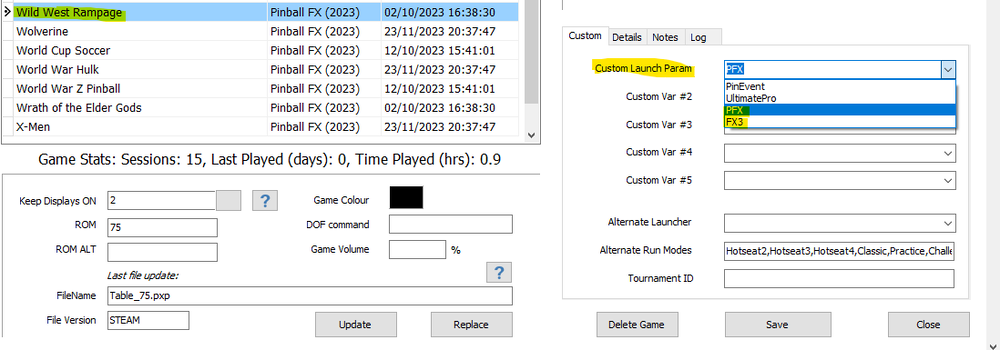
Note at this time only these tables support the alternative physics.
Free Tables and the recently released as of Dec 2023
Wild West Rampage - FREE
Sorcerer's Lair - FREE
Fish Tales - FREE (PRO MODE)
Star Trek Pinball: Kelvin Timeline
Star Trek Pinball: Discovery
Star Trek Pinball: Deep Space Nine
Terraforming Mars Pinball
Exploding Kittens: A Pinball Cat-astrophe
Gloomhaven Pinball
A Charlie Brown Christmas Pinball
Excalibur
Epic Quest
Step 6: Adding the Alternate Run Modes (PRO for Williams Tables)
Williams Tables use "Pro,Hotseat2,Hotseat3,Hotseat4,Classic,Practice,Challenge_1Ball,Challenge_Distance,Challenge_Flips,Challenge_Time
All other tables use "Hotseat2,Hotseat3,Hotseat4,Classic,Practice,Challenge_1Ball,Challenge_Distance,Challenge_Flips,Challenge_Time"
Step 7: Pinup Popper Setup > Emulators > PinballFX
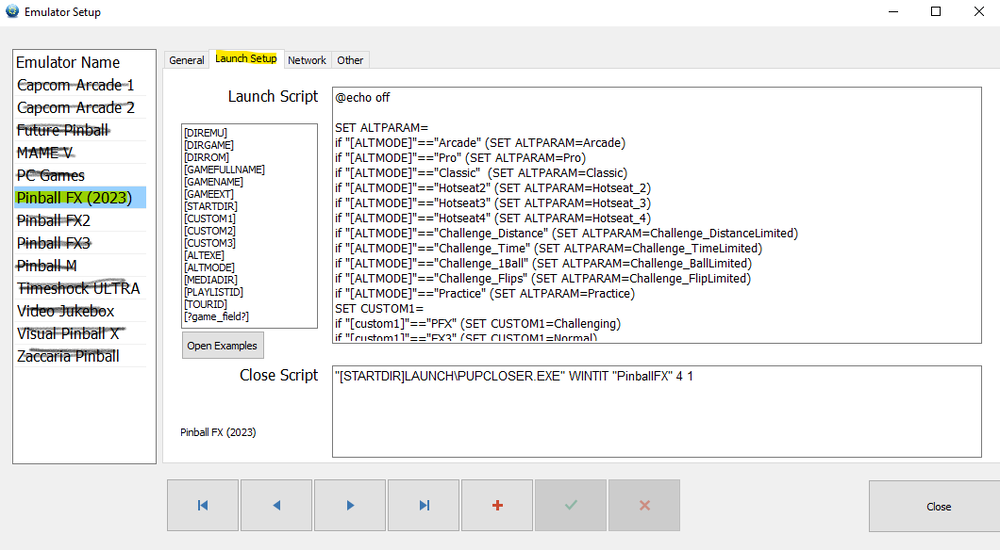
FX PINUP Popper Launch Script:
@echo off
SET ALTPARAM=
if "[ALTMODE]"=="Arcade" (SET ALTPARAM=Arcade)
if "[ALTMODE]"=="Pro" (SET ALTPARAM=Pro)
if "[ALTMODE]"=="Classic" (SET ALTPARAM=Classic)
if "[ALTMODE]"=="Hotseat2" (SET ALTPARAM=Hotseat_2)
if "[ALTMODE]"=="Hotseat3" (SET ALTPARAM=Hotseat_3)
if "[ALTMODE]"=="Hotseat4" (SET ALTPARAM=Hotseat_4)
if "[ALTMODE]"=="Challenge_Distance" (SET ALTPARAM=Challenge_DistanceLimited)
if "[ALTMODE]"=="Challenge_Time" (SET ALTPARAM=Challenge_TimeLimited)
if "[ALTMODE]"=="Challenge_1Ball" (SET ALTPARAM=Challenge_BallLimited)
if "[ALTMODE]"=="Challenge_Flips" (SET ALTPARAM=Challenge_FlipLimited)
if "[ALTMODE]"=="Practice" (SET ALTPARAM=Practice)
SET CUSTOM1=
if "[custom1]"=="PFX" (SET CUSTOM1=Challenging)
if "[custom1]"=="FX3" (SET CUSTOM1=Normal)
START "" "[STARTDIR]Launch\VPXSTARTER.exe" 5 5 20 "PinballFX"
cd /d "[DIREMU]"
START "" "steam.exe" -applaunch 2328760 -Table [?ROM?] -GameMode %ALTPARAM% -Physics %CUSTOM1%

Physics
- Normal Mode (All Tables)
-
Challenging (Tables listed below)
- Fish Tales
- Wild West Rampage
- Sorcerer's Lair
-
Star Trek Pinball: Kelvin Timeline
-
Star Trek Pinball: Discovery
-
Star Trek Pinball: Deep Space Nine
-
Terraforming Mars Pinball
-
Exploding Kittens: A Pinball Cat-astrophe
-
Gloomhaven Pinball
-
A Charlie Brown Christmas Pinball
-
Excalibur
-
Epic Quest
Edited by brewedVFX
Major Update for Zacaria Pinball
 With version 2.0.0:
User Feedback
Create an account or sign in to leave a review
You need to be a member in order to leave a review
Create an account
Sign up for a new account in our community. It's easy!
Register a new accountSign in
Already have an account? Sign in here.
Sign In Now