-
SYSTEM SEARCH
System Scanners Online:
Username: Guest
>> System Scan?
>> The Universe >
Incoming Message:
Due to system limitations searching with words of 3 or less characters will not return results. For instance; Doctor Who. This will not return results as the system is trying to search for both Doctor AND Who in which Who will not be found as it's a 3 character word. To find Doctor Who; you'd search for either Doctor or "Doctor Who".
Search Tips:
For specific searches; enclose your search with quotes. Example: "Doctor Who" or "Addams Family".
Search the Community
Showing results for tags 'cromc'.
Found 1 result
-
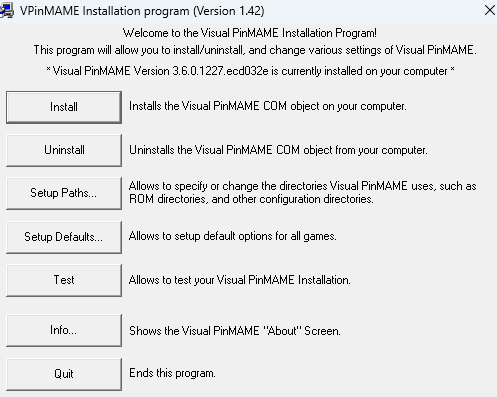
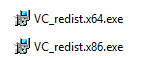
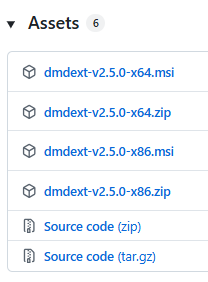
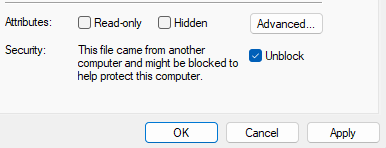
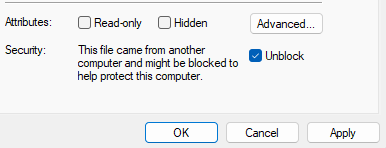
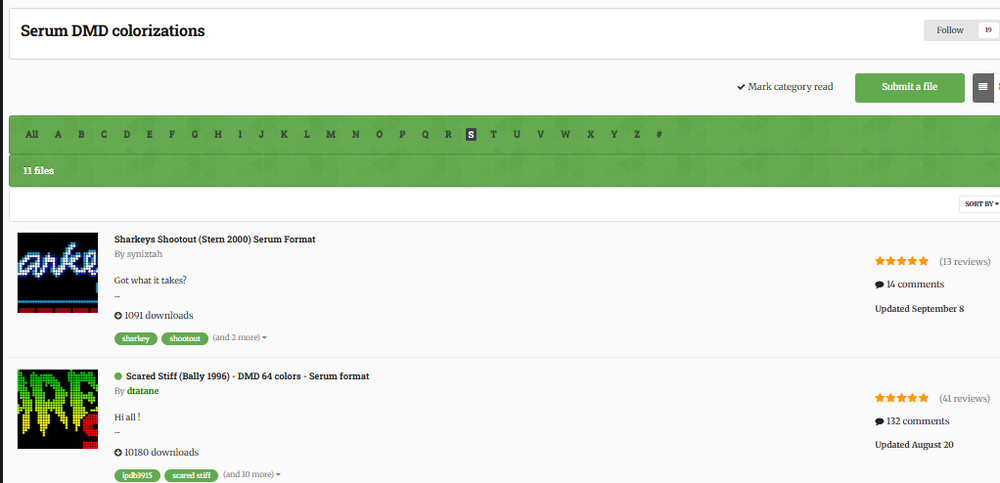
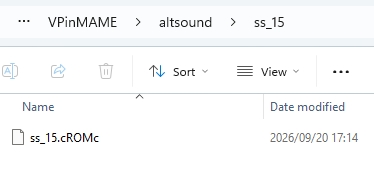
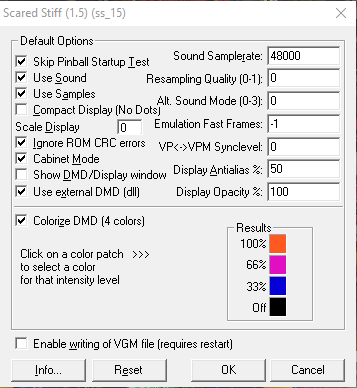
Thanks to zedrummer for this great mod. I share here my "simplified" version of zedrummer's current procedure. This may be helpful to NOOBs (like myself) to get this great enhancement to work. Always refer back to his procedure for any of the latest updates. Date: 20/Sept/2026 Revision: 1 Revison 1 inputs: PastorLUL Revised clauses: 1, 2c, 5.4a, 6.1.2, 6.2b, 6.2d Installation procedure of SERUM color DMD for NOOBS 1) Objective: The Purpose of this procedure is to explain how to install SERUM to activate the color *.cROMc DMD files. 2) Scope: This procedure applies to: a) VPX only b) Both 32bit and 64bit versions c) *.cROMc DMD only Cautionary note: Visual Pinball installs both 32bit (x86) and 64bit VPX.exe by default. Those files have confusing version labels, thus most users do not actually know which VPX version they are running when a table starts up (especially when starting through Pinup Popper). For that reason it is recommended that you perform this SERUM installation for both 32bit and 64bit. If you do not do this, you can have a situation when SERUM runs for one table while it wont run for another table. 3) Assumptions: a) Your Installation directory of VPX is : "C:\Visual Pinball\VPinMAME" (if yours is different then modify the installation paths mentioned in this procedure, accordingly). b) You are running windows OS 4) Verify VpinMame version: You require VPinMAME 3.6.0+ already installed and working. To verify this go to C:\Visual Pinball\VPinMAME. Find the “Setup.exe” and run it to check the version. You will see screen as below example. Here you can see that the Visual PinMame Version is 3.6.0.1227. Now do the same for for “Setup64.exe”. If your version is less than 3.6.0 then you must update it before proceeding with this procedure. 5. Installation Process of SERUM 5.1 Remove conflicting files Check that the following files are not in in C:\Visual Pinball\VPinMAME directory: pin2color.dll dmdscreen.dll Delete them if they are there! 5.2 Install Visual Basic C++ redistributable 2017 Assume that your system requires it. Download both *.exe files and install them both. Download links: a) https://aka.ms/vs/17/release/vc_redist.x86.exe (for 32 bits) b) https://aka.ms/vs/17/release/vc_redist.x64.exe (for 64 bits) 5.3 Install DMD extensions from freezy a) Minimum 2.3.1+ version is required. b) Download the latest 32bit and also the 64 bit DMD-extensions from freezy from Github https://github.com/freezy/dmd-extensions/releases c) Select "dmdext-vx.x.x-x86.zip and dmdext-vx.x.x-x64.zip". Do NOT select the *.msi as installing them may overwrite your existing VPX dmddevice files. d) These downloaded files will be in compressed format. Before extracting them you SHALL ensure to unblock them because if you don’t, windows will identify the *.dll files as a virus. (https://singularlabs.com/tips/how-to-unblock-a-zip-file-on-windows-10/). e) Create a temporary folder to Extract/Uncompress both zip files into. f) Open those folders and delete the dmddevice.ini file. g) Make a backup copy of "C:\Visual Pinball\VPinMame\files so if anything goes wrong you can paste these files back C:\Visual Pinball\VPinMame\. f) Now open your temporary folder and copy all the files. Open C:\Visual Pinball\VPinMame\ and paste these files. Allow any duplicate files to be overwritten. 5.4 Install SERUM Library a) Download the latest SERUM library for both windows 32bit (x86) and 64 bit from here https://github.com/PPUC/libserum/releases b) These downloaded files will be in compressed format. Before extracting them you SHALL ensure to unblock them because if you don’t, windows will identify the *.dll files as a virus. (https://singularlabs.com/tips/how-to-unblock-a-zip-file-on-windows-10/). e) Extract both files directly into "C:\Visual Pinball\VPinMAME" f) Open "C:\Visual Pinball\VPinMAME" and determine if a folder named "altcolor" exists. If it is not available then manually create it. g) Infrastructure is now ready to run SERUM files. 6. Activating the SERUM color DMD file 6.1 Overview In order to run the SERUM file for a specific table you will require: 1) Subfolder in "Altcolor" named after the table ROM 2) *.cROMc colorised file 3) Activate color option in VPinMAME 6.2 Instalation of the SERUM files a) Download the files from this link https://vpuniverse.com/files/category/173-serum-dmd-colorizations/. We use example of Scared Stiff b) Download the *.cROMc file. The *.cRZ is no longer supported. c) Open "C:\Visual Pinball\VPinMAME\Altcolor" folder and create a sub folder named after the name of the table rom you want to colorize, for example "ss_15" for Scared Stiff. d) Then copy/paste into this folder, the downloaded *.cROMc file. You now should have something like: 6.3 Activation of the color DMD a) Launch the table in VPX. b) Once the table is running press F1 (in game) to activate the VPinMAME interface which should pop up over the table. c) Check the following: 1) "Use External DMD (dll)" 2) “Colorize DMD (4 colors)" 3) click "OK" to save settings: d) Exit completely out of VPX and close VPX. e) Restart VPX and launch the same table. Your DMD should now be colorised.