



.thumb.jpg.f34323ded0867f5d6a8c4bce0be2c027.jpg)
About This File
Baby, it's cold outside! Come on in, warm yourself by the fire and
Let's Put Things On Cabinets That Were Never Meant To Be On Cabinets!
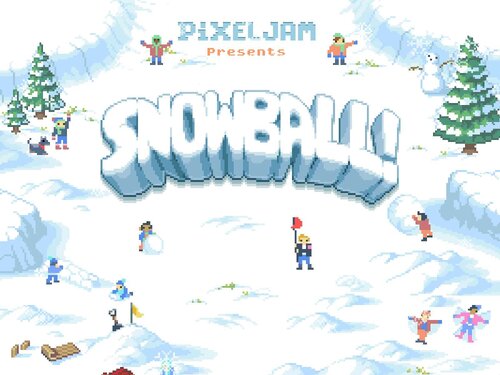
This time, thanks to my stupidity, you get two scripts for the price of one as we tackle Snowball!, a 2016 indie game by PixelJAM.
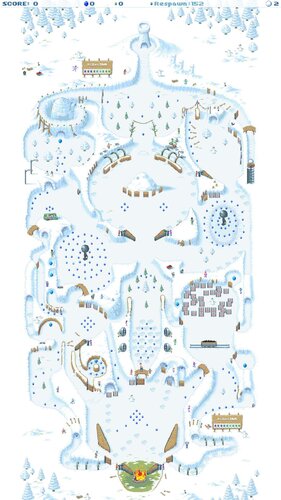
Snowball! is a cute and, honestly, pretty relaxing pinball game full of neat detailed pixel art. You shoot snowballs around a wintery slope, trying to avoid a fire at the bottom. The game is full of clever details: Ocasionally you hit a tree or some other obstacle, and another little snowball will form, creating a spontaneous multiball. Then there's a section of the playfield that suddenly turns your game into a Breakout variant. Two huge electromagnets act as stationary magnasaves that can also slingshot your ball into different directions if you handle them with the right timing. It's really imaginative stuff.
The game can be played in portrait mode, giving you a complete view of the playfield - which makes it ideal for use on a cabinet.
However, on my screen (resolution 1080x1920 when upright), the game would always start flickering like crazy after a few seconds, making it effectively unplayable.
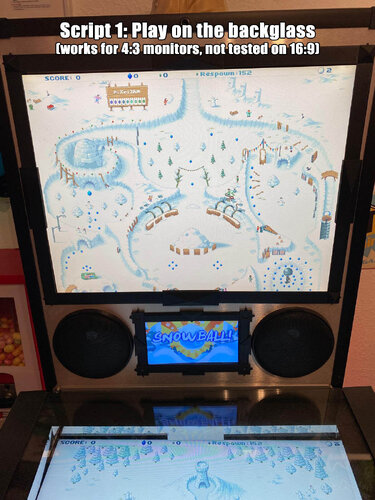
So I decided to write a script to move the game window to the backglass and have it play there, with the game's field of view scrolling up and down. I had the whole script ready and finished, when I suddenly had a thought:
Snowball! was a ten-year-old game. What if my playfield's resolution was simply too high?
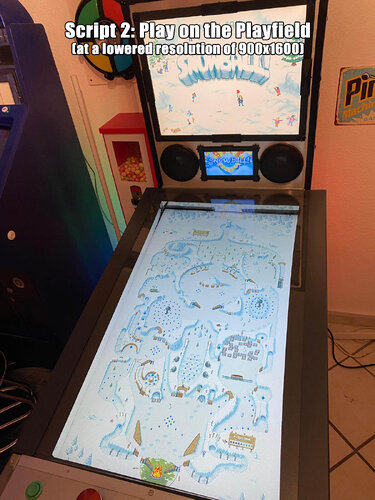
And indeed, once I reduced the resolution to 900x1600 - no more flickering, and the game behaved as it should.
So rather than scrap my first script, I decided to include it here as a bonus. Who knows, maybe on someone else's setup the playfield variation may not work for whatever reason - it's nice to have options.
The second (newer) script
- rotates the playfield to portrait mode
- lowers the resolution to 900x1600
- puts filler images on the backglass and dmd screens
- maps the game's keys and functions to standard cabinet buttons
- restores rotation and original resolution on exit
The original first script
- moves the game window to the backglass
- puts filler images on the playfield and dmd screens
- maps the game's keys and functions to standard cabinet buttons
There's a bunch of media included:
- 2 backglass images (in 4:3 and 16:9 formats)
- a backglass video for your frontend for the "play on the backglass" variation
- a company logo
- 2 DMD images, one for the frontend and a filler image used by the script (taken from the game's press kit on PixelJAM's website)
- 3 instruction cards, depending on how you set up your nudging (more on that further below)
- a promo video from YouTube (the Steam launch trailer for the game)
- table audio (recorded from the game)
- 2 table images (one for the frontend, one for use in the script - they're the same image, but for some reason the two need different rotation directions)
- a frontend table video for the "play on the playfield" variation
- 2 wheel images (one taken from the game title screen, one from the game's press kit on PixelJam's website)
As usual, the scripts need to be adapted to your systems, but no fear - they are extensively annotated. Please take a good long look through them before asking for help in the comments section right away.
I'll gladly try to to help, but please do make an effort first.
Share and enjoy!
SOME MORE NOTES:
Where to get it:
Snowball! is available on Steam. At the time of this posting, you can get it for under 3€. You can run the game's .EXE without Steam, wich is always nice.
Annoying stuff about the game:
Apart from the "needs a low resolution to run" issue, there were two more problems:
Firstly, all the menus can only be navigated by clicking on buttons. There is no "move up/down" or "move left/right" that could be mapped to flipper buttons. Instead, I had to program the keys to position the mouse at a certain spot and click there. Which would be fine if the damn menu buttons were always in the same spot. But no: The button to (re)start a game is in three different locations, depending on whether you're in the start menu, in the pause menu, or on the "Game Over" screen. So when you press "Start", the game now rapidly clicks three different locations each time for it to work in each case. That was fun to figure out.
In the "play on the playfield" version of the script, you probably won't have to change any of these coordinates, since 900x1600 is the fixed resolution.
Should you want to use the "play on the backglass" version, you'll probably have to do a bit of work on the coordinates (unless your backglass has a resolution of 1600x1200 like mine).
Secondly, the game uses the Space bar to activate the magnasave pylons, but if you press Space along with a direction key, you nudge the ball.
No problem, so I simply map the magnasave buttons to perform both functions. Which would be fine if nudging didn't incure a score penalty in the game.
Since I didn't want to punish the player for using the magnasave (which would also count as a nudge, lowering your score), I came up with two alternate solutions:
- My cabinet has extra buttons on the top left and right. I simply mapped the magnets (Space) to these and mapped the nudge function (Space+direction) to my magnasave buttons. But not everyone's cab has extra buttons, so...
- If you have an analog input (like a VirtuaPin controller) that registers as a joystick, you can also use JoyToKey to map the nudge function to [Space+direction], freeing up the magnasave buttons for [Space]. The JoyToKey option can be disabled in the script. The default is set to enabled.
AI use disclaimer:
The "nudge" hand in the instruction card was created with ChatGPT, the rest is all good old-fashioned Photoshop.
I also used ChatGPT to help with some script functions (like reading monitor resolutions automatically without having to hardcode them) that probably would've taken me ages to figure out otherwise.
Special thanks:
iwantpinball for pointing me in the direction of displaying images directly in AutoHotKey instead of using an external tool, as I did in my previous scripts.
Edited by SixOfTwelve
Formatting & typos
 With version 1.0.0:
User Feedback
Create an account or sign in to leave a review
You need to be a member in order to leave a review
Create an account
Sign up for a new account in our community. It's easy!
Register a new accountSign in
Already have an account? Sign in here.
Sign In NowThere are no reviews to display.